

The Amazon Echo Show 5 is the best smart display for most seniors, because its 5.5 inch screen is readable from a kitchen counter or a bedside table, it keeps a physical camera shutter over the lens, and it costs less to buy than almost any large-screen alternative. The Amazon Echo Show 8 is the runner-up when video calls and smart home control matter more than footprint.
Most people searching for the best smart displays for seniors are not shopping for themselves. They are an adult child, a grandchild, or a spouse trying to help an ageing parent stay independent at home, and that changes what matters. A touchscreen nobody can tap, a voice assistant that mishears, or a camera staring out of a bedroom with no way to close it, are all dealbreakers.
A smart display handles the two things that stop older adults using a phone: small tap targets and confusing app menus. You speak one short sentence, the screen shows the answer in large text, and a voice reads it back. That covers video calls with grandchildren, spoken and on-screen medication reminders, seeing who is at the door, and turning lights and thermostats on without walking to a wall switch.
I compared eight displays across screen size, camera hardware, speaker output, accessibility options and what a real owner says after living with it. Six of the eight are voice hubs; two are screens that skip the assistant. Two deserve a note on price, and one is the pick if the person in your family is hard of hearing.
Top 3 Picks: Best Smart Displays for Seniors (October 2026)
These three cover most households. The Show 5 is the safest default, the Show 15 solves readability from a distance, and the Show 8 is the balanced middle.

The Echo Show 5 takes our top slot because it is the model families recommend most often for a bedside or a kitchen counter, and it is the only display here that pairs a small footprint with a physical camera shutter. The Show 15 wins on pure readability from across a room. The Show 8 is the one to buy if the person will use it for daily video calls rather than glancing at it.
The Best Smart Displays for Seniors in 2026
All eight picks, ranked. Features below are drawn from each manufacturer’s listing and owner feedback.
| Product | Specifications | Action |
|---|---|---|
| Amazon Echo Show 5 |
|
Check Latest Price |
 Amazon Echo Show 15 Amazon Echo Show 15 |
|
Check Latest Price |
 Amazon Echo Show 8 Amazon Echo Show 8 |
|
Check Latest Price |
 Meta Portal Meta Portal |
|
Check Latest Price |
 Google Nest Hub 2nd Gen Google Nest Hub 2nd Gen |
|
Check Latest Price |
 10.1 inch Digital Calendar 10.1 inch Digital Calendar |
|
Check Latest Price |
 Google Nest Hub Max Renewed Google Nest Hub Max Renewed |
|
Check Latest Price |
 eufy Smart Display E10 eufy Smart Display E10 |
|
Check Latest Price |
1. Amazon Echo Show 5 – Best Overall for a Bedside or Countertop
Amazon Echo Show 5 (newest model), Smart display, Designed for Alexa+, 2x the bass and clearer sound, Glacier White
5.5 inch display
2 MP camera
Physical camera shutter and mic off button
Pros
- Compact size fits a nightstand or counter
- Clear readable screen at close range
- Improved bass for the size
- Easy setup in an existing Alexa home
Cons
- Voice responses slower than older Echo units
- Wrong device can answer in a multi-unit house
- Subscription-gated features
- Some units report screen lag
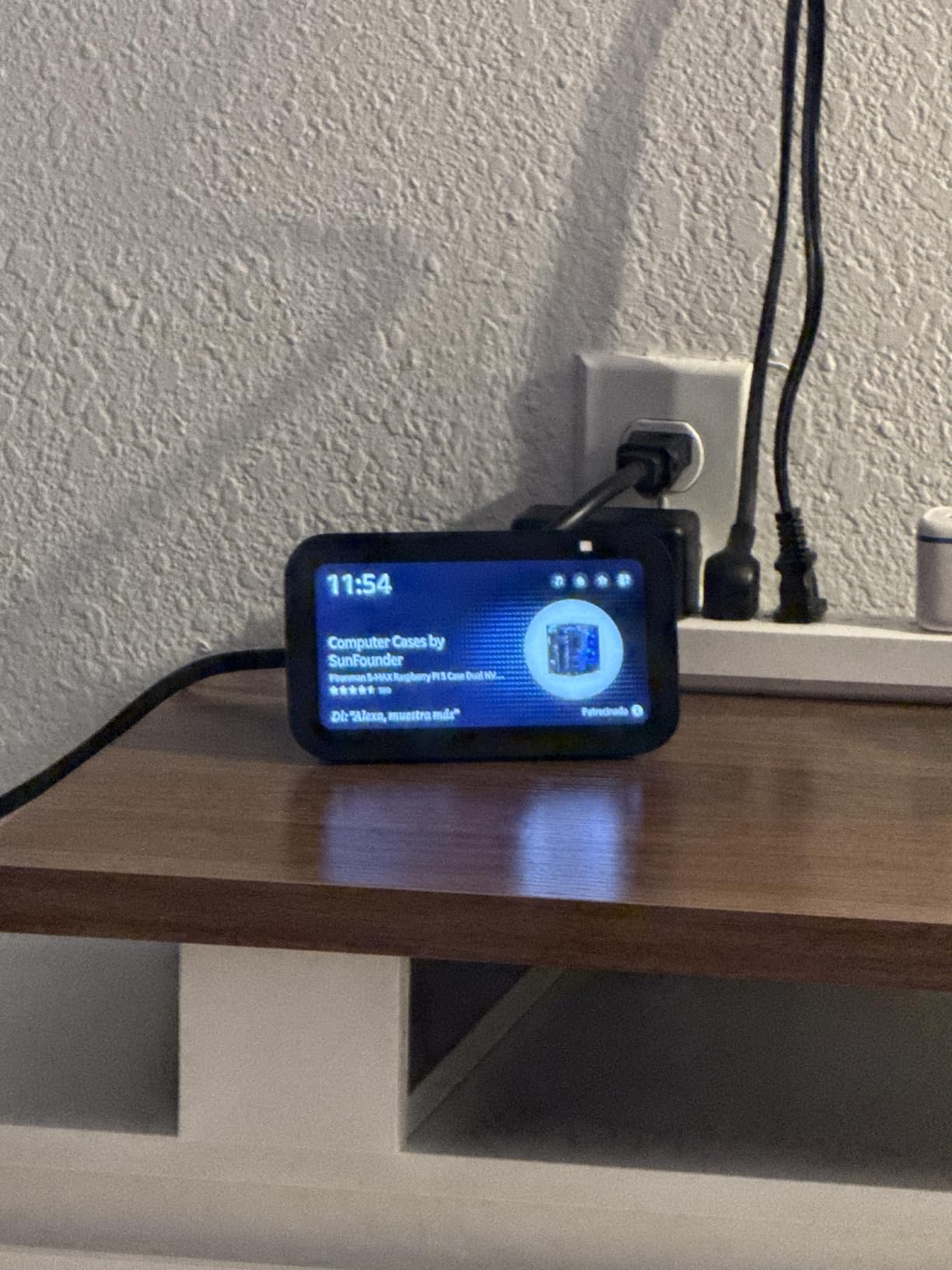
This is the display I keep coming back to. At 5.5 inches it is not a kitchen-showcase screen, but on a bedside table it sits at roughly the right distance for a person whose eyesight has started to go, and everything on it is legible without leaning forward.
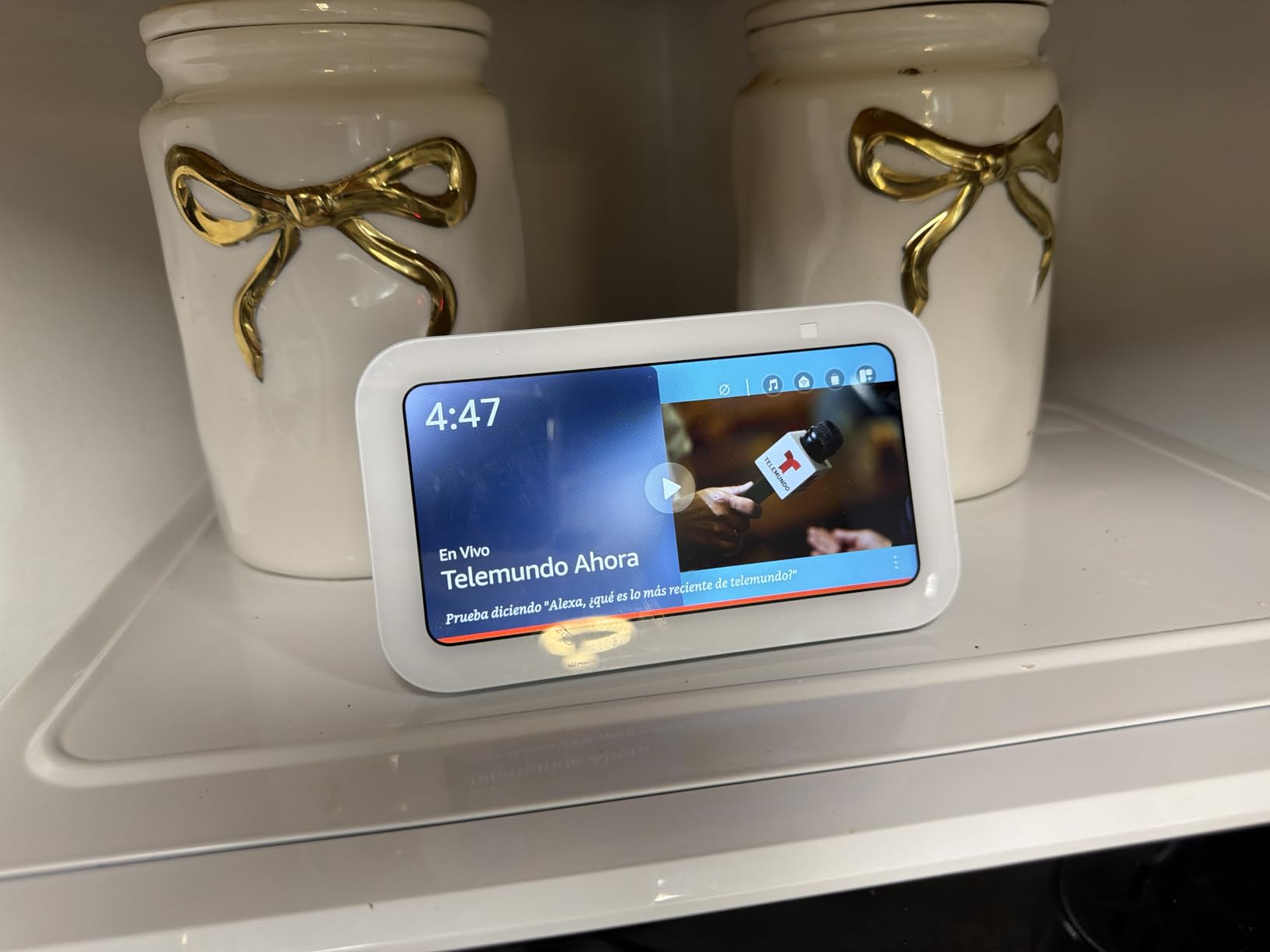
The physical camera shutter is the reason it tops my list. Amazon’s specification lists a built-in mic and camera off button and a camera shutter, and for a device that will live in a bedroom, that hardware control is worth more than any software privacy promise. Families in caregiver discussions on Reddit repeatedly name the shutter as the reason they felt comfortable putting a screen in a parent’s room.
Sound quality and volume genuinely surprised me for the size, and the listing confirms deeper bass than the previous Echo Show 5. For someone who cannot hear a voice assistant well from the sofa, having a speaker that fills a small room matters more than a larger display would.
Owners also point out that it works as a photo slideshow when idle, and in practice that is the feature a parent interacts with most. Grandchildren photos on a screen that needs no interaction become the reason someone talks to the device at all.
Why it suits an older user
The screen is large enough to read at arm’s length but small enough to ignore from the sofa. When idle it shows photos rather than ads, and the top of the device has physical controls that are easy to find by touch.
With 72078 reviews behind it, this is the most thoroughly tried display in the group, which matters when you are handing a device to someone who will not troubleshoot it for you.
Where it will frustrate
Response speed is the most common complaint, and owners report needing to repeat a command. In a house with several Echo devices, the wrong unit may answer, which is confusing rather than merely annoying for someone who cannot see which one spoke.
A number of features sit behind paid subscriptions. If your parent is on a fixed income, check what you are actually getting before the trial lapses.
2. Amazon Echo Show 15 – Best for Reading From Across a Room
Amazon Echo Show 15 (newest model), Full HD 15.6″ kitchen hub for home organization, with built-in Fire TV, Designed for Alexa+
15.6 inch Full HD display
13 MP auto-framing camera
Bluetooth and Fire TV
Pros
- Huge bright screen visible from across a kitchen
- Fire TV built in for video
- Widgets show calendars and to-do lists
- Improved sound and faster interface
Cons
- Amazon content takes a fixed third of the screen
- Only a few widgets fit at once
- Alexa answers stay limited on complex questions
- Some Fire TV app and firmware bugs
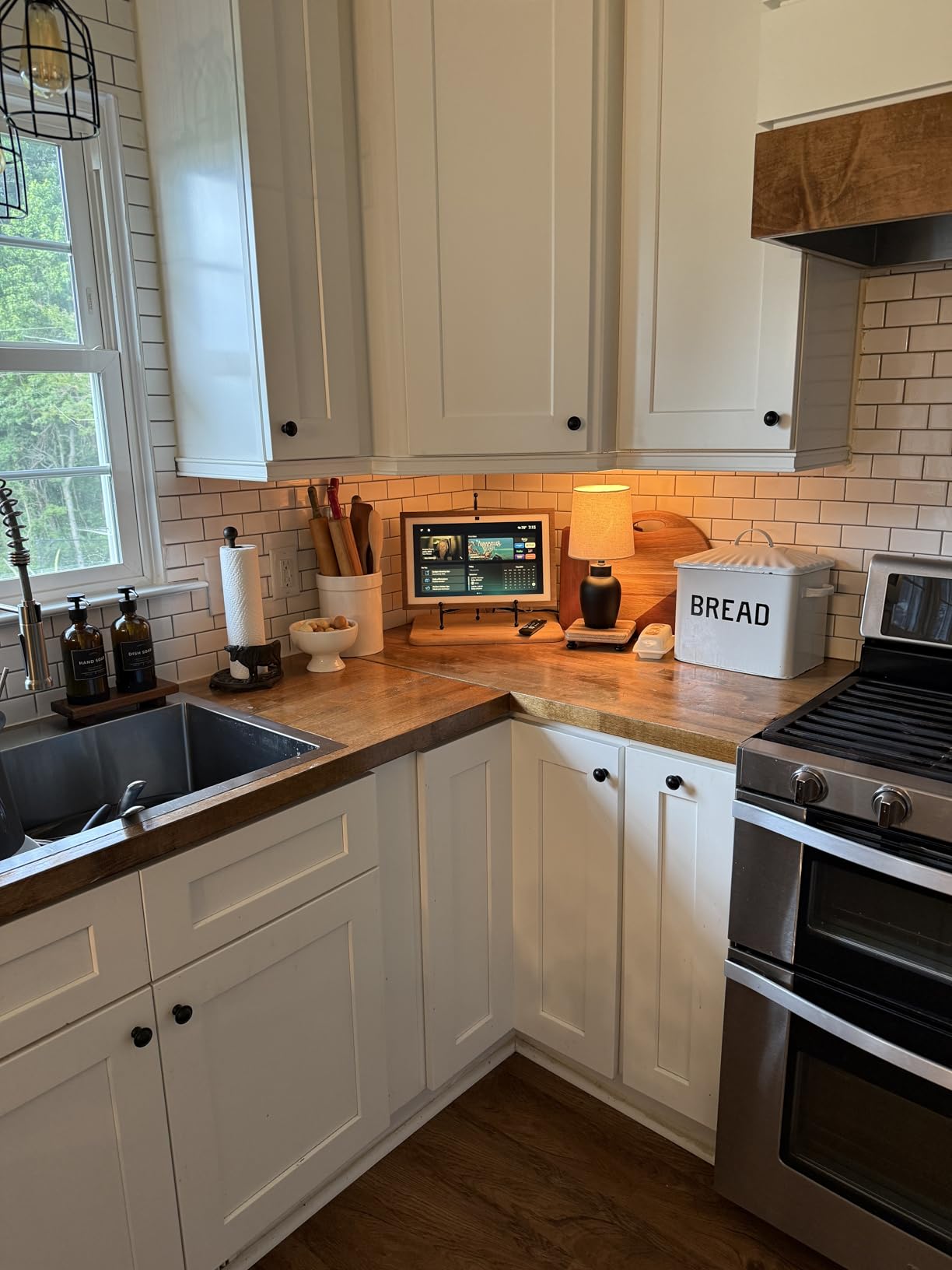
If the display will hang on a kitchen wall and the person using it has moderate vision loss, screen size stops being a preference and becomes the whole point. The 15.6 inch Full HD panel is the largest in this group, and it is readable from several metres away.
The home screen widgets are the part that changes daily behaviour. Calendars, to-do lists, weather and a shopping list can all sit in front of someone all morning, which turns a gadget into a routine board rather than something to be poked at.
Audio is a genuine step up too, with two 2 inch woofers and two 0.6 inch tweeters, and the listing notes twice the bass of the first-generation Echo Show 15. That matters in a kitchen where a microwave, extractor and radio are all running at once.
The 13 MP wide-angle camera with auto-framing and a 3.3x zoom is positioned centrally, so a grandparent can stand in front of it and still be in shot for a video call.
Why it suits an older user
Big text, big targets and a screen that can be mounted at eye height rather than sat at waist level on a counter. Widgets give a family calendar that everyone can update, which is genuinely useful for appointments and medication timing.
Wi-Fi 6E and a newer processor mean fewer of the lag complaints that show up on smaller units.
Where it will frustrate
Amazon’s own content occupies a fixed third of the display, and owners call the customisation limited for the money. If your parent only needs time, weather and reminders, some of that screen is being spent on content they did not ask for.
Only a few widgets fit at once, so setting up a display for a specific person means choosing between the calendar, the list and the camera feed. A few users also report Fire TV app and firmware update bugs.
3. Amazon Echo Show 8 – Best Balance of Screen, Sound and Smart Home Control
Amazon Echo Show 8 (newest model), Vibrant HD 8.7″ display with spatial audio, Designed for Alexa+, Glacier White
8.7 inch vibrant HD display
AZ3 Pro chip
Smart home hub for Matter, Thread and Zigbee
Pros
- Bright screen readable across a room
- Spatial audio with up to twice the bass
- Built-in smart home hub saves buying a hub
- Good auto-framing 13 MP camera
Cons
- Physical camera shutter removed from earlier models
- Buttons moved to the side and harder to reach
- Older stand and plug not compatible
- Some units show UI lag
The Show 8 is what I recommend when the person will use the display for a daily video call rather than occasional glances. The 8.7 inch vibrant HD panel has 15 percent more viewing area than the previous model, and it is still small enough for a kitchen counter or a desk.
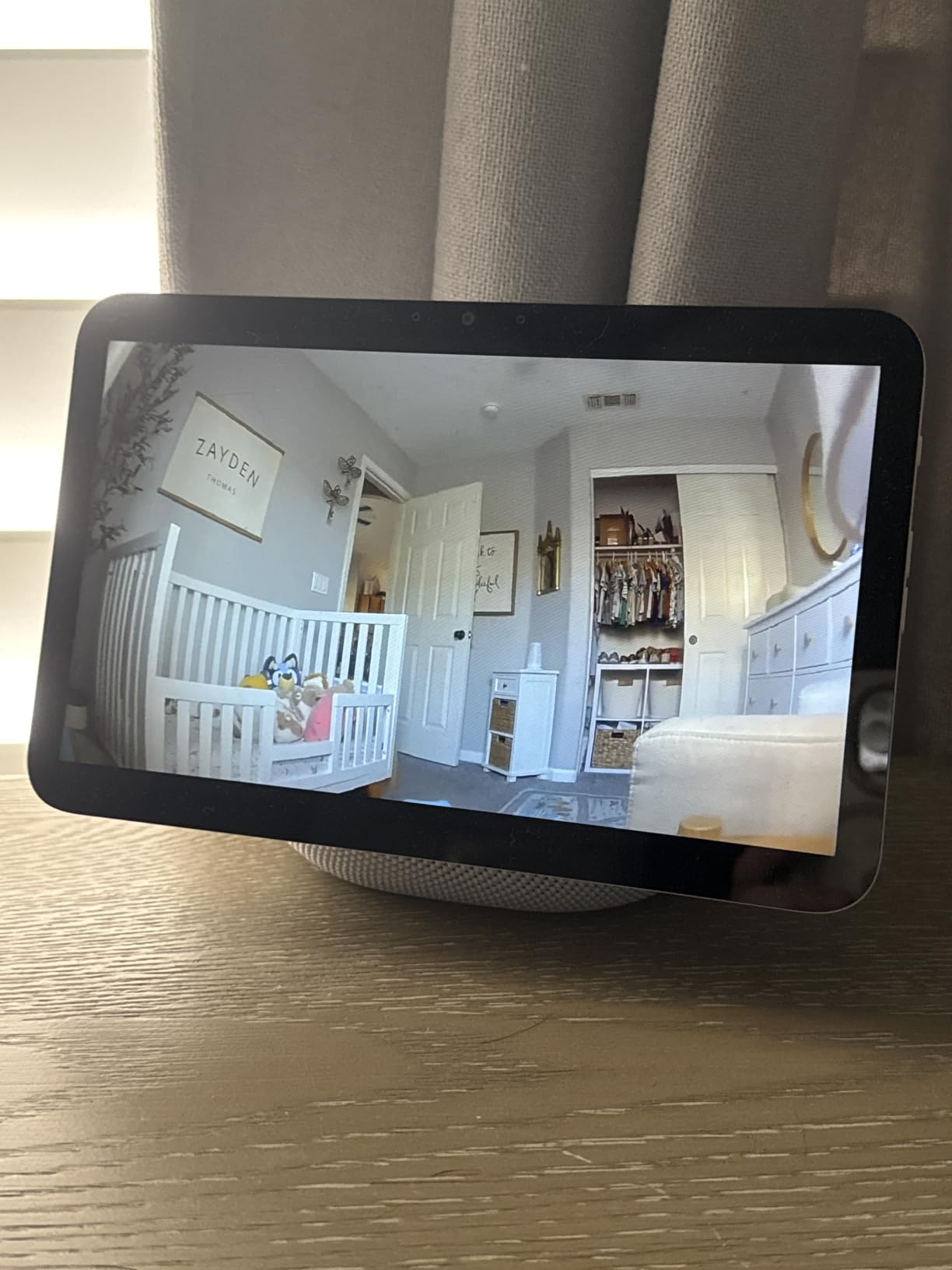
The built-in smart home hub is the underrated part. It handles Matter, Thread and Zigbee, so lights, thermostats and locks pair directly to the device without buying a separate hub, which is one less box to set up and one less thing to explain to a parent.
Audio is spatial with up to twice the bass of the previous Echo Show 8, and owners frequently compare it favourably to dedicated Bluetooth speakers at similar cost. For an older adult who wants music and audiobooks as much as video, that changes the value calculation.
Omnisense routines use temperature, presence and visual ID, so a display can react to a room rather than needing a spoken command every time.
Why it suits an older user
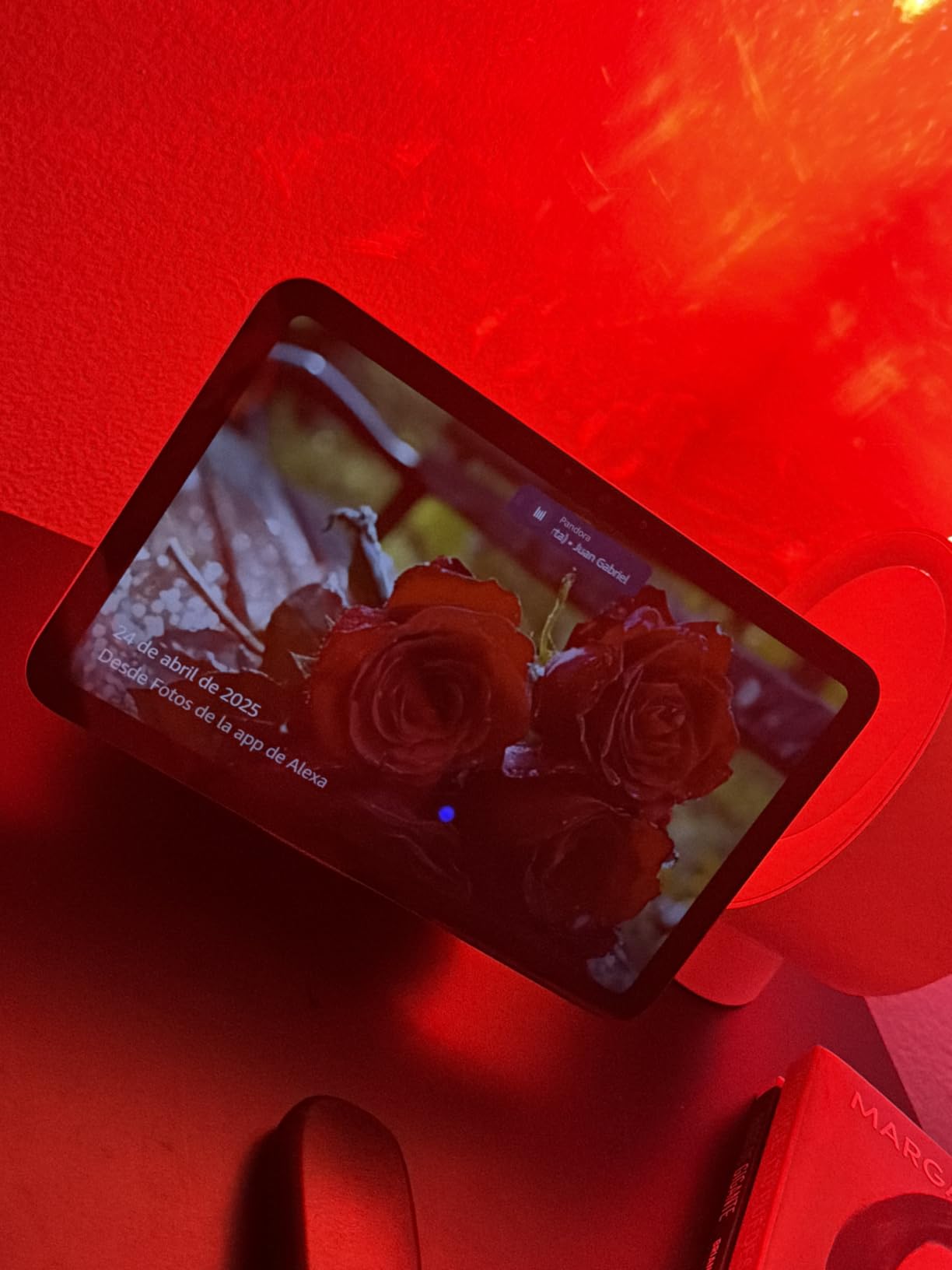
It is the middle ground on screen size, and it is the model most commonly recommended to families for an elderly parent because it balances calls, reminders and smart home control in one box.
Camera controls are dedicated, and the mic and camera can be disabled with a hardware button, which is the compromise here against the Show 5.
Where it will frustrate
The physical camera shutter that made the Show 5 and the Portal attractive for a bedroom is gone on this model. Families who want a hard optical block should pick the Show 5 or Portal instead.
Hardware buttons moved to the side and are harder to reach, the previous generation’s stand and power plug are not compatible, and some owners report a laggy interface and slower voice responses.
4. Meta Portal – Best for Video Calling With Grandchildren
Meta Portal – Smart Video Calling for the Home with 10” Touch Screen Display – Black
10 inch 1280x800 screen
13 MP rear camera
Auto-framing Smart Camera
Pros
- Auto-framing keeps users in shot while moving
- Smart Sound carries well in noisy rooms
- Physical camera cover
- Calls without a Portal account
Cons
- Depends on Messenger and WhatsApp
- Cannot place Alexa calls
- Limited native apps
- Tracking slower than advertised
This is the highest-rated display in the group at 4.5 stars, and the reason is narrow but real: calling. Owners describe it as a way for grandparents and small children to talk hands-free because the Smart Camera reframes people as they move around the room.
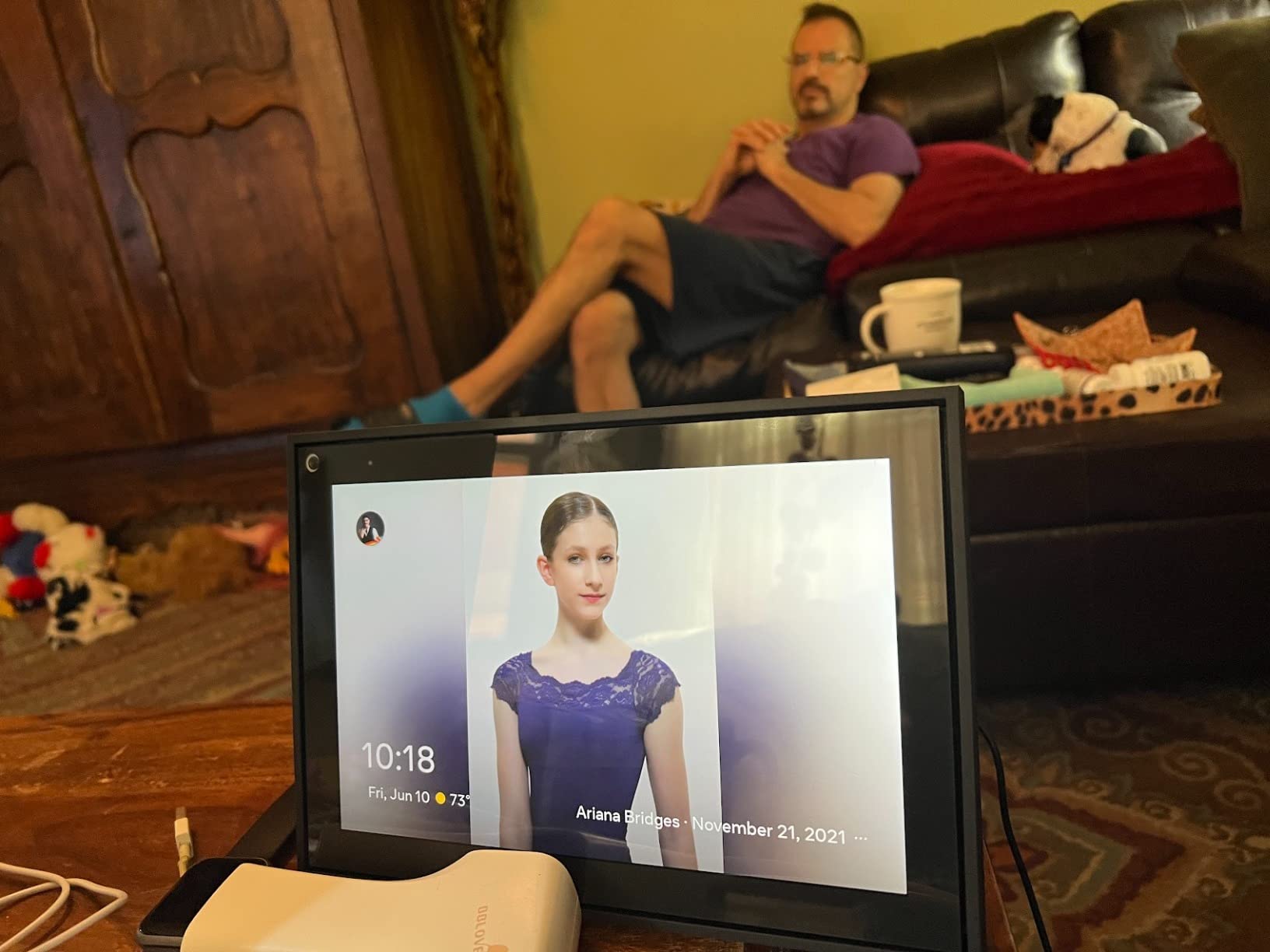
Messenger and WhatsApp calling works without a Portal account, so there is no separate login to walk an older relative through. For a family already living in Facebook groups and messaging apps, that is a genuine advantage over an ecosystem device.
The physical camera cover and a mic and camera disable control are the strongest privacy hardware in this roundup, in the same way the Show 5’s shutter is. It also works as a photo frame when it is not on a call.
Alexa is supported for questions, routines, skills and music, but it cannot place calls. Anyone whose daily routine depends on calling by voice should check this before buying.
Why it suits an older user
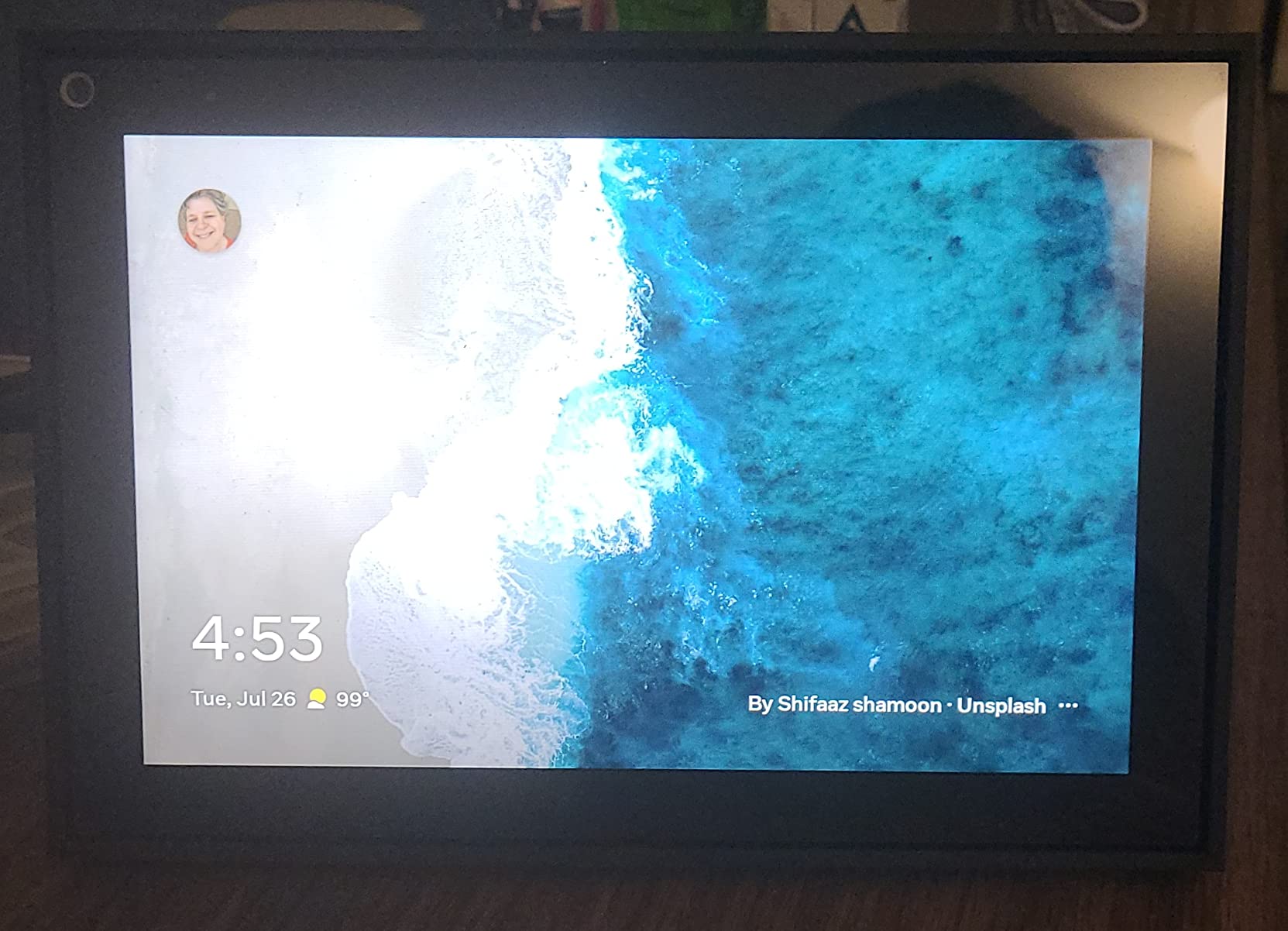
The 10 inch 1280×800 screen in a picture-frame style design looks like a family photo frame, so there is no obvious technology staring out of the room. Smart Sound is built for noisy rooms rather than quiet ones.
Setup is simple, and the touchscreen interface is one of the easier ones for a first-time user to grasp.
Where it will frustrate
The appeal is narrow if the family does not already live in Messenger or WhatsApp. Content is limited too, with Netflix and YouTube reached through the built-in browser rather than native apps.
Owners also report that Smart Camera tracking is slower than the marketing suggests, which is noticeable on a call where someone keeps moving out of frame.
5. Google Nest Hub 2nd Gen – Best Small Google Home Display With No Camera
Google Nest Hub 7” Smart Display with Google Assistant (2nd Gen) – Chalk
7 inch 1024x600 screen
No camera
1.7 inch full-range speaker
Pros
- Compact enough for a nightstand
- No camera at all to worry about
- Strong Google Photos frame
- Good speaker for the size
Cons
- Setup can boot in the wrong language
- No Play Store access
- Speaker grouping behaves erratically
- 7 inch screen is small for video
The strongest reason to pick the Nest Hub is what it does not have: no camera. If the person is anxious about being watched in their own home, a display with no camera at all removes that worry entirely rather than asking them to trust a software setting.
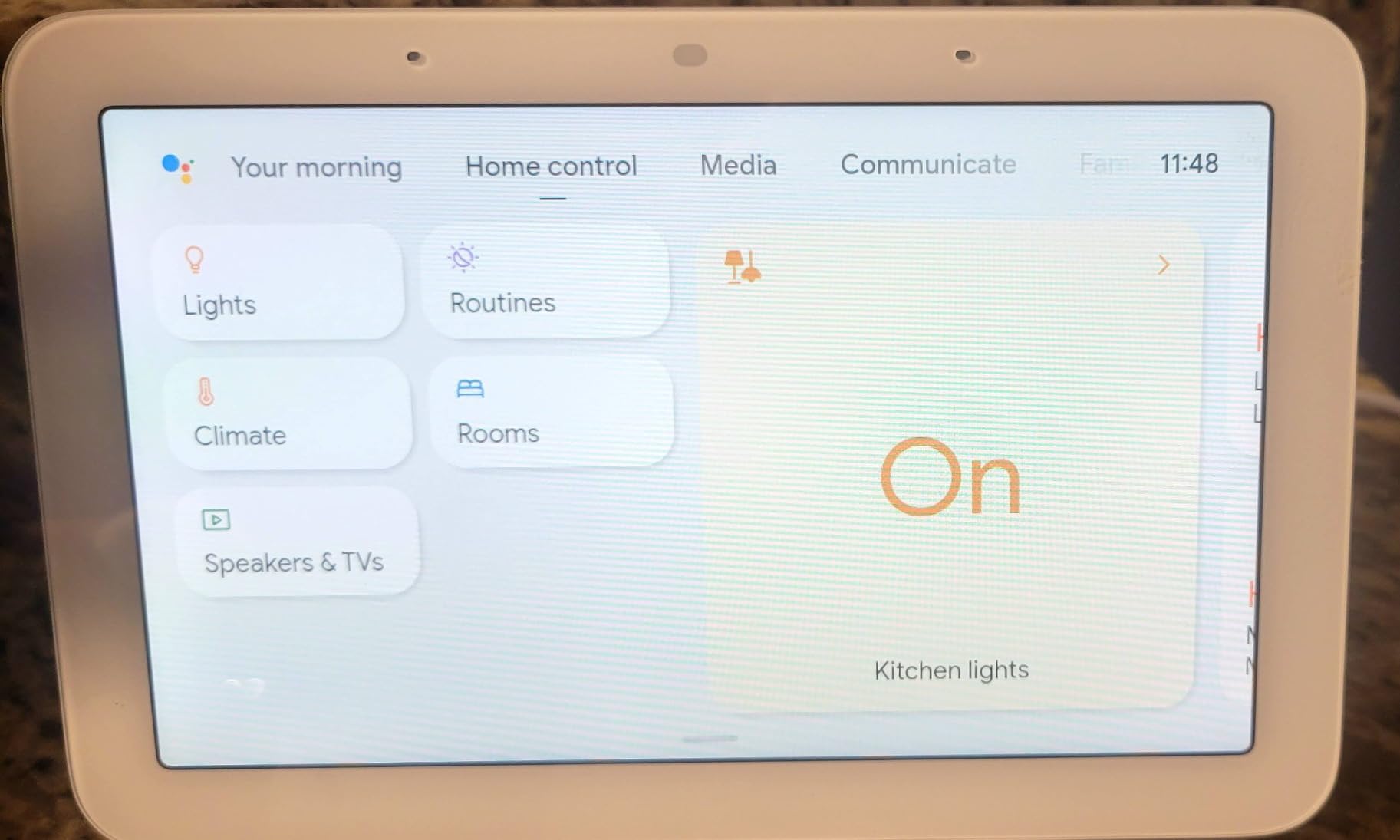
The dedicated home control interface is well optimised for a tablet-sized screen, and it streams photos from Google Photos cleanly as a frame. The 1.7 inch full-range speaker sounds solid for something this small.
It is also multilingual out of the box, with English, Spanish, French and Portuguese support and a universal power adapter, which matters if the family spans more than one country.
The 7 inch screen suits a bedside rather than a kitchen. At 1024×600 it is sharp enough for text and timers, but owners consistently say it is too small for comfortable video viewing.
Why it suits an older user
Small footprint, no lens in a bedroom, and a speaker that handles spoken answers at short range. It suits a nightstand better than any other Google display.
Google Assistant handles timers, questions and smart home control with fewer steps than a phone app.
Where it will frustrate
First-time setup is the weak point. Owners report the device booting in a foreign language and needing several attempts to join Wi-Fi, and that is exactly the situation where you want help on hand.
There is no Play Store access, so third-party radio and streaming apps cannot be installed, and speaker grouping and streaming defaults are reported to behave erratically. With 1156 reviews behind it, it is also the least proven display here.
6. 10.1 inch Digital Calendar – Best for Medication and Chore Routines
Linkdaze Digital Calendar 10.1″ Smart Calendar, 1280 * 800 IPS HD Interactive Touchscreen Electronic Calendar for Family Schedules, WiFi Digital Picture Frame Built-in 32GB Memory White
10.1 inch 1280x800 IPS touchscreen
32GB built-in memory
Two-way calendar sync
Pros
- Big touchscreen built for large text
- Two-way sync with Google and Outlook calendars
- Chore chart with reward points
- Works as a photo frame with 32GB storage
Cons
- No voice assistant for hands-free use
- Manual firmware update needed for reliable sync
- Older adults may try to tap non-touch areas
- Not a smart home hub
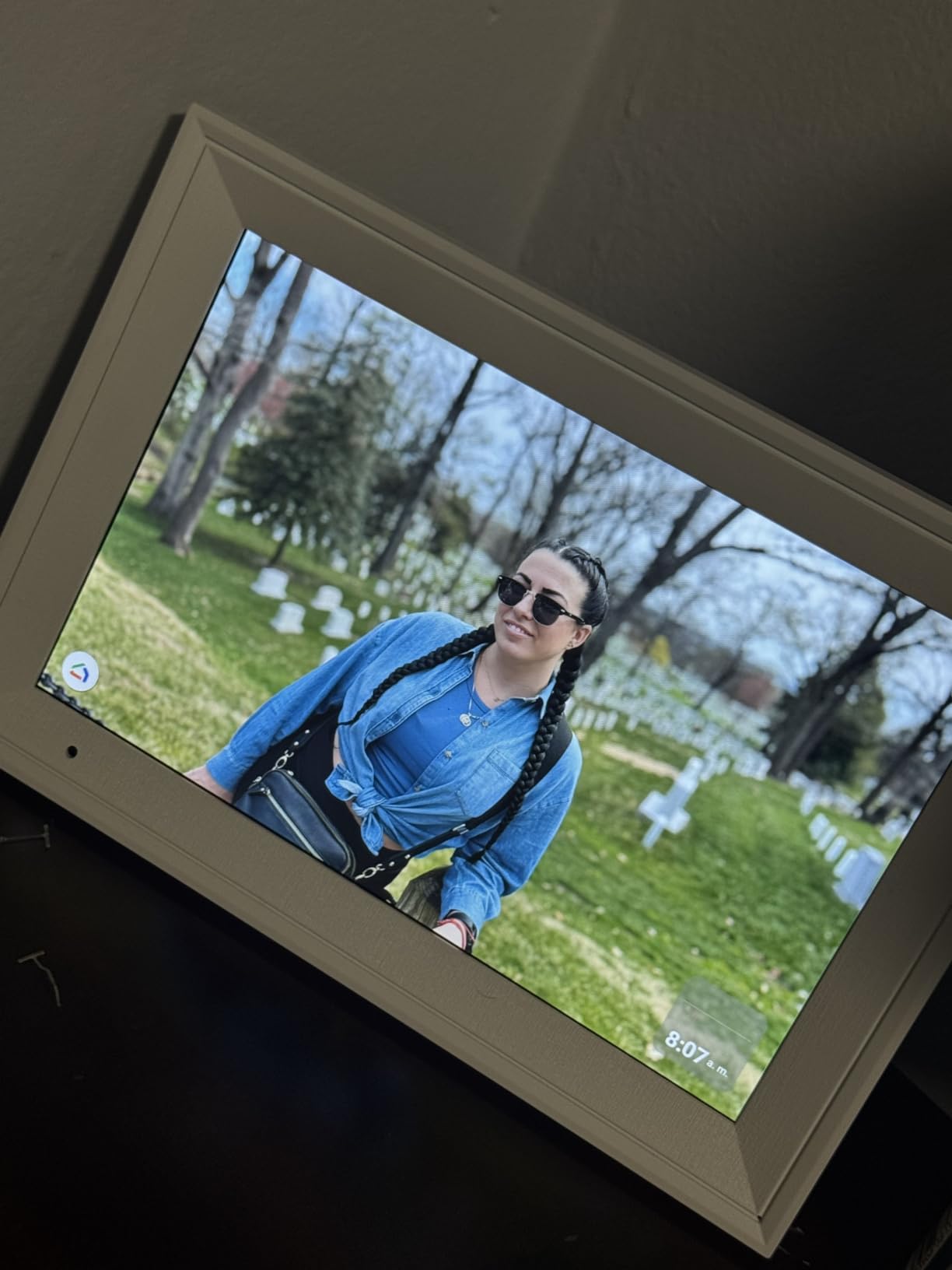
This is the odd one out, and the reason it earns a place is that it treats a routine as a wall display rather than a conversation. The 10.1 inch 1280×800 IPS touchscreen can show a full family week, a chore chart and a photo frame at once.
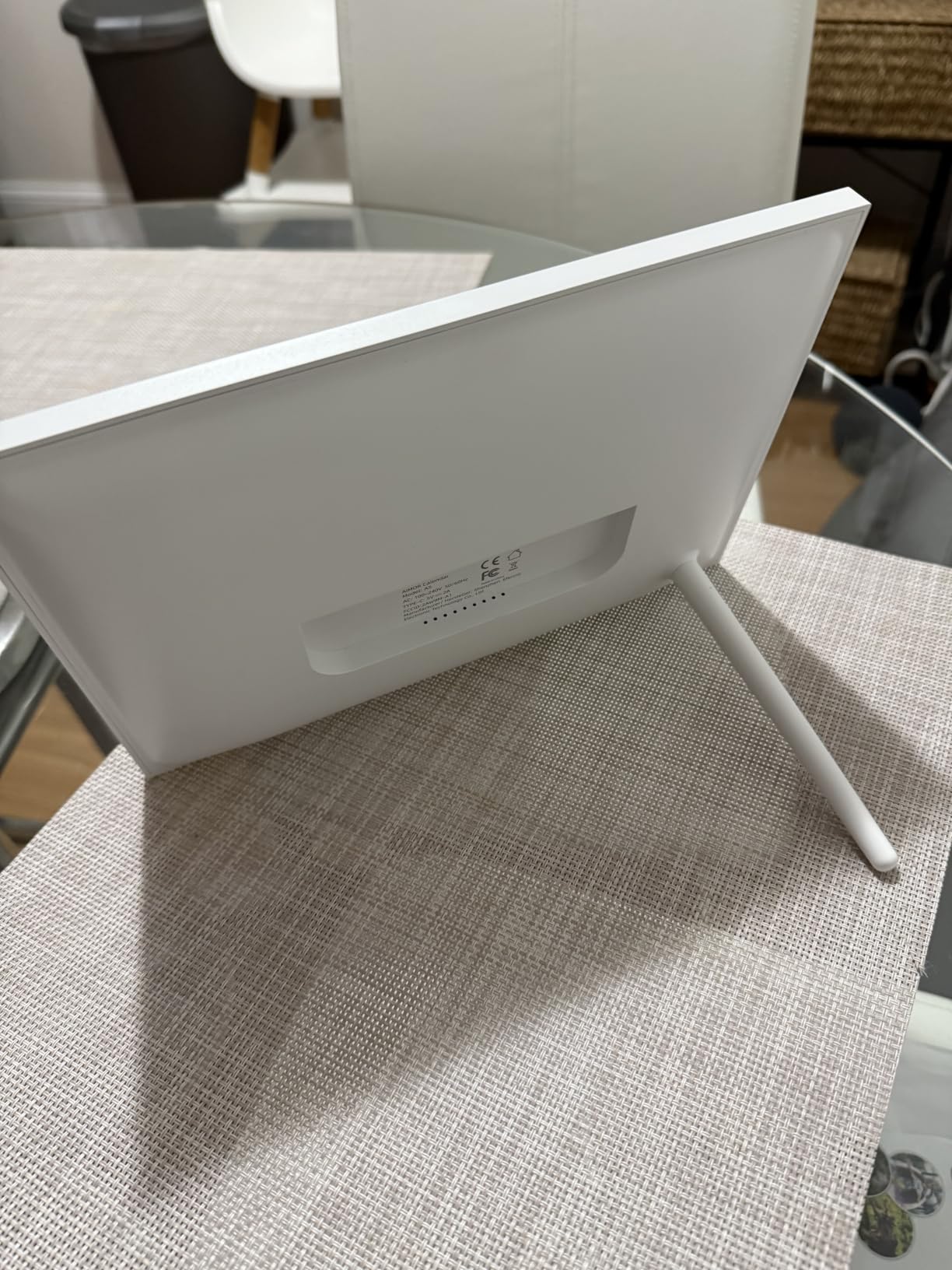
Two-way sync with Google Calendar and Outlook Calendar means the whole family can add an appointment and have it appear on the wall. It also syncs with iCloud, Cozi and Yahoo through a URL link, and colour-coded family labels keep each person’s events separate.
The chore chart with reward points is aimed at households with children and a parent who likes visible progress. It is the one display here where the screen, not the speaker, does the work.
Owners need to update the firmware manually to calendar version 4.0.0 before sync is reliable, so budget an evening for setup rather than assuming it works out of the box.
Why it suits an older user
Everything is permanent and visible. Nobody has to remember to ask, and there is nothing to log in to, which removes the two failure points that trip up most older adults.
The 32GB of built-in memory means family photos load without a cloud subscription.
Where it will frustrate
There is no voice assistant. An older adult who wants to ask a question or start a call with a sentence has to touch the screen and find the app, which is the behaviour most families are trying to avoid.
It is a touchscreen-first device with no hub function, and relying on a manual firmware update for basic calendar sync adds friction at the point where confidence is most fragile.
7. Google Nest Hub Max Renewed – Best for Hard of Hearing Listeners
Google Nest Hub Max 10″ Smart Display with Google Assistant – Chalk (Renewed)
10 inch display
30 watt stereo 2.1 speaker
Camera with face and voice recognition
Pros
- Loudest speaker in this group at 30 watts
- Large sharp screen for recipes and calls
- Shows Nest Doorbell visitors on screen
- Plugs into an existing Google Home setup
Cons
- Brightness can drop to the lowest setting on its own
- May arrive in a non-English language
- Little useful configuration out of the box
- Small 108 review base
If the real problem is hearing rather than vision, this is the display to look at. A 30 watt stereo 2.1 speaker system is by a wide margin the loudest output here, and owners describe it as comparable to a premium Bluetooth speaker.
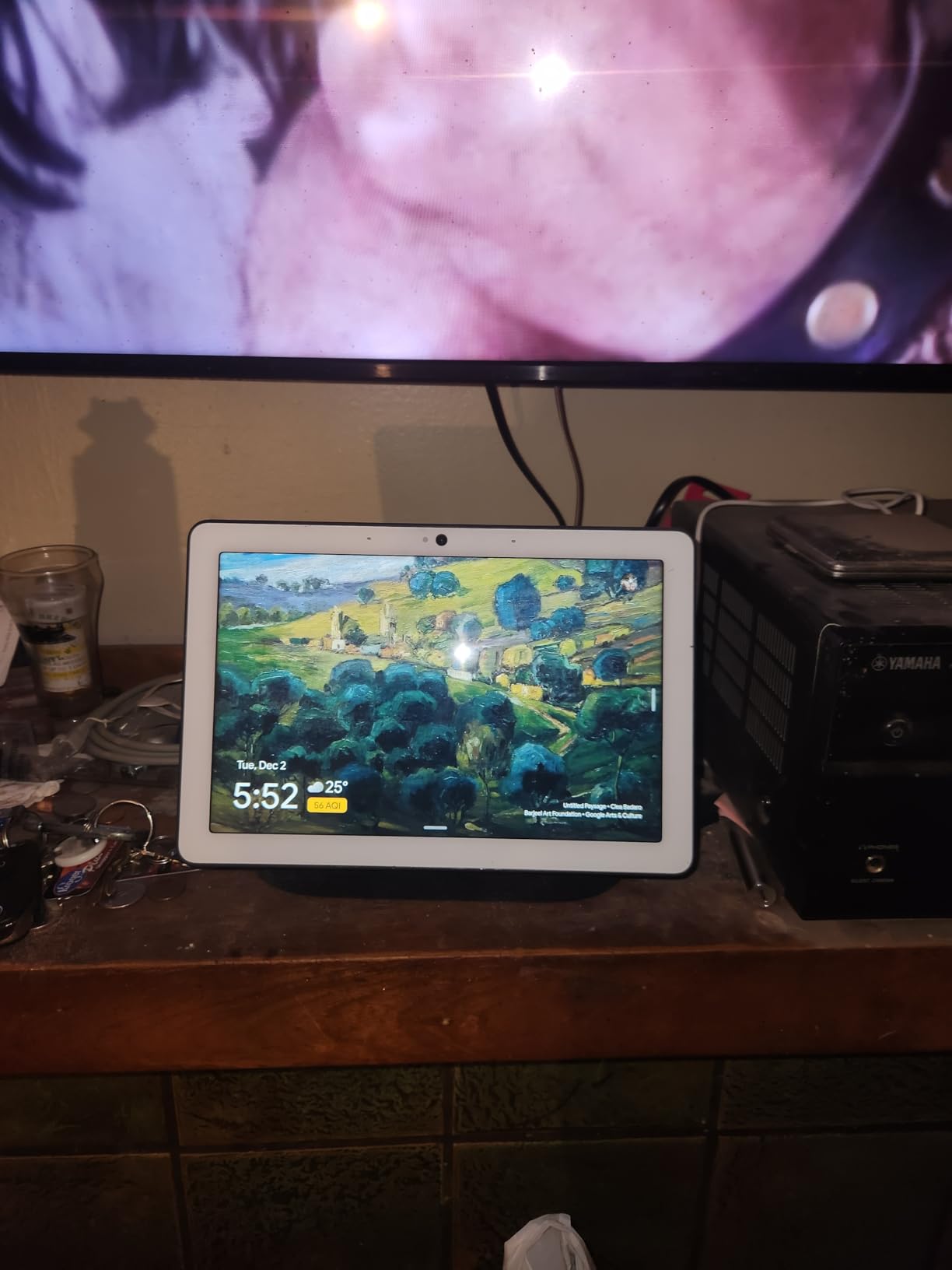
The 10 inch screen is large enough to be useful in a kitchen for recipes, calendars and video calls, and face and voice recognition can personalise what appears. Nest Doorbell visitors show up on screen, which lets someone answer the door from a chair rather than walking to it.
There is a caveat worth stating plainly: this is a renewed listing, and the review base is 108 rather than thousands. That tells you the model is well proven, but this particular listing is newer and thinner on feedback than the others here.
Reported issues cluster around first-run configuration rather than long-term use. Some units drop brightness to the lowest setting by themselves, and some arrive set to a language with no obvious way to change it, so allow time for a careful setup.
Why it suits an older user
Volume is the feature. A speaker this powerful means spoken answers and audiobooks can carry across a room, which is where a smaller display underperforms.
The doorbell viewer removes a physical trip through the house, which is useful for anyone with mobility or balance issues.
Where it will frustrate
Automatic brightness drop is the most reported problem, and a dim screen works against the low-vision user who is most likely to want a large display. A device arriving in the wrong language is a poor first impression for someone who needs this to be simple.
It also arrives with little useful configuration, so the work falls on whoever sets it up.
8. eufy Smart Display E10 – Best for Camera Alerts and Doorbell Monitoring
eufy Security eufy Smart Display E10, Smart Home Hub, 8″ Control Panel
8 inch touchscreen
Local storage playback
Four simultaneous camera feeds
Pros
- Large targets on a simple 8 inch panel
- Four live camera feeds side by side
- Local storage playback with no buffering
- Facial and package recognition
Cons
- Needs the eufy security ecosystem to be useful
- Only 460 reviews so far
- Camera-first rather than assistant-first
- Dimensions listed for the box not the unit
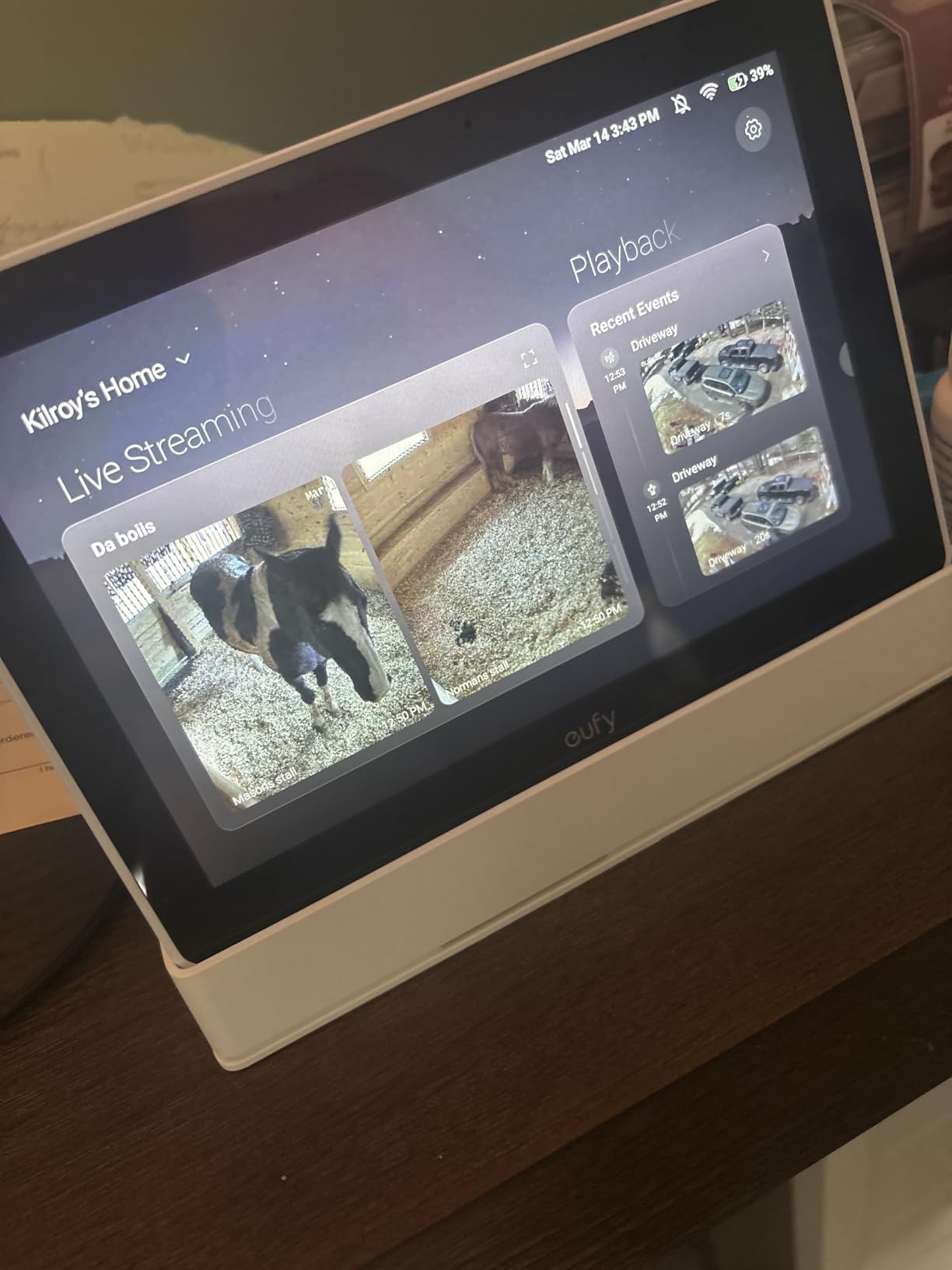
The eufy Smart Display E10 is a security panel with a screen rather than a voice assistant with a screen, and eufy states the interface is designed to be simple enough for kids and seniors. If the reason for buying is answering the door and seeing who is outside, that focus is a strength.
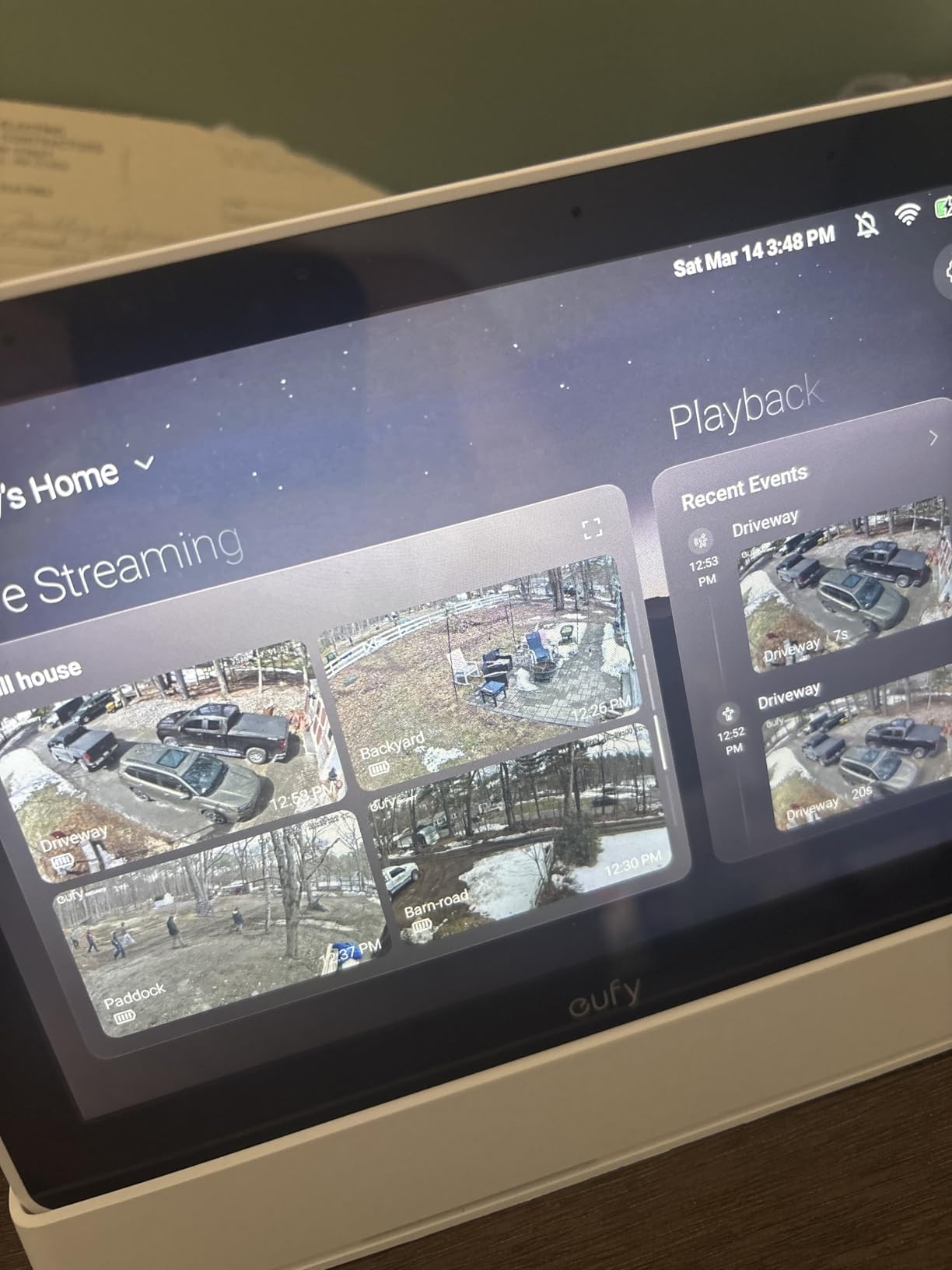
Four simultaneous live camera feeds on an 8 inch touchscreen is the clearest layout of anything in this roundup, and local event playback with no buffering means a parent can check back on what happened rather than missing it live.
Hands-free doorbell, lock and camera alerts bring someone to the screen automatically. Daily security report summaries list what was recorded, which is useful for a family member who wants reassurance without monitoring continuously.
The honest limit is that it requires the eufy security ecosystem for full functionality. Without eufy cameras, a HomeBase 3 and the associated app, the screen is expensive wall art.
Why it suits an older user
A big, plain control panel that answers the door for you. Coming in to a room and seeing four labelled camera views is less to learn than a menu tree.
It weighs 2.46 pounds, so it is stable on a counter rather than easy to knock over.
Where it will frustrate
There is no general voice assistant, so reminders, timers and video calling are not part of the deal. The model number is T87A0 and the listing has just 460 reviews, which is a thin evidence base compared with the Echo models.
Anyone already invested in Alexa or Google Home will find this a closed system rather than a hub for the rest of the house.
How to Choose a Smart Display for an Older Adult
Start with the room, not the specifications. A display at the wrong distance defeats any quality panel, and a 15 inch screen on a bedside table is a worse experience than a 7 inch one at reading distance.
Match the screen to the eyesight. For a nightstand or a kitchen counter within arm’s reach, 5.5 to 8.7 inches is enough. For a wall-mounted kitchen display viewed from across the room, you want 10 inches or larger, and you want it mounted at eye level rather than left on a worktop.
Check the camera situation honestly. If there is any camera, a physical shutter or a hardware cover should decide it. If the person would rather not be watched at all, the Nest Hub 2nd Gen, which has no camera, removes the argument entirely.
Follow the family ecosystem rather than the spec sheet. Most of the friction in a smart home comes from a household split between Alexa and Google, and the display you choose is where that split becomes obvious to an older user. If everyone else already uses Alexa, an Echo Show is the least confusing choice even if a Google device is technically better on paper.
Look at the buttons, not just the touchscreen. Physical volume and mute controls that are easy to find by touch matter for arthritic hands, and they are one of the most requested features in caregiver communities for good reason. Our picks on the best smart speakers with displays cover the wider category if the screen is optional.
Treat the subscription question as part of the purchase. Some video features, ring doorbell history and smart home features are paid add-ons. For someone on a fixed income, a device whose core use is restricted later is a poor choice.
Accessibility Settings That Actually Matter
These features exist on most of the displays here, and almost nobody turns them on. Setting them up before you hand the device over is the single highest-value thing a family member can do.
Alexa VoiceView is a screen reader that reads everything on the Echo Show screen aloud, so a low-vision user can hear the time, a reminder or a call rather than needing to make it out visually. Display text size can be increased on the Echo and Nest displays, and a high-contrast setting is worth enabling in a bright kitchen where a pale screen washes out.
For hearing loss, raise the default volume rather than relying on the assistant at normal levels, and use captions on video calls wherever they are offered. On the Nest Hub Max the 30 watt speaker removes most of the problem without any setting at all.
There is more general coverage in our best AI smart home displays guide if you want the newer assistant features as well as the accessibility basics.
Alexa or Google Assistant: Which One Suits a Senior Better
Neither assistant is easier for an older adult in the abstract. The right answer depends almost entirely on what the rest of the household already runs, because a display that disagrees with the phones in the house creates work rather than saving it.
Alexa on the Echo Show range offers the more complete accessibility layer, with VoiceView as a screen reader and a broad set of display and voice settings. Google Assistant on the Nest Hub range is quieter and more restrained, and the 2nd Gen model has no camera at all.
The Nest Hub is the choice for a household that does not want a camera in the house. The Echo Show 8 is the choice for a household that already runs Alexa lights, locks and thermostats. The Echo Show 15 is the choice when the screen is the point.
Whichever you pick, teach two or three commands and stop there. Users on Reddit report parents abandoning touch-first interactions but sticking with voice once a handful of fixed phrases are established, and long multi-step requests are the ones that fail.
Setting Up a Smart Display for an Elderly Parent
The person who buys the display should set it up, not the person who will use it. Families report routinely configuring the device under the child’s own Amazon or Google account and sharing access, which does raise a long-term question about ownership and billing, but it is by far the most reliable way to get a parent connected.
Sit down with them afterwards and set the display text size, the photo frame, the reminders and the contacts they can call. Write ten phrases on an index card and tape it near the device.
Ten voice commands worth teaching first: set a timer, remind me to take my pills at eight, call the children, what time is it, play some music, add milk to the shopping list, turn off the kitchen light, what’s the weather tomorrow, read my messages and good night.
Keep each one to a single intent. Short commands work; long compound requests do not, and a failure there is what makes someone conclude the device is broken.
If the aim is a wider safety net rather than just a display, our guides on smart home security cameras for seniors and smart locks for seniors with memory issues cover the parts a screen cannot do alone.
Privacy, Scams and When Not to Buy One
A physical camera shutter or cover is the first question to ask, followed by whether a hardware microphone mute exists. Software settings can be changed by an update, a remote support call or a curious grandchild, and a hardware block cannot.
Hands-free voice assistants do change the way a household handles incoming calls, and fraud attempts directed at older adults are a real concern that no display solves. Any approach to an older person that implies they have won a prize or owe a payment should be treated as false, every time.
There are also honest reasons to skip a smart display. A person with no reliable home internet will get a screen that cannot answer questions. Someone in advanced memory decline may find a constantly changing interface harder than a paper calendar. And a person who has never used voice at all may prefer a large button remote, which is a perfectly reasonable choice for an older adult.
Frequently Asked Questions
Which Alexa device is best for elderly users?
The Amazon Echo Show 5 is the best all-round choice for an elderly parent, because its 5.5 inch screen is readable at bedside or counter distance and it keeps a physical camera shutter over the lens. Choose the Echo Show 8 instead for daily video calls, or the Echo Show 15 if the screen is mounted in a kitchen and needs to be read from across the room.
Is the Echo Show suitable for elderly parents?
Yes, as long as a family member sets it up and teaches a short list of voice commands. The Echo Show range is widely used for elderly parents because it answers by voice, shows large on-screen reminders and works as a photo frame. The main issues are slower response times than older models and features that sit behind a paid subscription.
What can Alexa do for an elderly person?
Alexa can set timers and medication reminders, place video calls, answer spoken questions aloud, play music and audiobooks, read out the weather and calendar, control lights and thermostats, and show family photos on screen. The most reliable approach is short single-intent commands rather than long compound requests.
Which is better, the Google Nest Hub or the Amazon Echo Show 8?
Pick the Amazon Echo Show 8 if the household already runs Alexa lights, locks or thermostats, or if you want the fuller accessibility layer including the VoiceView screen reader. Pick the Google Nest Hub if the family lives in Google Home and you want a device with no camera at all, though its 7 inch screen is small for video.
What is the best smart speaker for elderly people?
A screenless smart speaker is the right choice when the person mainly wants hands-free answers, timers and music rather than photos or video calls. A speaker avoids the camera and privacy questions entirely and is simpler to use, but it cannot show a face at the door or a family photo.
Do smart displays work without Wi-Fi?
No. Every display in this roundup needs a home internet connection to answer questions, sync calendars, stream video or place calls. Without Wi-Fi they will show a clock and little else, so confirm the connection at the location before buying.
Conclusion
The Amazon Echo Show 5 is the single best smart display for seniors in 2026, and it wins on the two things older adults actually need: a screen you can read from close up and a camera shutter you can close with your fingers. Buy the Show 8 for a home that will use it for daily video calls, the Show 15 for a wall-mounted kitchen, the Nest Hub 2nd Gen when the camera is a dealbreaker, and the Nest Hub Max when hearing is the real problem.
Set it up yourself, turn the accessibility settings on before you hand it over, and teach ten short commands. That last step is what separates a device a parent uses from a device that sits in a box.