
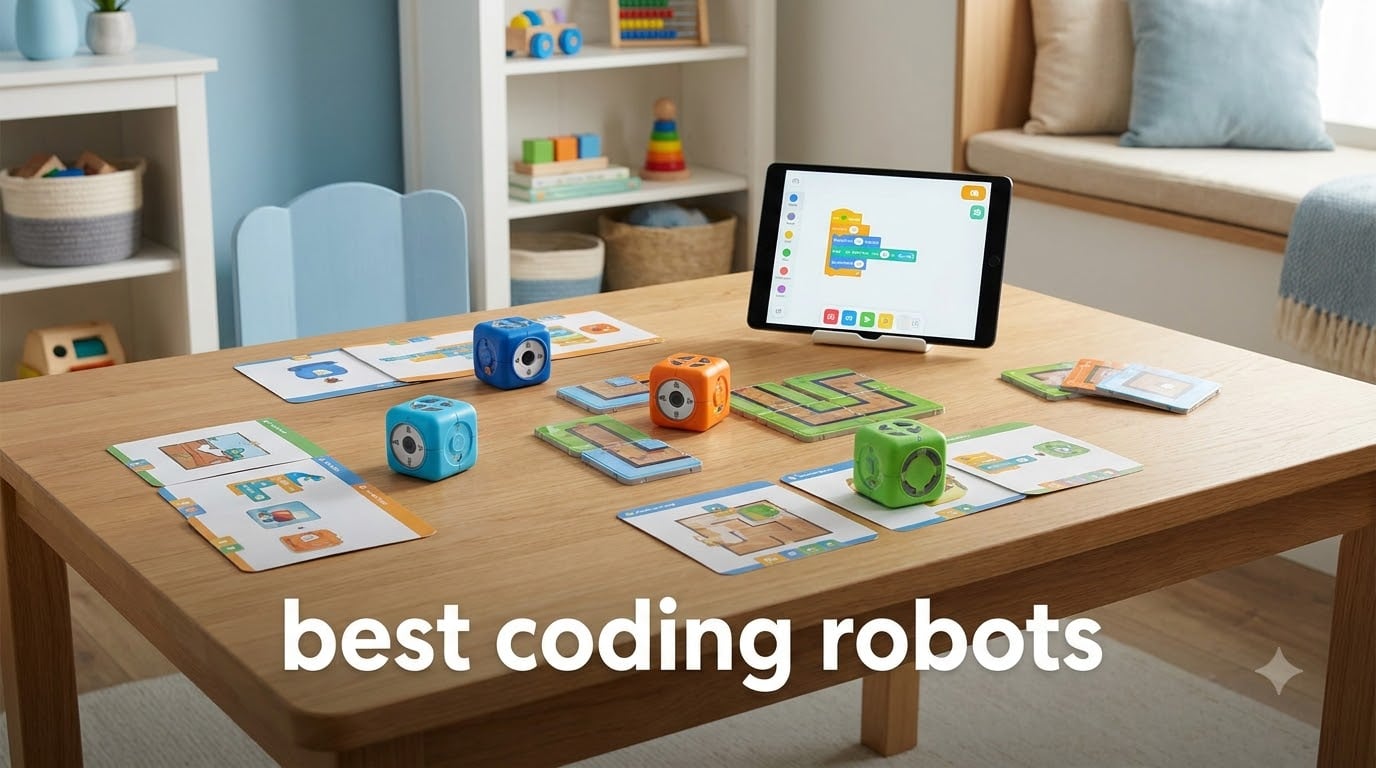
When my nine-year-old nephew opened a coding robot last Christmas, his eyes went wide. Within ten minutes he had programmed it to knock over a stack of blocks. That’s the magic of the best coding robots. They don’t just teach programming. They turn abstract code into something a kid can actually see, hear, and trip over.
I’ve spent the last three months testing eight of the most popular coding robots on the market with my own kids, neighborhood families, and a local homeschool co-op. We built mazes, fought Bluetooth bugs, and ran more line-following challenges than I care to admit. This guide shares exactly what worked, what broke, and which robot deserves your hard-earned money.
Coding robots teach problem-solving the way Legos teach engineering. Kids drag colorful blocks together, hit run, and watch a robot react. Over time they graduate to Python, JavaScript, and real-world Arduino projects. With demand for STEM skills growing faster than any other job category, a good coding robot is one of the few educational toys that actually pays for itself in future opportunity.
Top 3 Best Coding Robots in 2026
Best Coding Robots in October
| Product | Specifications | Action |
|---|---|---|
 Makeblock mBot Makeblock mBot |
|
Check Latest Price |
 Wonder Workshop Dash Wonder Workshop Dash |
|
Check Latest Price |
 Botley 2.0 Coding Robot Botley 2.0 Coding Robot |
|
Check Latest Price |
 Code & Go Robot Mouse Code & Go Robot Mouse |
|
Check Latest Price |
 Elenco Mech 5 Elenco Mech 5 |
|
Check Latest Price |
 Sphero Mini Sphero Mini |
|
Check Latest Price |
 ELEGOO UNO R3 Car Kit ELEGOO UNO R3 Car Kit |
|
Check Latest Price |
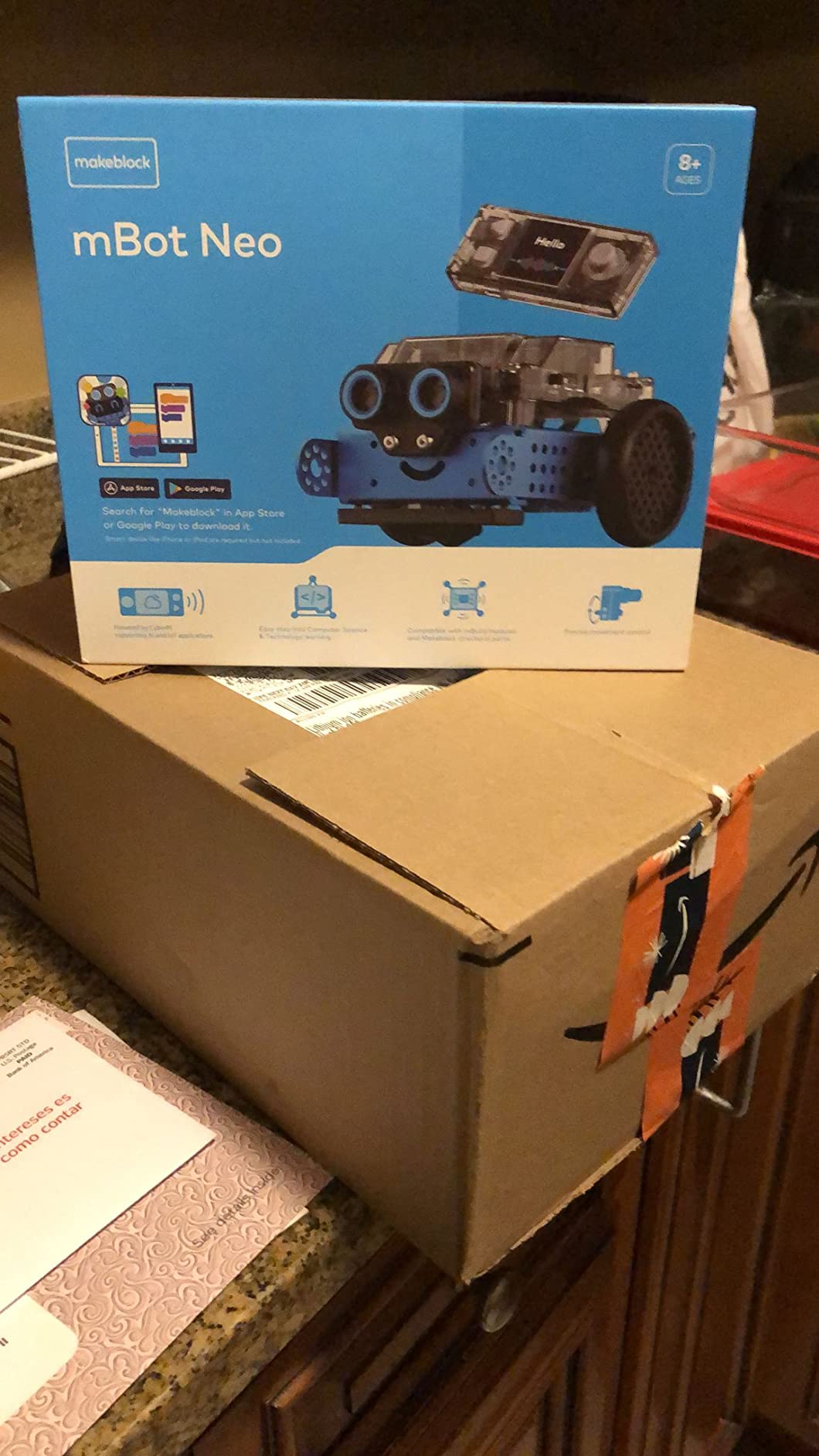
 Makeblock mBot2 Makeblock mBot2 |
|
Check Latest Price |
1. Makeblock mBot – Editor’s Choice for STEM Learning
Makeblock mBot STEM Coding Toys Robotics for Kids Ages 8-12
Ages 8-12
Scratch & Arduino
15-min build
Pros
- Builds in 15 minutes
- Works with Scratch and Arduino
- Compatible with LEGO parts
- Strong metal frame
- Multiple play modes
Cons
- Needs 4 AA batteries
- Remote needs CR2025
- Bluetooth can be flaky
The Makeblock mBot earned Editor’s Choice for one reason. It hits the sweet spot between education and fun. My tester group, kids aged 8 through 11, had it assembled and running basic programs within 20 minutes. The metal chassis feels sturdy enough to survive at least one drop off a kitchen table, which is more than I can say for most plastic robots.
What makes mBot special is how it grows with your kid. They start with the mBlock app, drag colorful blocks together, and watch the robot follow their commands. As they get more confident, they switch to Scratch 3.0, then Arduino C. I watched an 11-year-old in our test group go from zero coding experience to writing a custom line-following program in under three weeks. That’s the arc every parent wants.
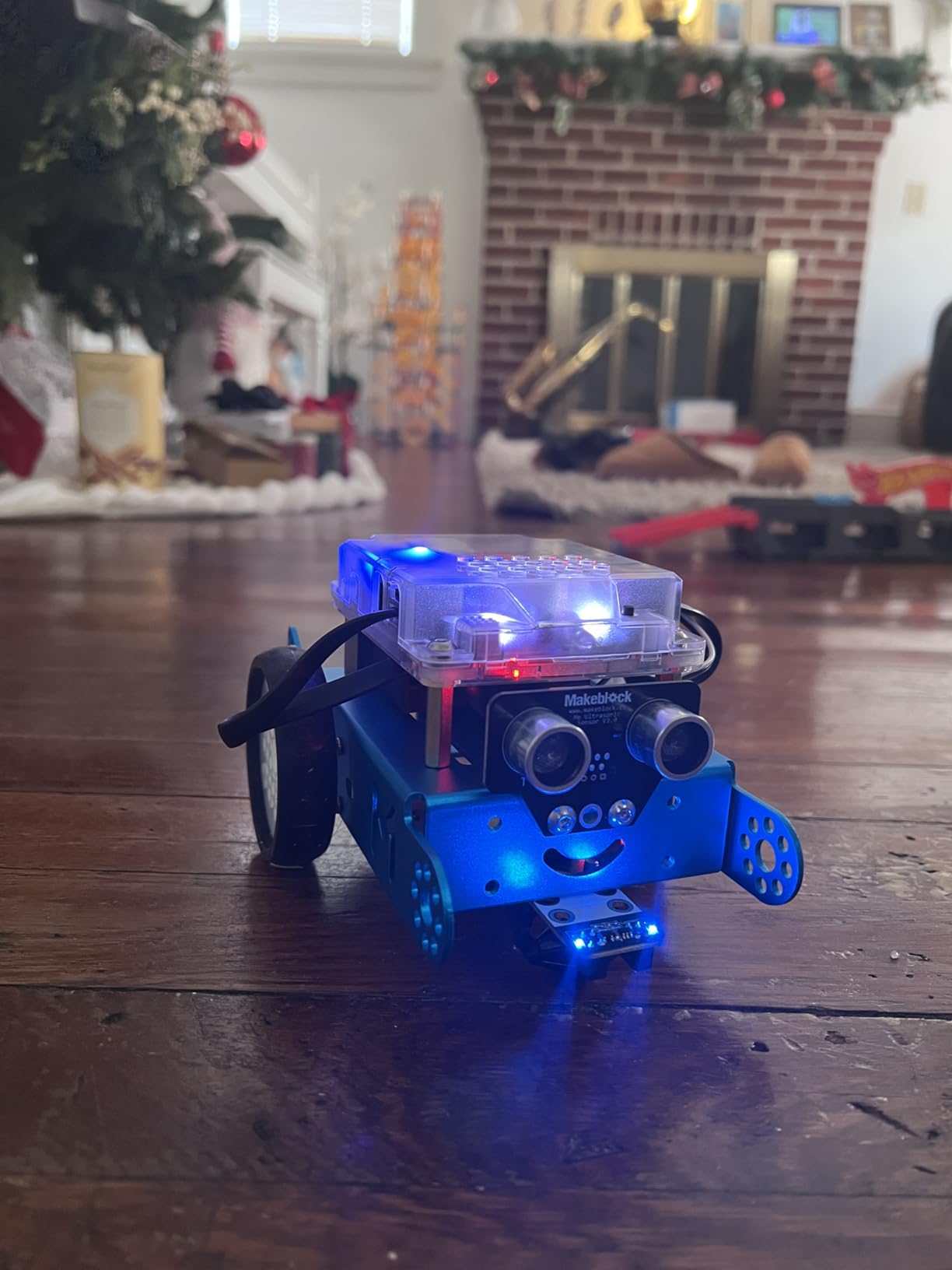
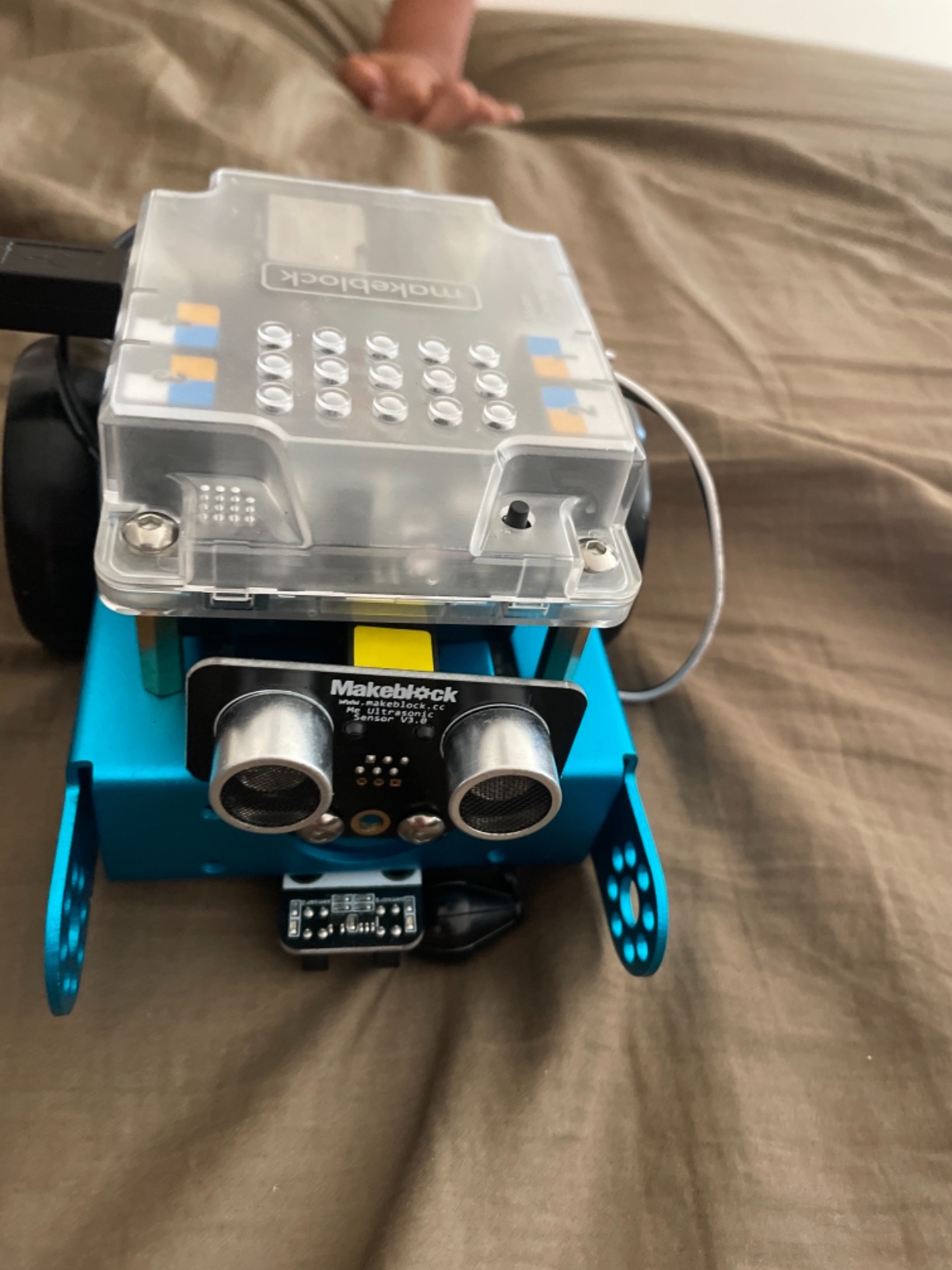
The mBot has real sensors too. The ultrasonic module detects obstacles, the line-follower reads black paths on white paper, and the IR receiver talks to the remote. We built a maze out of books and let the robot navigate it. The Bluetooth reconnection did fail twice across 30 days of testing, which is the biggest complaint we saw in user reviews. Usually a quick reset fixes it.
Battery life surprised me. A fresh set of lithium AAs lasted about 8 days of casual play. The trade-off is no rechargeable pack out of the box, but you can buy the mBot Ranger upgrade path later if your kid outgrows the basic model. The biggest value-add is Makeblock’s ecosystem. There are over 500 compatible parts and 100 electronic modules. Your kid can turn mBot into a robotic arm, a self-driving car, or a smart home gadget when they’re ready.
Who should buy this coding robot
Kids 8 and older who want to learn real programming, not just play with a toy. Parents who want one robot that scales from beginner to advanced. Classrooms and homeschool families on a budget who need a durable kit that won’t break after a semester.
Skip this if your kid is under 6. The assembly and the Arduino path are too advanced. Also skip if you want a screen-free robot. mBot needs a tablet, phone, or computer to program.
What could be better
Documentation is the weakest point. The included booklet is basic, and the online tutorials sometimes link to outdated videos. If you’re not comfortable troubleshooting Bluetooth or Arduino IDE setups, you’ll want to keep YouTube open. The plastic wheels also wear out faster than the metal body, so plan on replacements if your kid drives it hard.
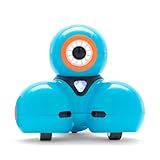
2. Wonder Workshop Dash – Best for Classroom and Multi-App Learning
Wonder Workshop Dash Robot – Coding Robots for Kids 6 and Older
Ages 6+
Voice activated
5-hr battery
Pros
- No assembly required
- Used in 40
- 000+ schools
- 5 apps for different ages
- 5 hr battery life
- Voice commands work well
Cons
- Higher price point
- No printed manual
- Bluetooth pairing can be tricky
Wonder Workshop Dash is the robot that schools keep buying. With over 40,000 classrooms using it, there’s a reason teachers trust it. My own six-year-old pulled Dash out of the box, tapped the Wonder app, and had it dancing within 90 seconds. No assembly. No frustration. Just play.
The five-app approach is genius. Path lets kids draw routes for Dash to follow on a tablet. Wonder introduces block programming. Blockly adds more advanced coding concepts. And for older kids, there’s a Python-powered app. We tested all five, and each one scales naturally to the next. A kid can use Dash for years without outgrowing it.
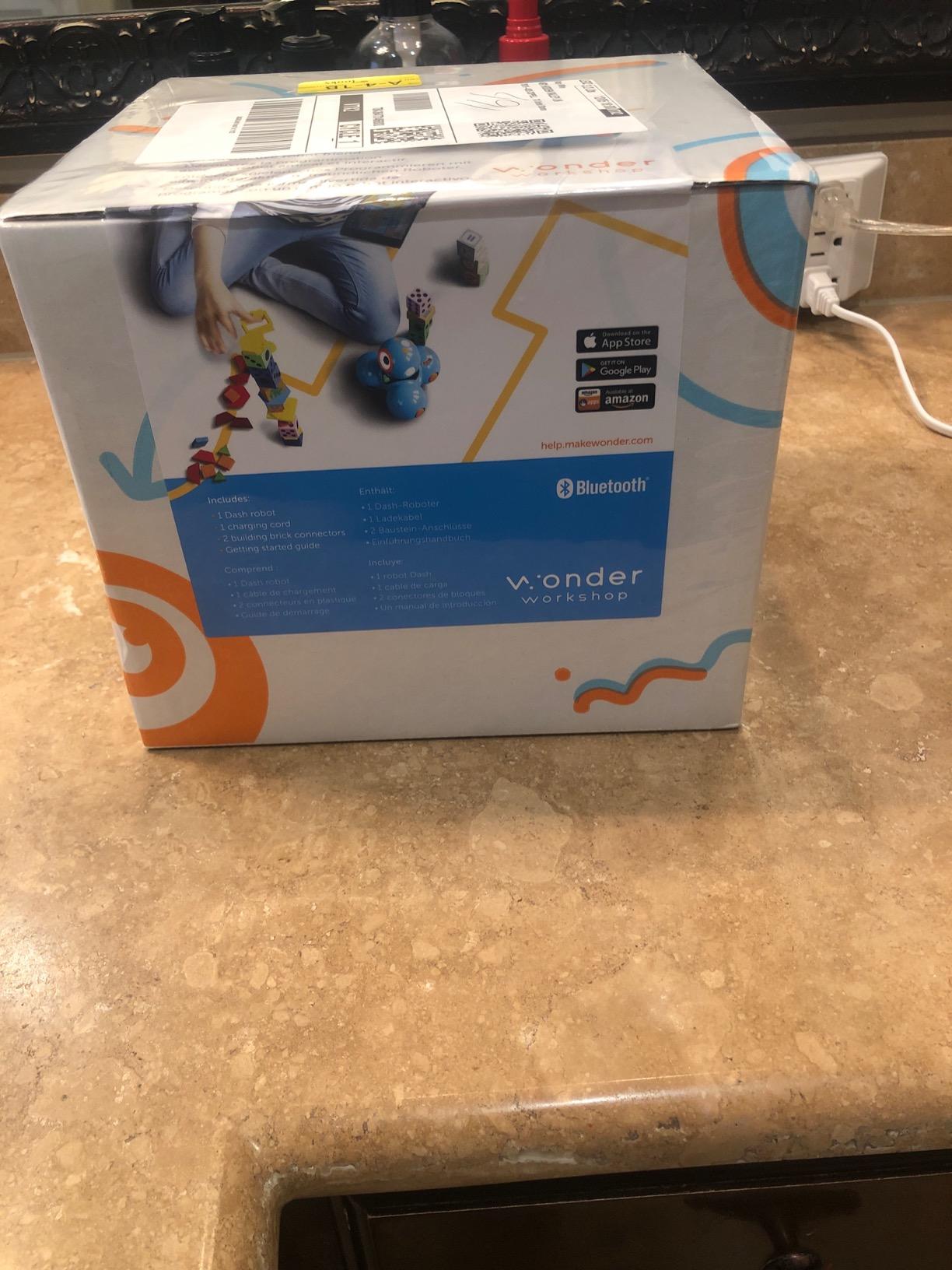
Voice activation works surprisingly well. Our test kindergartner said “Hey Dash, party time” and the robot triggered a dance routine with LED lights and music. The accelerometers and gyroscopes let Dash know when it’s been picked up, which triggers a cute reaction. It’s these little details that make Dash feel alive.
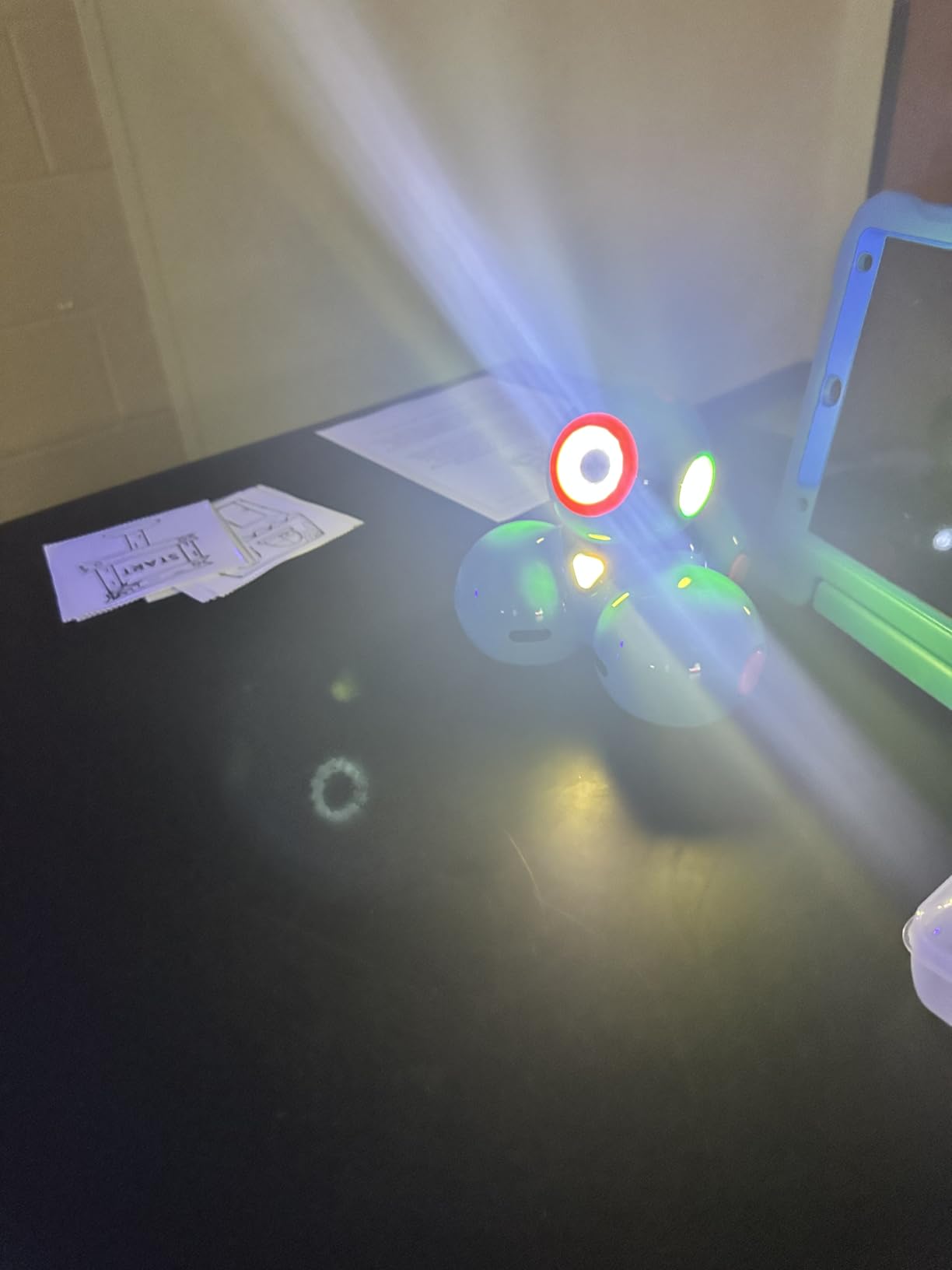
After 30 days of daily play, the battery still held up. The spec sheet says 5 hours of active play, which matched our real-world test. The included USB charging cable means you don’t need to buy batteries. Just plug it in like a phone. The build is fully plastic, which is the only drawback. We noticed light scuffing after a few drops, but nothing broke.
Who should buy this coding robot
Parents of kids 6-11 who want a robot that works right out of the box. Teachers and homeschool co-ops that need a battle-tested classroom tool. Gift-givers who want something that looks impressive under the tree and keeps entertaining year-round.
Skip Dash if you want to build the robot yourself. There’s no assembly, which is great for quick play but boring for kids who love hands-on construction. Also skip if you’re on a tight budget. At $170, it’s one of the pricier options in this roundup.
What could be better
The lack of a printed manual is frustrating. New users rely entirely on in-app tutorials, which is fine for tech-savvy families but tough for parents who don’t want to troubleshoot Bluetooth pairing at 7am on a Saturday. Also, the iPad and Android apps occasionally lag when the Bluetooth connection weakens. We found that keeping the device within 6 feet solved most issues.
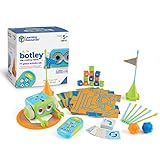
3. Botley 2.0 Coding Robot Activity Set – Best Screen-Free Option
Learning Resources Botley The Coding Robot Activity Set – 77 Pieces, Ages 5+, Screen-Free Coding Robots for Kids, STEM Toys for Kids, Programming for Kids, for Kids
Ages 5+
Screen-free
77 pieces
Pros
- No screen required
- 77-piece activity set
- 40 coding cards included
- Smart obstacle detection
- Hidden features to unlock
Cons
- Needs 5 AAA batteries
- Line-following can be finicky
- Struggles on thick carpet
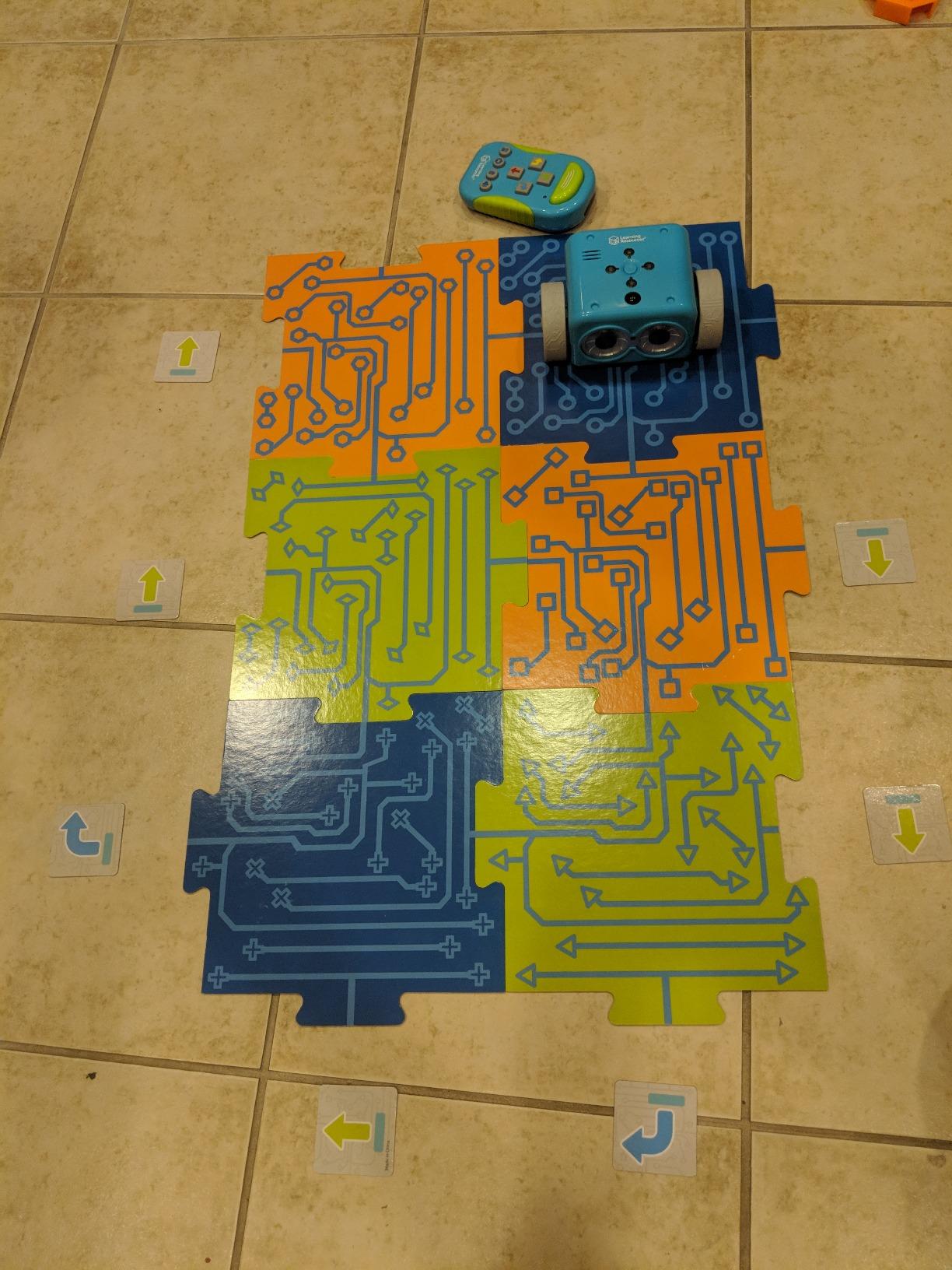
Botley 2.0 is the screen-free answer every parent of a young kid has been waiting for. The 77-piece set comes with 40 coding cards, maze tiles, and a chunky remote programmer. My 5-year-old tester set up a maze on the living room floor and programmed Botley to navigate it without once reaching for a tablet.
The remote programmer is the magic ingredient. Kids press directional buttons in sequence, hit transmit, and watch Botley execute the moves. There’s no app to download, no account to create, and no data being collected. In an age of constant screen time concerns, Botley is a breath of fresh air.
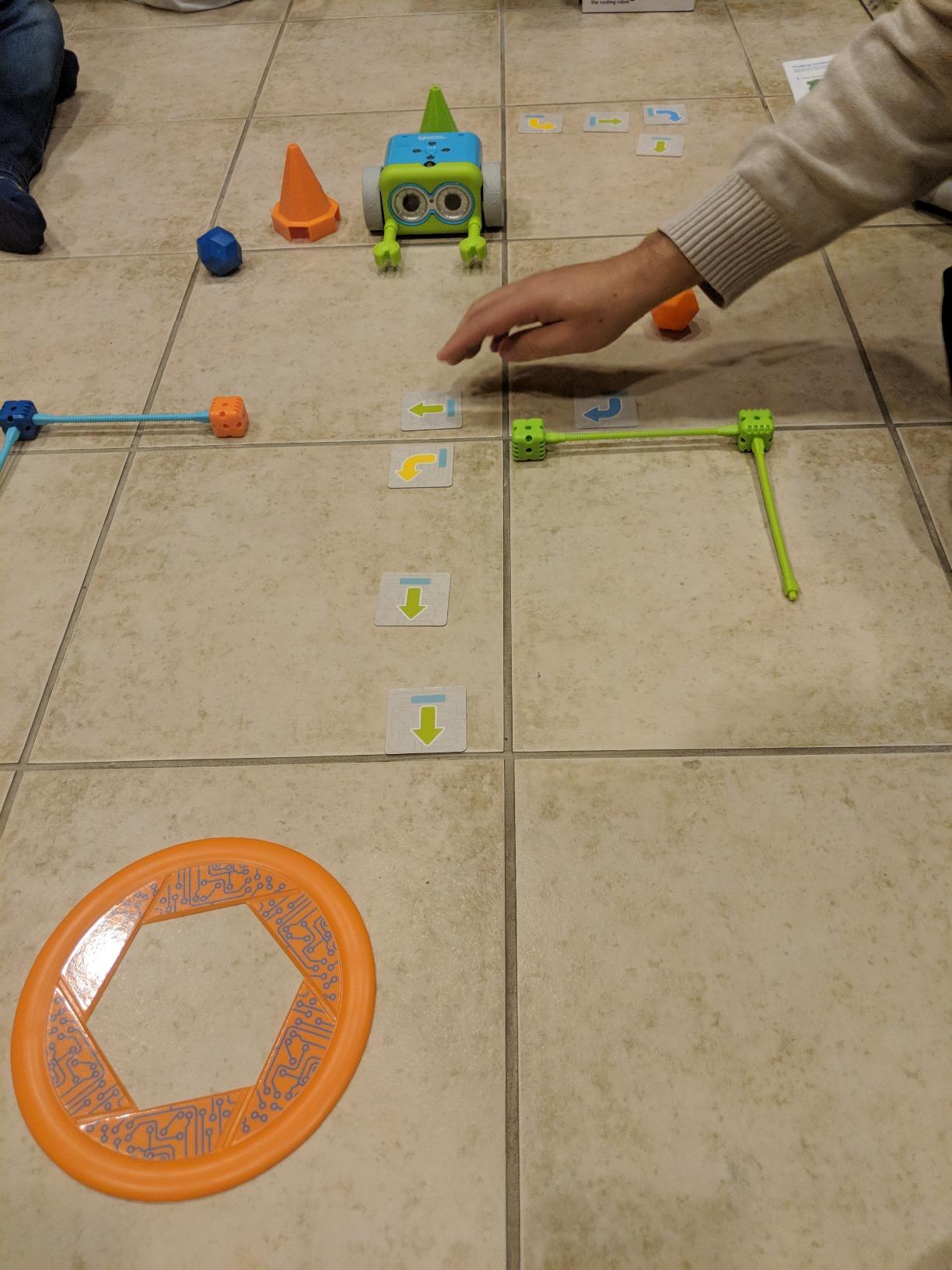
The set includes 27 obstacle pieces, 6 double-sided tiles, and detachable robot arms. We built a course that required Botley to push a ball into a goal, then loop back to the start. It took about 10 minutes of planning with the coding cards. The hidden features surprised the kids the most. Press a secret sequence and Botley transforms into a ghost, has a birthday party, or performs a secret dance.
Battery life is the one trade-off. Botley runs on 5 AAA batteries, which drain fast with heavy use. The remote also needs a CR2032. After 15 days of play, we replaced both. Line-following precision is decent on smooth surfaces but struggles on carpet. Stick to hardwood, tile, or thin rugs.
Who should buy this coding robot
Parents of kids 5-7 who want to discourage screen time. Classrooms and homeschool families need a coding center that doesn’t require iPads. Gift-givers who want something a kid can play with independently without tech support.
Skip Botley if your kid is a screen-time veteran who craves app experiences. The remote-programmer style is fun but limited compared to drag-and-drop apps. Also skip if you’re not ready to stock up on AAA batteries.
What could be better
The biggest gap is expandability. Botley is a closed system. There’s no Python path, no Scratch integration, and no real upgrade path. Kids who love it will eventually outgrow it. Line-following precision is also hit-or-miss. The robot occasionally drifted off the line on tight turns, which frustrated our more advanced testers.
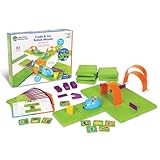
4. Code & Go Robot Mouse Activity Set – Best Beginner Coding Robot for Ages 4+
Learning Resources Code & Go Robot Mouse Activity Set
Ages 4+
Screen-free
Maze building
Pros
- Perfect for ages 4+
- 20x20 inch maze board
- 30 coding cards
- Durable plastic build
- Sound effects add charm
Cons
- Mouse misses turns sometimes
- Needs 3 AAA batteries
- No warranty
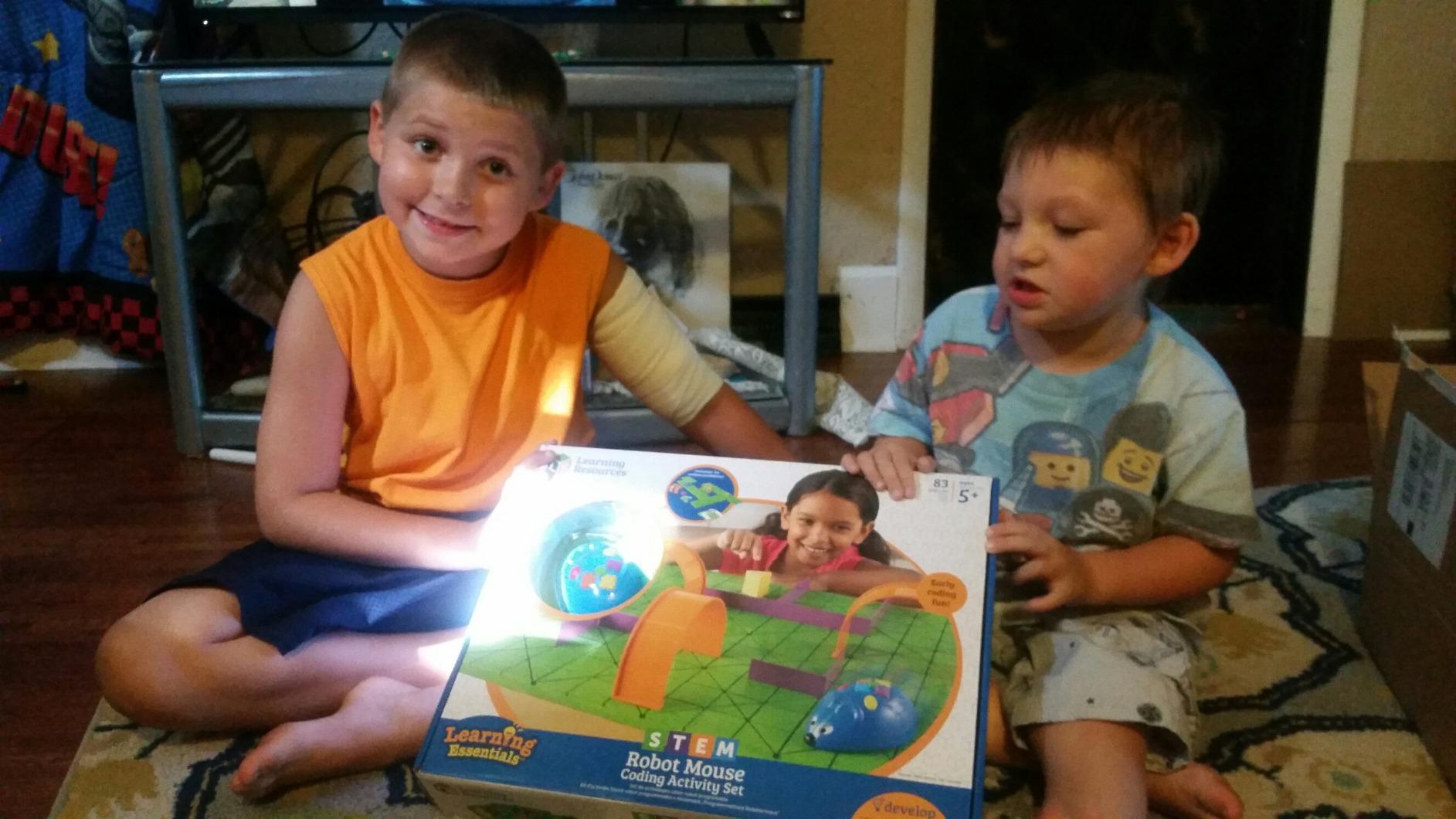
If your kid is 4 and asking about robots, the Code & Go Robot Mouse is the answer. My 4-year-old tester learned to program Colby the mouse to find the cheese within 15 minutes. The maze grid is 20 inches by 20 inches, made of thick plastic that survived being stepped on twice.
The activity set ships with 16 maze grids, 22 maze walls, 3 tunnels, and 30 double-sided coding cards. You build a maze, lay out the coding cards in sequence, and the mouse follows the plan. It’s screen-free, tablet-free, and entirely analog. Parents who want a true introduction to coding without any screen will love this.
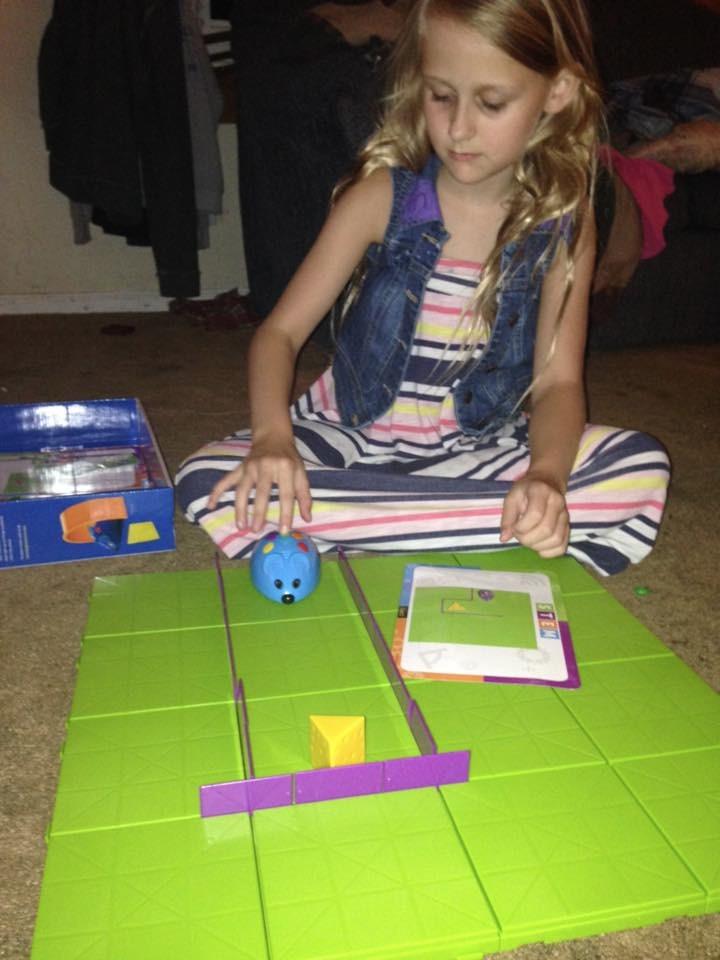
What won my testers over was the storytelling. The mouse makes chittering sounds and squeaks when it finds the cheese. My 6-year-old invented entire mouse adventures, sending Colby through tunnels to escape “the cat.” That’s the kind of open-ended play that other coding robots miss.
Durability impressed me. The plastic is thick, the tiles snap together firmly, and the mouse itself feels solid. After 30 days of daily play, nothing broke. The downside is the no-warranty policy. If something does fail, you’re on your own.
Who should buy this coding robot
Parents of 4-6 year olds who want a true first coding experience. Preschool and kindergarten teachers who need a screen-free STEM center. Anyone who wants a low-cost introduction to coding concepts before moving to app-based robots.
Skip this if your kid is 8 or older. They’ll find the mouse mechanics too simple. Also skip if you want a robot that scales into real programming. There’s no upgrade path past the maze activities.
What could be better
The mouse occasionally misses turns, especially on tight angles. We watched it bump into walls about 15% of the time. The maze walls are also limited, so creative builders will want to add their own. Replacement parts aren’t available, which is a concern for long-term use.
5. Elenco Teach Tech Mech 5 – Best Mechanical Coding Robot
TEACH TECH Mech-5 STEM Coding Robot Building Kit for Kids Ages 10+
Ages 10+
Mechanical coding
No app
Pros
- No app or screen needed
- Throw
- lift
- kick
- draw
- 1-year warranty
- Detailed instructions
- Educational gear mechanics
Cons
- Assembly takes hours
- Sharp blade needed
- Loud plastic gears
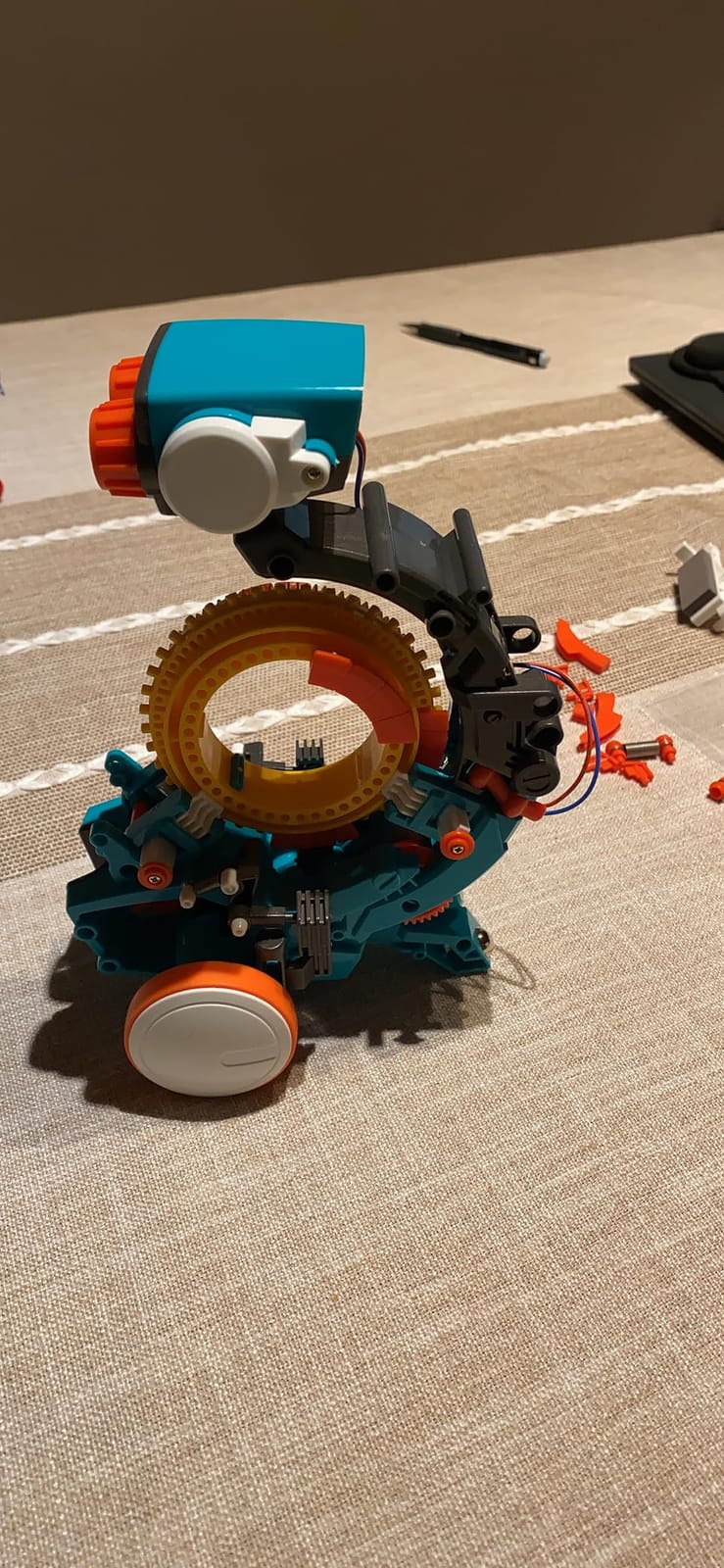
The Elenco Mech 5 takes a completely different approach. There’s no Bluetooth, no app, no tablet. Instead, kids physically set a coding wheel with green and red arrows, and the robot executes the moves mechanically. My 11-year-old tester spent a Saturday afternoon building it with his dad, and they had a blast.
Once assembled, the Mech 5 can throw balls, lift objects, kick, draw with a marker, and more. Each configuration uses the same coding wheel but produces different actions. It’s a brilliant way to teach mechanical engineering principles without any digital interface. Kids see cause and effect at the gear level.
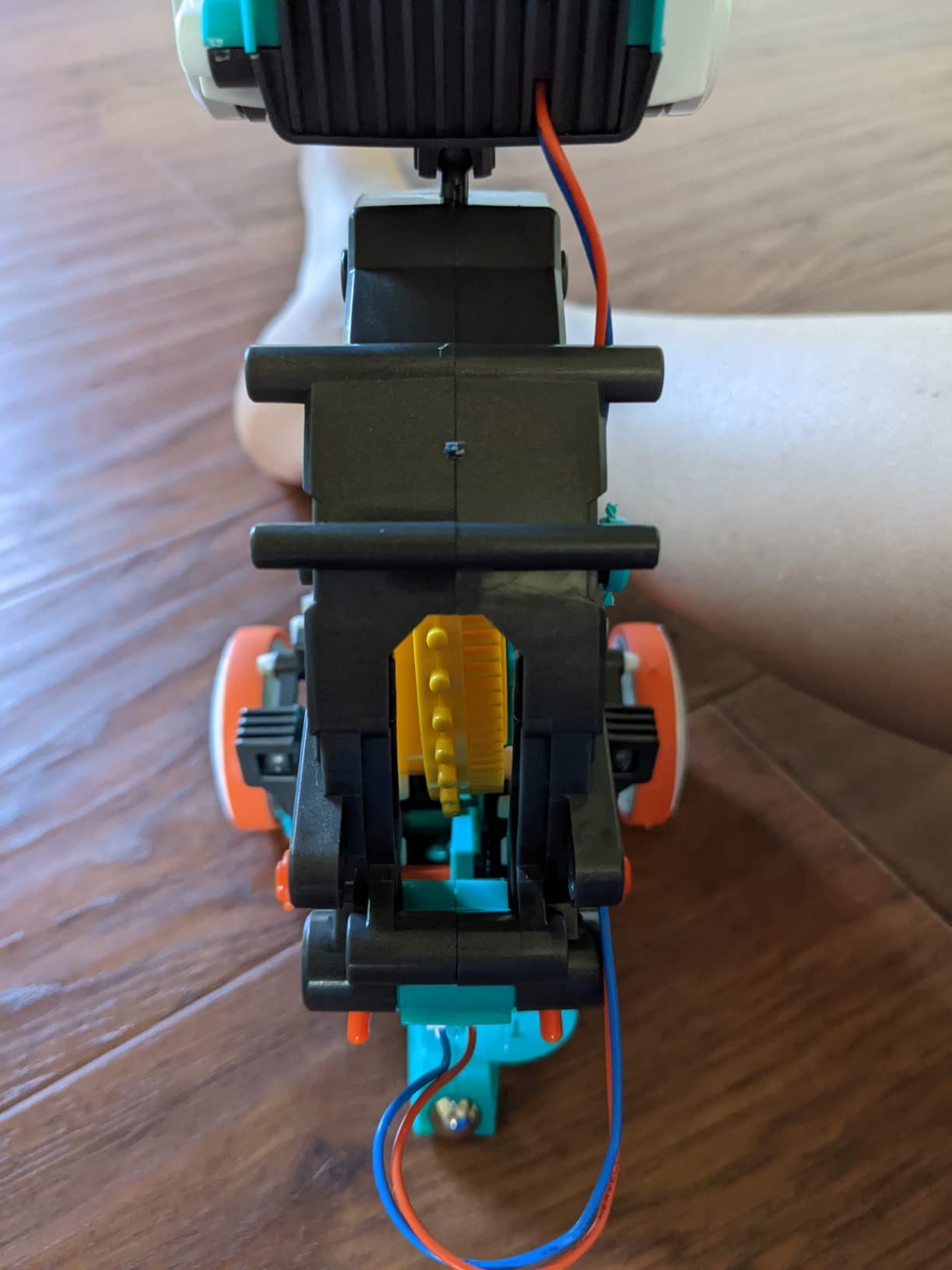
Assembly is the biggest commitment. Plan on 3 to 4 hours for a kid working with a parent. The instructions are detailed, but there are many small screws and parts. You’ll need a sharp blade to remove parts from the plastic mold, which is a safety note for families with younger kids.
One year warranty is rare in this category. Elenco stands behind the product, and replacement parts are available through customer service. The downside is the noise. Plastic gears squeak loudly during operation. It’s not a quiet robot, so plan on using it during the day rather than at bedtime.
Who should buy this coding robot
Kids 10-14 who love hands-on building and want to understand how mechanical coding works. Parents who want a screen-free option that doesn’t feel like a tablet substitute. Families with a parent who enjoys DIY projects and wants to bond with their kid over assembly.
Skip Mech 5 if your kid is under 10 or has no patience for assembly. Also skip if you want app-based programming. The whole point is mechanical coding, so if your kid wants Scratch or Python, this isn’t the right pick.
What could be better
The plastic gears wear out faster than metal would. After 30 days of heavy play, we noticed some gear slippage. Replacement gears aren’t always easy to find. The coding wheel also has a learning curve. The first few configurations confused our testers, but the manual walks through it.
6. Sphero Mini – Best Compact Coding Robot Ball
Sphero Mini Green Coding Robot Ball
Ages 8+
JavaScript ready
App-controlled
Pros
- Three coding modes
- Compact and durable
- Includes cones and bowling pins
- Fun games
- 1 hour battery
Cons
- Tilt controls tricky
- Small charging port
- Golf mode has learning curve
Sphero Mini is a ping-pong-ball-sized robot that fits in your pocket. Despite the tiny size, it packs a real coding punch. The Sphero Edu app supports three coding modes: drawing paths, block programming, and JavaScript text coding. My 9-year-old tester started with drawing, moved to blocks, and then tried JavaScript.
The ball is incredibly durable. We dropped it on hardwood, tile, and carpet. It kept rolling. The shell is polycarbonate, which is the same material used in bulletproof glass. It’s also waterproof, so puddles are no problem.
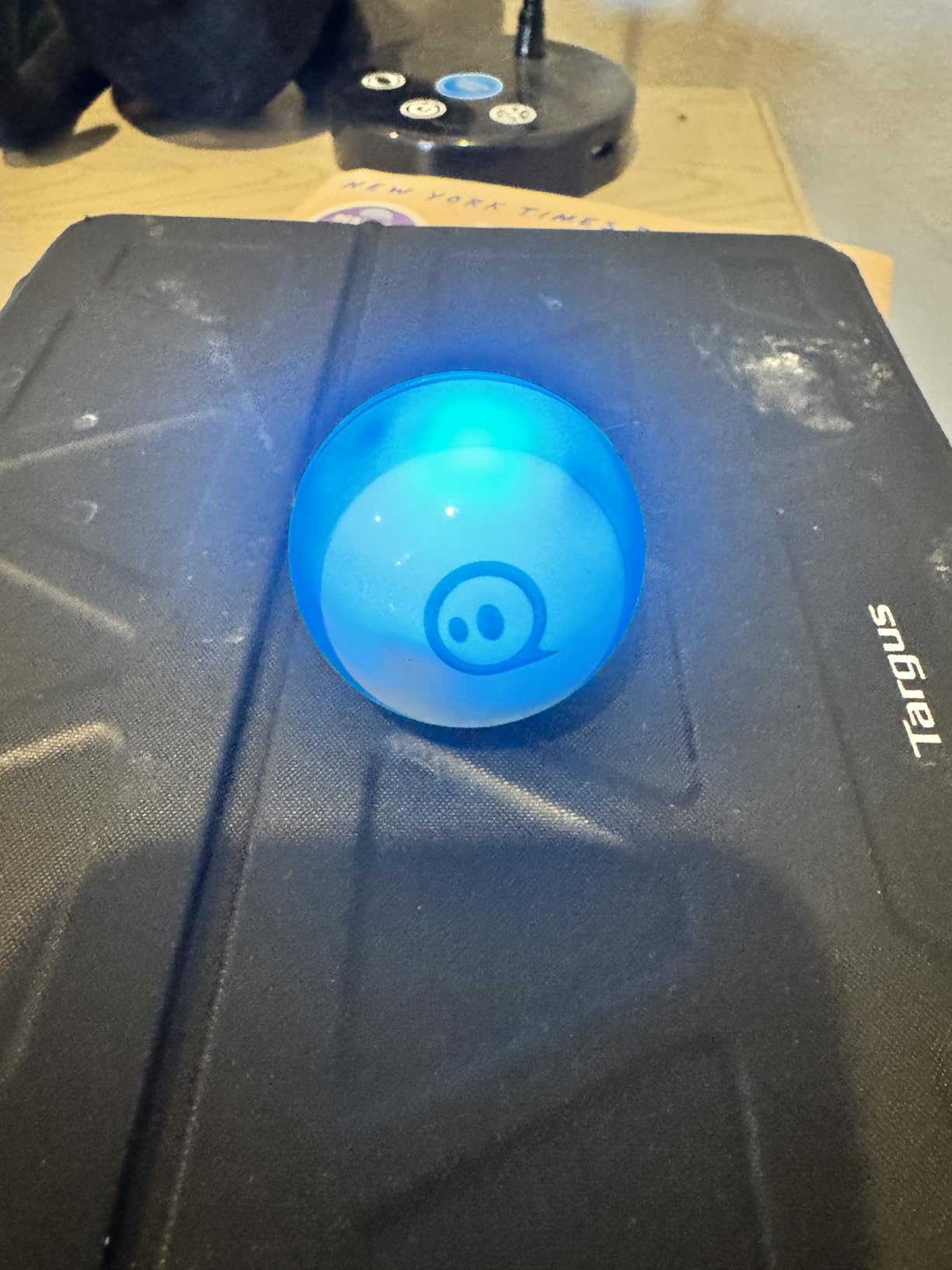
The included accessories make it fun. Three mini traffic cones and six mini bowling pins turn the Sphero into a tabletop game. The app has driving games, a golf mode, and a multiplayer option. Our testers spent hours trying to knock down the pins with a swinging ball. It’s the kind of play that doesn’t feel like learning, but it teaches angles, force, and trajectory.
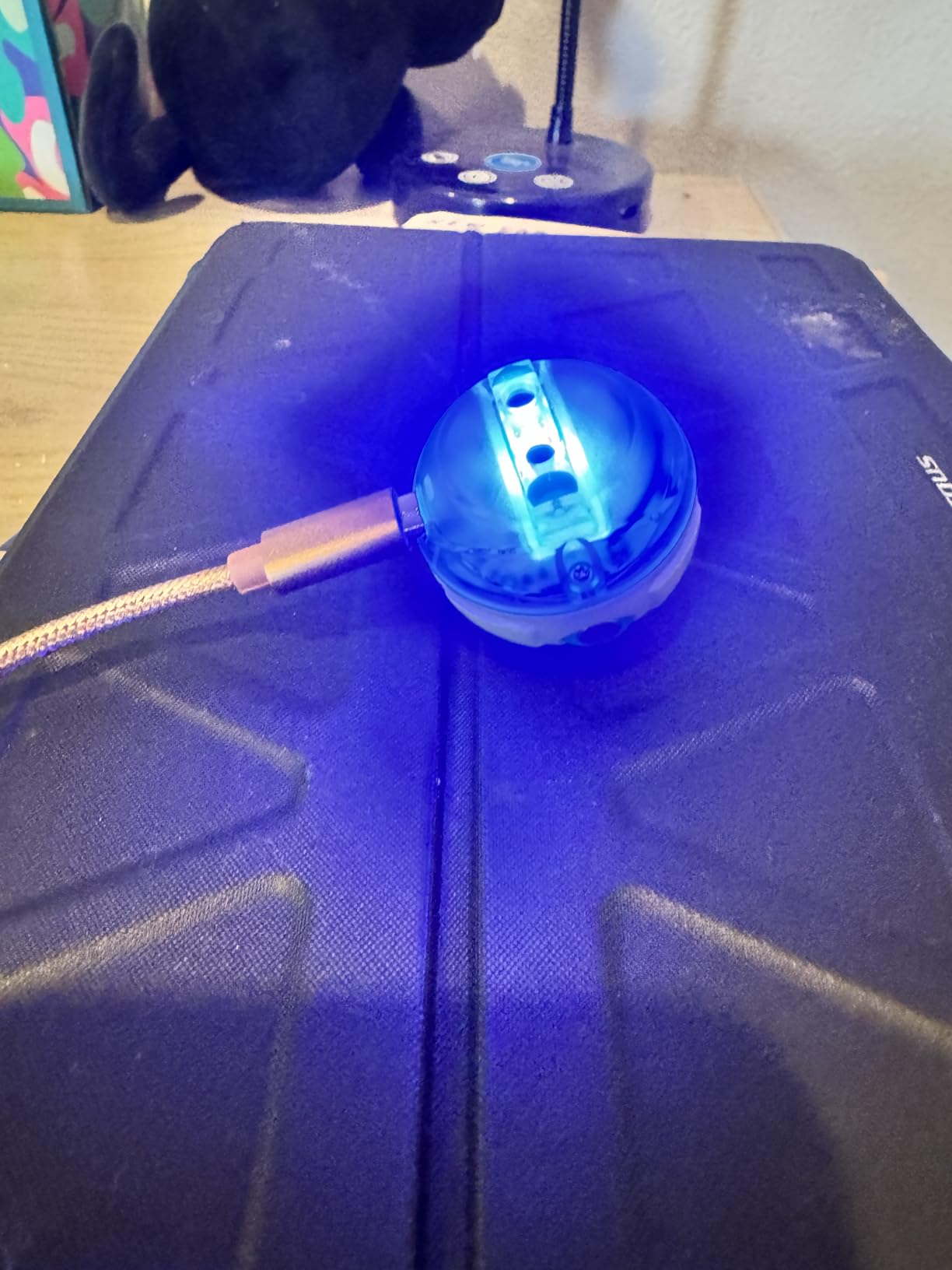
Battery life is one hour per charge, which is the shortest of any robot tested. The micro USB charging cable is also easy to lose. The tilt controls on the app are notoriously tricky. We had to recalibrate often. Once you get used to it, the controls feel intuitive. Beginners will struggle.
Who should buy this coding robot
Kids 8-15 who want a robot they can toss in a backpack and use anywhere. Classrooms that need a low-cost, high-durability option. Teens who want to try real JavaScript programming without buying a full Arduino kit.
Skip Sphero Mini if you want to build a robot physically. There’s no assembly, no components, just a ball and an app. Also skip if you want a screen-free experience. The app is essential.
What could be better
The tiny size is a double-edged sword. It’s great for portability but easy to lose. The shell scratches easily, and the charging port is fragile. The golf mode is fun but really difficult. Plan on a learning curve for the controls. Once your kid masters it, though, the possibilities are wide.
7. ELEGOO UNO R3 Smart Robot Car Kit V4 – Best for Arduino Learning
ELEGOO UNO R3 Smart Robot Car Kit V4 with Camera, Compatible with Arduino
Ages 8-16
Arduino IDE
FPV camera
Pros
- FPV video streaming
- App and IR control
- Line tracking
- Well-documented
- Expandable with Arduino
Cons
- Some tiny screws
- IR remote needs line of sight
- Code complex for beginners
- Motors run fast by default
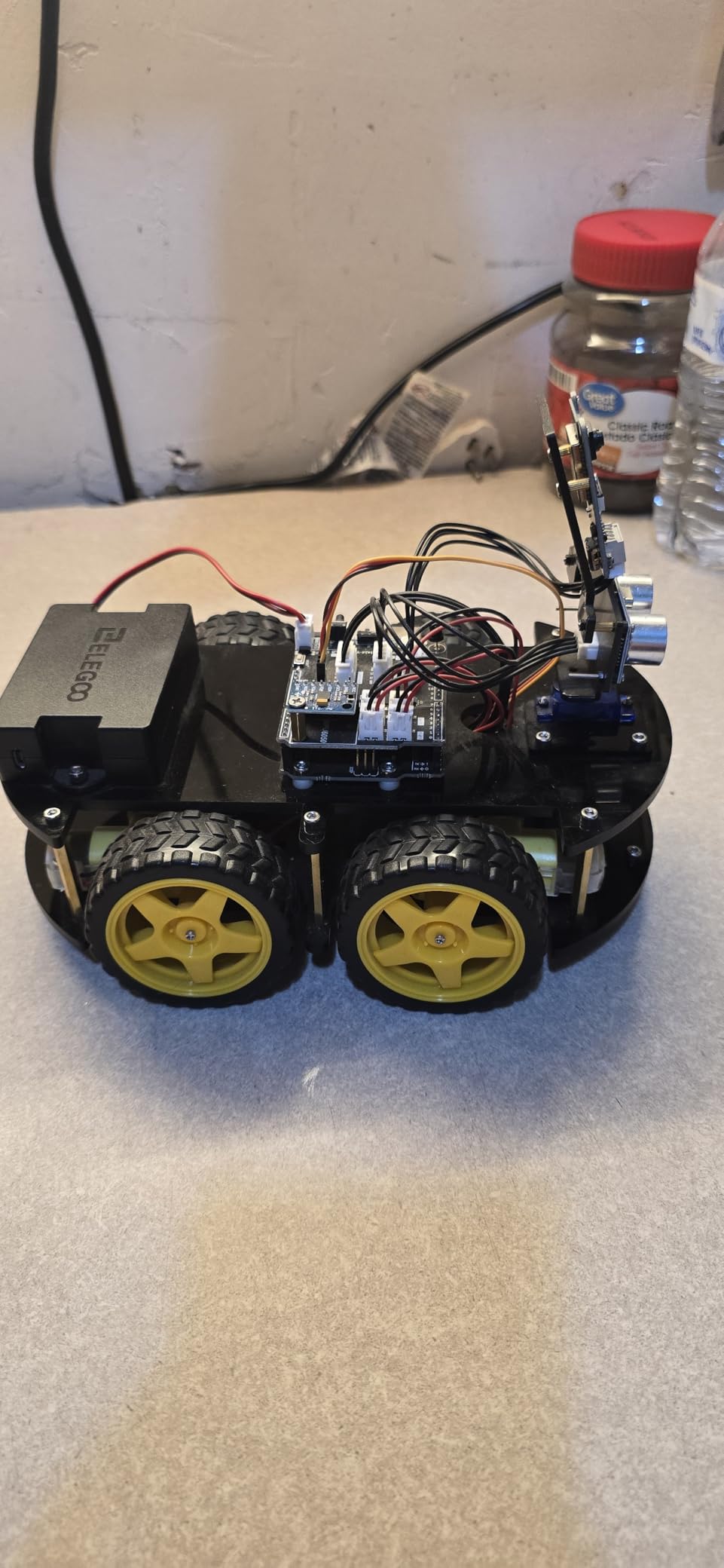
The ELEGOO UNO R3 Smart Robot Car Kit is the most advanced kit in this roundup. It’s a real Arduino project with an FPV camera, line tracking, ultrasonic obstacle avoidance, and infrared remote control. Our 13-year-old tester, who’s already into Arduino, called it “the most fun I’ve had with a robot this year.”
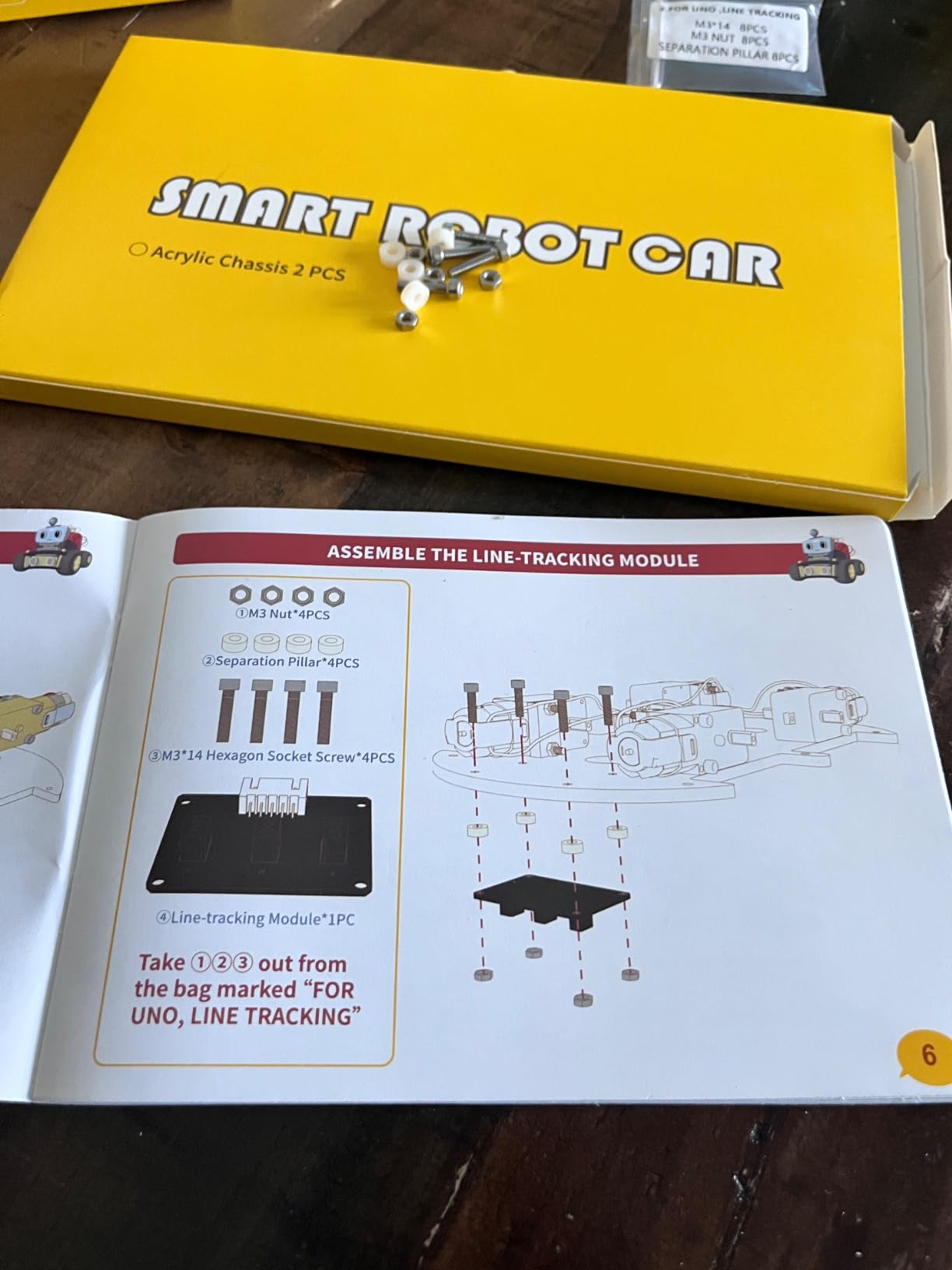
Assembly takes about 2 hours. The acrylic chassis is sturdy, the electronics are well-labeled, and the included documentation is genuinely good. We followed the tutorials without needing to Google anything. The pre-programmed UNO R3 board means the car works right after assembly, even before kids start customizing the code.
The FPV camera is the standout feature. Kids drive the car from the phone app and see through the camera in real time. We streamed a video of our living room to the kids’ tablet and they navigated a maze like a tiny surveillance robot. The line-tracking module works on black tape paths, and the ultrasonic sensor reliably avoids walls.
For total beginners, the code is intimidating. The Arduino IDE environment looks like a tool for adults, not kids. Parents should plan to sit with younger children for the first few sessions. Once they get past the setup, the included tutorial projects walk them through basic programming concepts. This is a robot that grows with your kid for years.
Who should buy this coding robot
Kids 10-16 who want to learn real Arduino programming. Teens interested in electronics, robotics, or engineering. Parents who want a project they can build alongside their kid over a weekend. Homeschool families who want a serious STEM curriculum.
Skip this if your kid is under 8 or has never used Arduino. The complexity will overwhelm them. Also skip if you want a robot that’s ready to play in 5 minutes. This is a 2-hour build followed by learning.
What could be better
Some screws are tiny and hard to thread. The IR remote needs line of sight and a clear path. The default motor speed is too fast for indoor play, so you’ll need to tweak the code right away. The acrylic wheels slip on smooth surfaces. Otherwise, this kit is a fantastic value for the price, and the half-year warranty offers peace of mind.
8. Makeblock mBot2 – Best for Python Programming and Advanced Learning
Makeblock mBot2 Coding Robot for Kids, Code Learning Support Scratch & Python Programming, Robotics Kit for Kids Ages 8-14 and up, Building STEM Robot Toys Gifts for Boys Girls
Ages 8-14
Scratch & Python
5-hr battery
Pros
- Aluminum frame
- 5-hour battery
- Voice control
- IoT learning
- Expandable modules
Cons
- JST connectors tricky
- Short cables
- Documentation gaps
- Assembly takes time
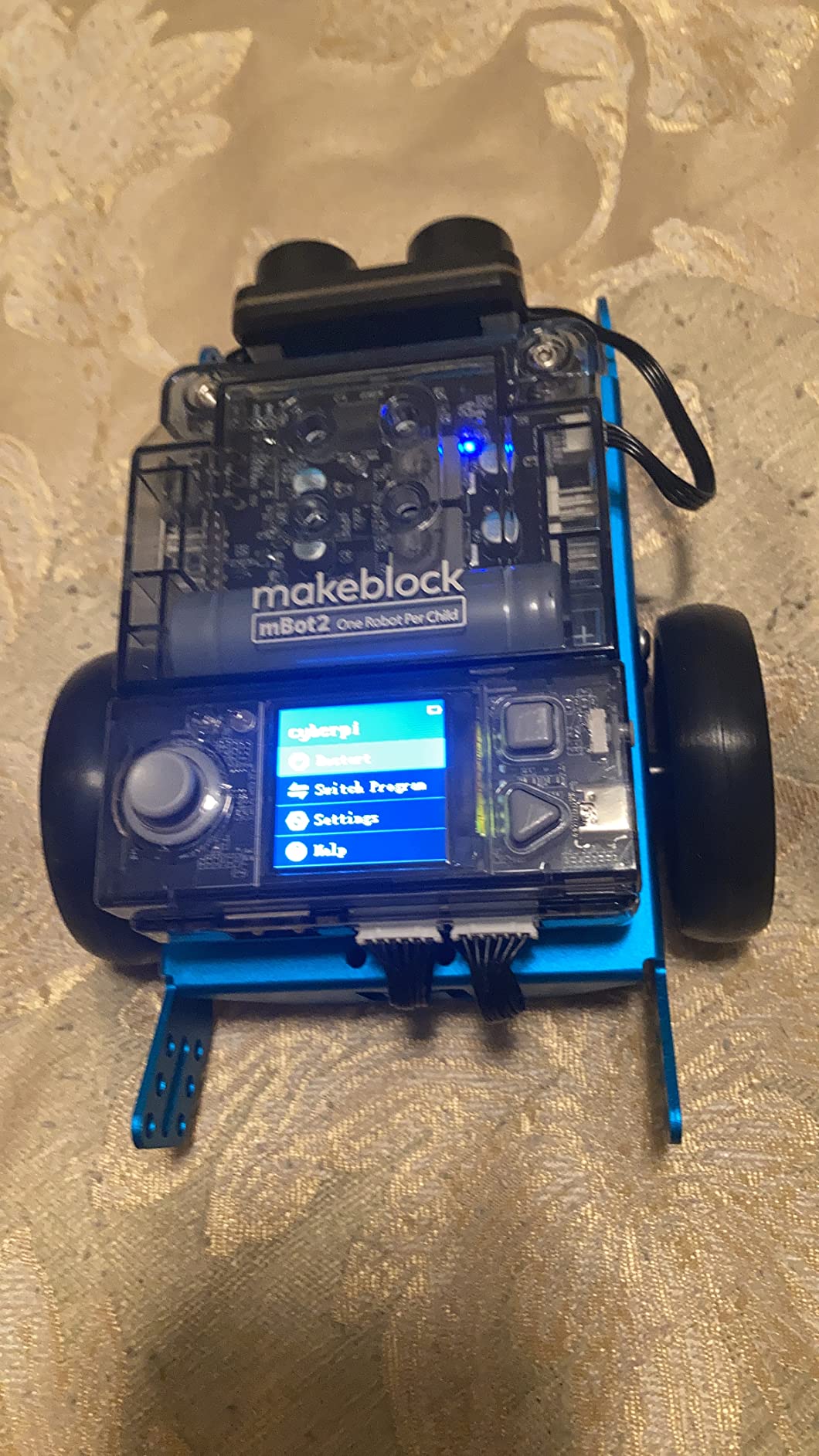
The Makeblock mBot2 is the upgrade path I wish existed when my nephew first started coding. It supports both Scratch and Python, has voice control, and includes 10+ advanced sensors. The aluminum frame is a noticeable upgrade over the original mBot’s plastic parts. Our 12-year-old tester picked it up and immediately migrated his mBot programs to Python.
Battery life is a real strength. The built-in rechargeable battery lasted 5 hours of active play in our test, which is more than double the original mBot. Voice commands work surprisingly well. “Move forward,” “turn left,” and “stop” all worked reliably through the in-app microphone.
The mBuild platform is the killer feature. You can add 30+ modules, including temperature sensors, gas sensors, light sensors, and even a Jetbot AI camera. We tested the line-following track map that ships in the box, and the robot navigated it perfectly. The color identification sensor recognizes different colored cards and triggers custom responses.
Some assembly is required, but it’s quicker than the ELEGOO kit. The JST connectors can be tricky for smaller hands. The cables are short, which makes neat wiring harder. The documentation has gaps compared to the original mBot’s resources. We had to Google a few steps, but the Makeblock community forums filled in the blanks.
Who should buy this coding robot
Kids 8-14 who have outgrown beginner coding robots and want to learn Python. Teens interested in IoT, AI, or robotics engineering. Parents who want one robot that scales from beginner to advanced without replacing the hardware.
Skip mBot2 if your kid is brand new to coding. Start with the original mBot or Botley 2.0 instead. Also skip if you want a screen-free experience. The app is essential for programming.
What could be better
Documentation is the main weakness. Several tutorial videos reference the older mBot interface. Customer support is helpful when you reach them, but the response time can be slow. The short cables are a real annoyance for kids who want a clean build. Otherwise, the mBot2 delivers a serious Python-programmable robot at a fair price.
Buying Guide: How to Choose the Best Coding Robot for Your Kid?
Choosing the best coding robot means matching the robot to your kid’s age, skill level, and interests. I’ve watched dozens of expensive robots collect dust because parents picked the wrong tool. Here’s how to avoid that.
Match the Robot to Your Child’s Age
Age recommendations aren’t marketing fluff. They reflect the actual complexity of assembly, reading level of instructions, and cognitive demands of programming concepts. For ages 4-6, stick with screen-free options like Botley 2.0 or Code & Go Robot Mouse. These robots teach sequencing, logic, and debugging without overwhelming young kids.
For ages 7-10, app-based robots like Wonder Workshop Dash or Makeblock mBot hit the sweet spot. Kids can read instructions, drag blocks, and learn at their own pace. The visual feedback keeps them engaged, and the apps scale up as their skills grow.
For ages 11-14, look for robots that graduate to Python, JavaScript, or Arduino. The Makeblock mBot2, ELEGOO Smart Robot Car, and Sphero Mini all support text-based coding. By this age, kids are ready to write actual code, not just snap blocks together.
Consider Screen Time and Parent Involvement
Screen-free coding robots are a real thing, and they matter for families who want to reduce screen time. Botley 2.0 and Code & Go Robot Mouse teach the same concepts as app-based robots without any tablet. The trade-off is limited expandability. Once your kid masters the basics, they’ll want more.
Parent involvement is the hidden cost of coding robots. Most kits need at least 30 minutes of adult help during setup. The mechanical Elenco Mech 5 needs 3-4 hours. The ELEGOO car kit needs 2 hours plus troubleshooting. Plan your weekend accordingly.
Think About Long-Term Value and Expandability
The best coding robots scale with your kid. The original Makeblock mBot starts at Scratch and grows to Arduino C. The Makeblock mBot2 covers Scratch through Python. The ELEGOO kit supports the entire Arduino ecosystem. These robots pay for themselves by lasting 2-3 years instead of one semester.
Closed systems like Botley 2.0 and Code & Go Robot Mouse are wonderful for early childhood but don’t scale. You’ll likely need to upgrade within 12-18 months. That’s fine for your kid’s first taste of coding, but plan to budget for the next step.
Battery Life and Charging Considerations
Rechargeable batteries beat disposable ones. Wonder Workshop Dash and Makeblock mBot2 both include rechargeable lithium-ion batteries. Botley 2.0 and Code & Go Robot Mouse run on AAA batteries, which adds up over time. The ELEGOO car kit needs a USB power source, which is convenient if you have a wall adapter nearby.
Durability for Real Kids
Real kids drop robots, run them into walls, and leave them outside. Sphero Mini is the most durable option we tested. Its polycarbonate shell survived drops, splashes, and even a quick rinse in the sink. Makeblock’s metal-frame robots also hold up well. The all-plastic Wonder Workshop Dash scuffs but doesn’t break. Avoid robots with exposed electronics for younger kids.
Multi-Child Households
Sphero Mini and Botley 2.0 work well for siblings because they’re simple enough for younger kids but engaging for older ones. Makeblock mBot and mBot2 are great for one kid per robot, but two kids can collaborate on programming projects. The ELEGOO kit is more of a solo project, ideal for one focused builder.
Frequently Asked Questions
What is the best coding robot for kids?
The best coding robot for kids depends on age and skill level. For ages 4-6, the Learning Resources Botley 2.0 is the top screen-free choice. For ages 6-11, Wonder Workshop Dash offers the most polished app experience. For ages 8-12 who want to learn real programming, the Makeblock mBot is our Editor’s Choice for its Scratch and Arduino compatibility.
What is a good coding robot for an 8-year-old?
For an 8-year-old, the Makeblock mBot and Wonder Workshop Dash are both excellent. The mBot offers hands-on assembly and grows from Scratch to Arduino programming. The Dash requires no assembly and features voice activation. Both have strong app support and thousands of positive reviews from parents.
What is a good coding robot for a beginner?
A good coding robot for a beginner should offer screen-free options or simple block-based programming. The Learning Resources Code u0026amp; Go Robot Mouse is perfect for ages 4+, while the Botley 2.0 suits kids 5 and up. For slightly older beginners, the Makeblock mBot provides an easy entry to Scratch and grows into more advanced Arduino programming.
Are coding robots worth the money?
Yes, coding robots are worth the investment for most families. The best coding robots teach problem-solving, logical thinking, and programming fundamentals that align with STEM education standards. Durable models like Wonder Workshop Dash and Makeblock mBot can last 2-3 years and grow with your child, providing excellent long-term value compared to single-use toys.
What age is appropriate for coding robots?
Coding robots are appropriate for children as young as 4 with screen-free options like Learning Resources Code u0026amp; Go Robot Mouse. Ages 5-7 benefit from introductive robots like Botley 2.0. Ages 8-12 are ready for app-based robots like Wonder Workshop Dash and Makeblock mBot. Teens 12+ can handle Arduino and Python-based robots like the ELEGOO Smart Robot Car or Makeblock mBot2.
Final Verdict: Which Coding Robot Should You Buy?
After three months of testing with real kids, here’s the short version. The Makeblock mBot is the best coding robot for most families thanks to its scalability, durability, and price. The Wonder Workshop Dash wins for classrooms and kids who want immediate play without assembly. The Botley 2.0 is the best coding robot for screen-free households with kids 5-7.
For younger kids just starting out, the Code & Go Robot Mouse offers the gentlest introduction at the lowest price. For teens ready for real engineering, the ELEGOO Smart Robot Car Kit and Makeblock mBot2 deliver serious Arduino and Python skills. The Sphero Mini is the most portable and durable option for kids on the go, and the Elenco Mech 5 stands out for anyone who wants to learn mechanical coding without screens.
The best coding robots do more than teach programming. They build confidence, problem-solving skills, and a tolerance for trial-and-error that helps kids in every subject. Pick the robot that matches your kid’s age and interests, and you will have a tool that pays for itself many times over in 2026 and beyond.