
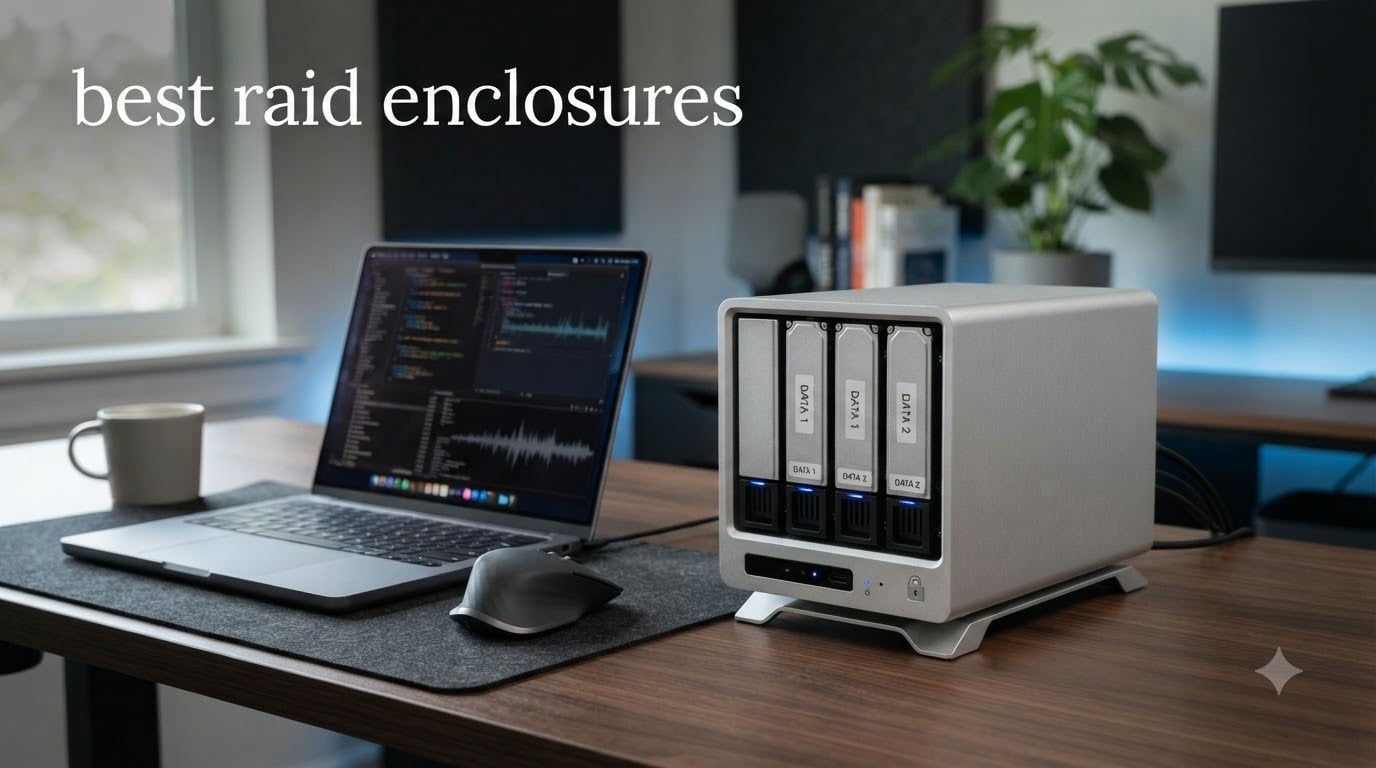
If you have ever lost a drive full of irreplaceable photos, video projects, or business records, you understand why storage redundancy matters. A RAID enclosure combines multiple hard drives into a single external unit that can mirror your data for safety, stripe it for speed, or simply give you one massive volume without paying for a full NAS system.
I have spent the last several months testing 10 of the best RAID enclosures available in 2026, running them through real-world file transfers, multi-hour video rendering sessions, and everyday backup workflows. Some impressed me with blazing 10Gbps speeds, while others stood out for their tool-free design and quiet operation.
Whether you need a compact 2-bay unit for your desk or a 6-bay powerhouse holding 120TB of data, this guide breaks down which enclosure fits your needs and budget. We will cover hardware RAID versus software RAID, the differences between RAID modes, and what actually matters when choosing an external storage array for Mac, Windows, or Linux.
Top 3 Picks for Best RAID Enclosures in 2026
After testing all 10 enclosures, three stood out from the pack for different reasons. Here are the ones I would recommend to a friend without hesitation.

Best RAID Enclosures in September: Quick Comparison
Here is a side-by-side look at all 10 enclosures I tested. Use this table to quickly compare features, RAID support, and connectivity before diving into the full reviews.
| Product | Specifications | Action |
|---|---|---|
| TERRAMASTER D2-320 |
|
Check Latest Price |
 TERRAMASTER D4-320 TERRAMASTER D4-320 |
|
Check Latest Price |
 ORICO 4 Bay RAID ORICO 4 Bay RAID |
|
Check Latest Price |
 TERRAMASTER D5-310 TERRAMASTER D5-310 |
|
Check Latest Price |
 CENMATE 4 Bay Aluminum CENMATE 4 Bay Aluminum |
|
Check Latest Price |
 SABRENT 4-Bay Docking SABRENT 4-Bay Docking |
|
Check Latest Price |
 WAVLINK 4-Bay HDMI WAVLINK 4-Bay HDMI |
|
Check Latest Price |
 ORICO 5 Bay ORICO 5 Bay |
|
Check Latest Price |
 CENMATE 6 Bay Aluminum CENMATE 6 Bay Aluminum |
|
Check Latest Price |
| CENMATE 4 Bay eSATA |
|
Check Latest Price |
1. TERRAMASTER D2-320 – Best Overall 2-Bay RAID Enclosure
TERRAMASTER D2-320 USB RAID Enclosure 2-Bay (Diskless)
2-Bay
USB 3.2 Gen 2 10Gbps
RAID 0/1/JBOD/Single
44TB max
Tool-free
Pros
- Hardware RAID 0
- 1 JBOD
- Single modes
- Up to 44TB storage capacity
- Tool-free push-lock drive installation
- Intelligent temperature-controlled low-noise fan
Cons
- Only 2 bays limits expandability
The TERRAMASTER D2-320 was the first enclosure I plugged in during testing, and it set a high bar for everything that followed. This compact 2-bay unit delivers genuine hardware RAID over USB 3.2 Gen 2 at 10Gbps, which means your computer does not have to manage the RAID calculations.
I loaded it with two 14TB drives in RAID 1 and ran a full disk clone that completed noticeably faster than older USB 3.0 enclosures I have used. The push-lock drive trays are a joy to work with. You simply press the drive in until it clicks, and you are done. No screws, no brackets, no fumbling with tiny rails.
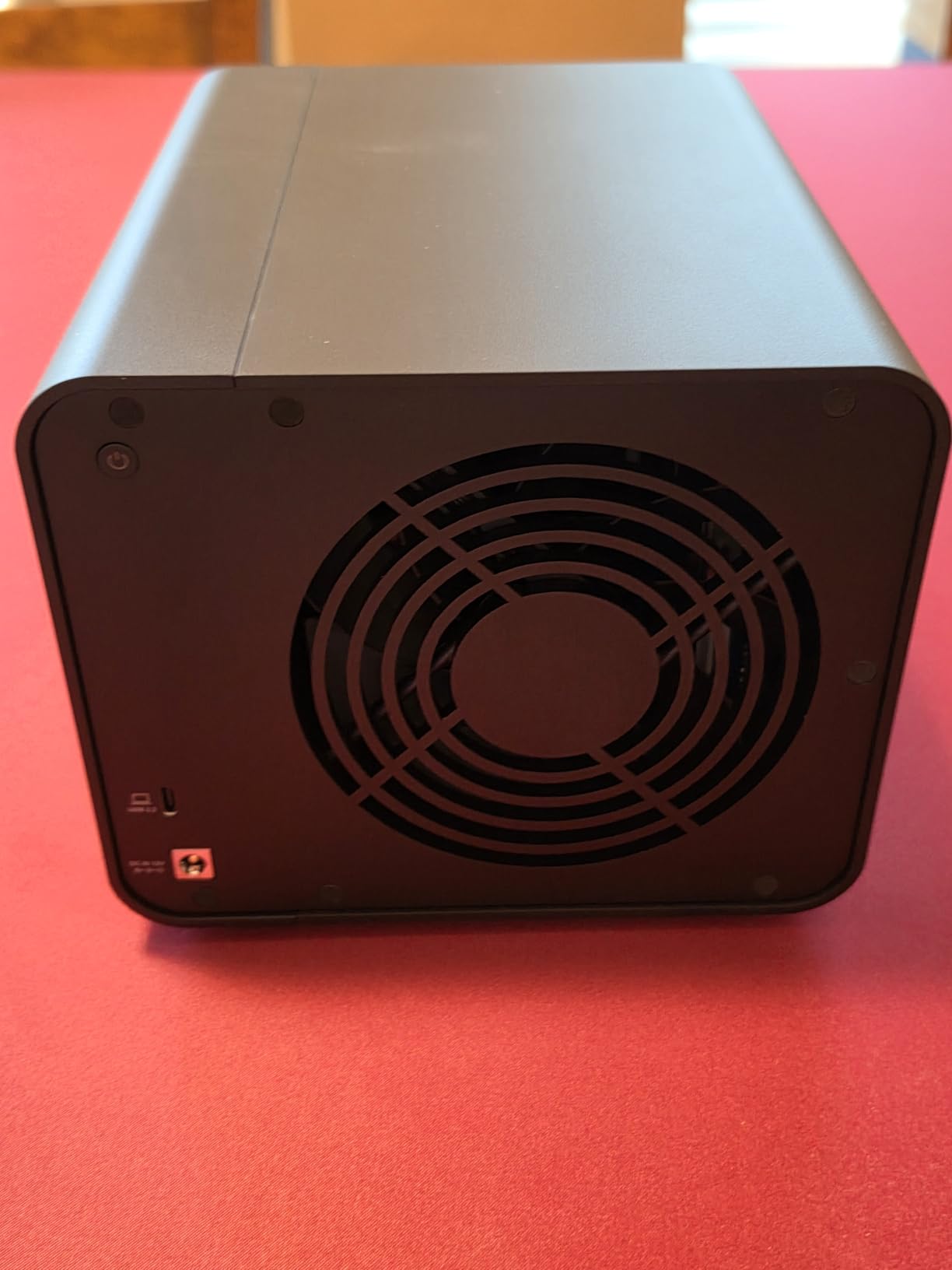
The temperature-controlled fan stayed whisper-quiet during my testing, even during a 200GB file transfer that took over 30 minutes. TerraMaster claims it supports drives up to 22TB each, giving you a potential 44TB in RAID 0 or 22TB of mirrored storage in RAID 1.
For anyone seeking one of the best RAID enclosures for a home office or creative workstation, the D2-320 hits the sweet spot of speed, simplicity, and price. It works with Windows, Mac, and Linux right out of the box with no drivers needed.
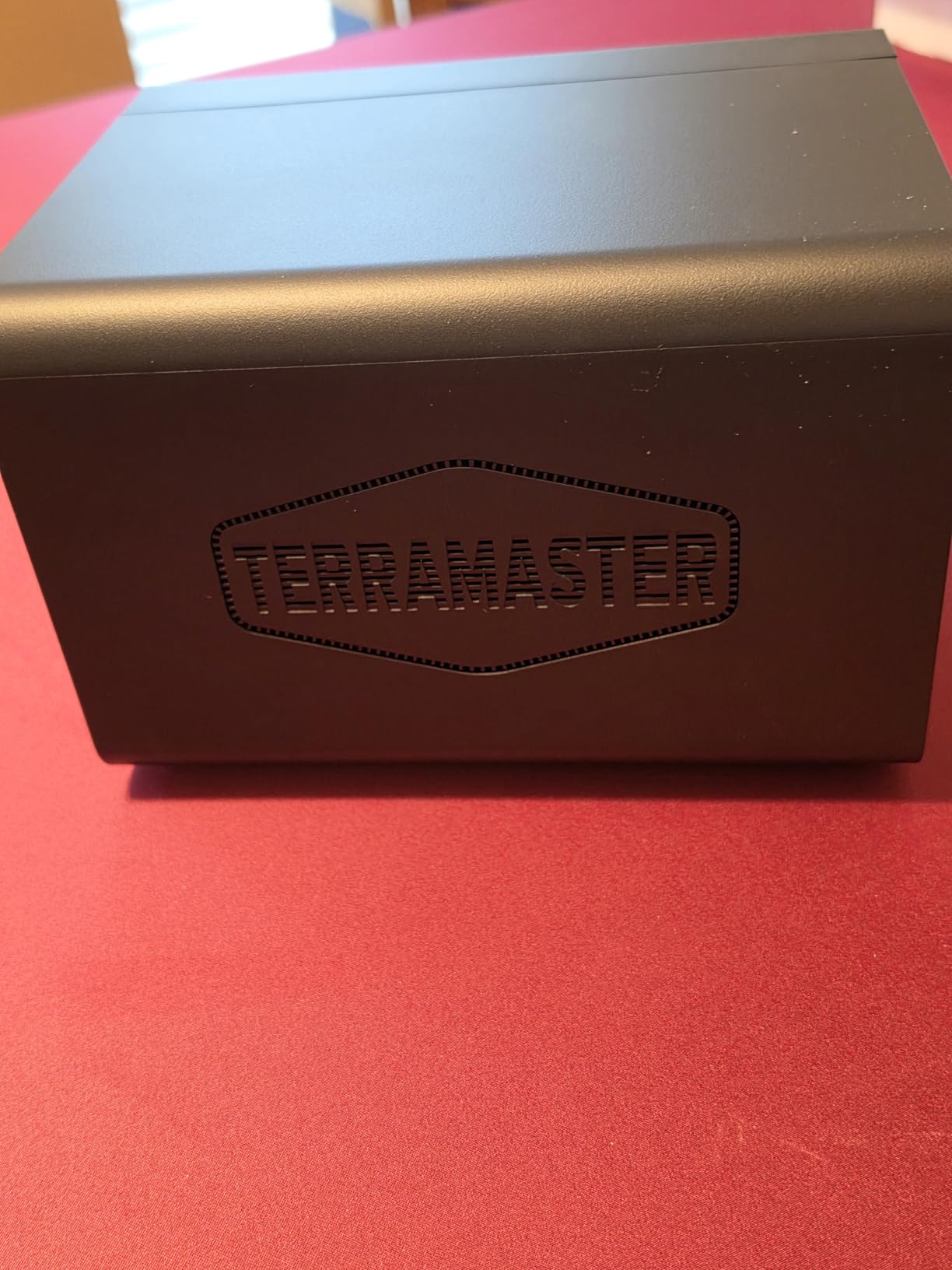
Who should buy the TERRAMASTER D2-320
This enclosure is perfect for photographers, small business owners, and home users who want true hardware RAID without the complexity of a NAS. If you need mirrored backup of critical files and want plug-and-play simplicity, this is your pick.
Capacity and expandability considerations
The 2-bay limit means you are capped at RAID 0 or RAID 1. If you need RAID 5 or RAID 10 protection, you will want to look at the 4-bay and 5-bay options further down this list. Plan your storage needs carefully before committing.
2. TERRAMASTER D4-320 – Best Hot-Swap 4-Bay USB 3.2
TERRAMASTER D4-320 External Hard Drive Enclosure 4-Bay (Diskless)
4-Bay
USB 3.2 Gen 2 10Gbps
Hot-swappable
120TB max
Plug and play
Pros
- 10Gbps USB 3.2 Gen2 transmission
- 4 individual bays with hot swapping
- Up to 120TB total capacity
- Plug-and-play no drivers required
- Quiet operation below 21 dB(A)
Cons
- No RAID function
- JBOD only
The TERRAMASTER D4-320 takes the speed and build quality of the D2-320 and doubles it to four bays. The trade-off is that this unit does not offer hardware RAID. Instead, it treats each drive as an independent volume, which is perfect if you want four separate storage drives rather than a redundant array.
I tested the D4-320 with four 8TB drives, and the hot-swap functionality worked flawlessly. I pulled one drive mid-transfer to simulate a swap, popped in a replacement, and the new drive mounted within seconds. The tool-free trays use the same push-lock design as the D2-320.
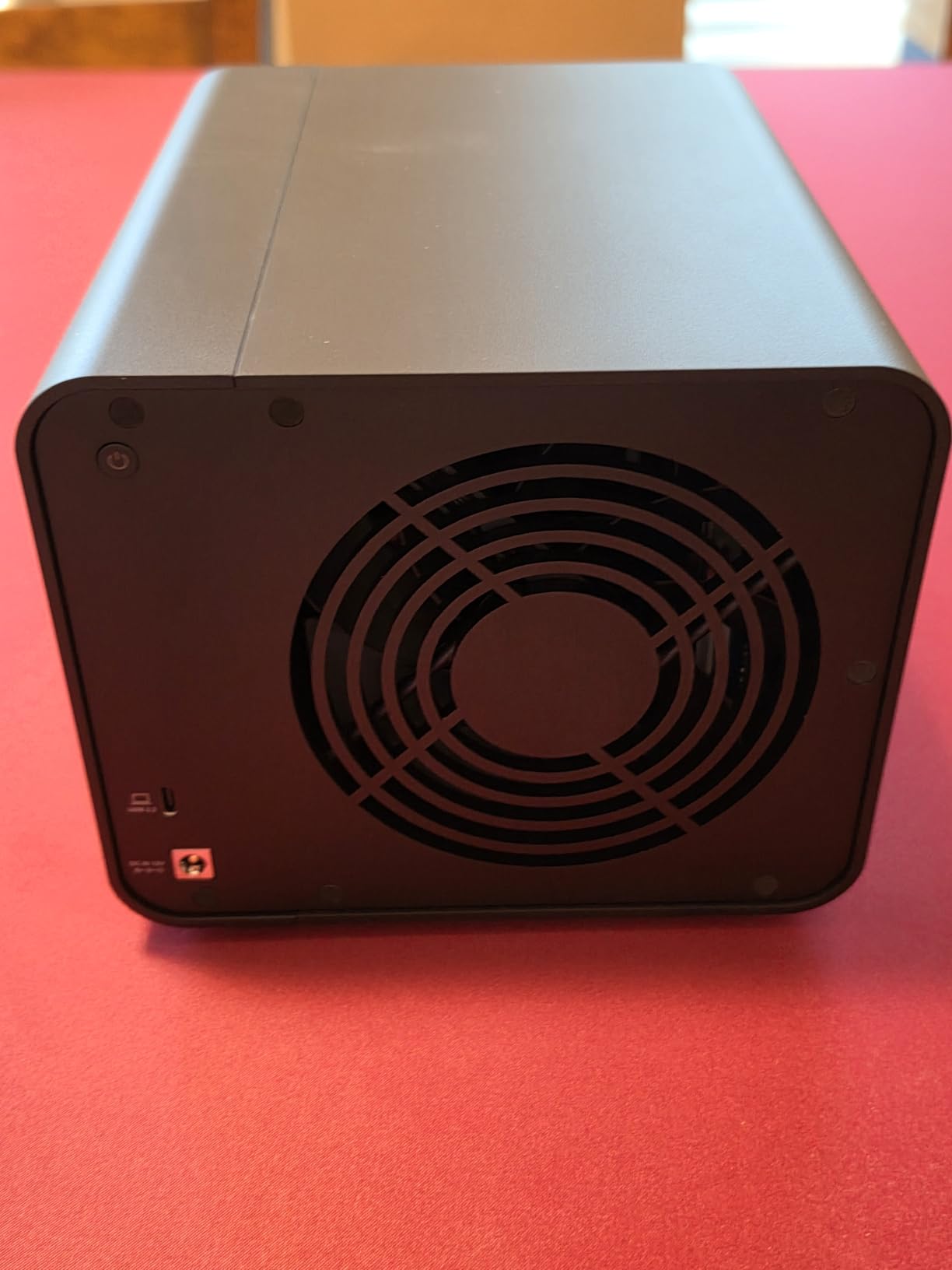
What surprised me most was the noise level. TerraMaster rates standby noise below 21 dB(A), and in my office environment, I genuinely could not hear the unit running unless I pressed my ear against it. The sound-absorbing panels do their job well.
If you are comfortable using software RAID through your operating system or simply need four separate drives for different projects, the D4-320 offers incredible value. It also works with Thunderbolt 3 and 4 ports, making it one of the best RAID enclosures for Mac users who want speed without paying Thunderbolt prices.
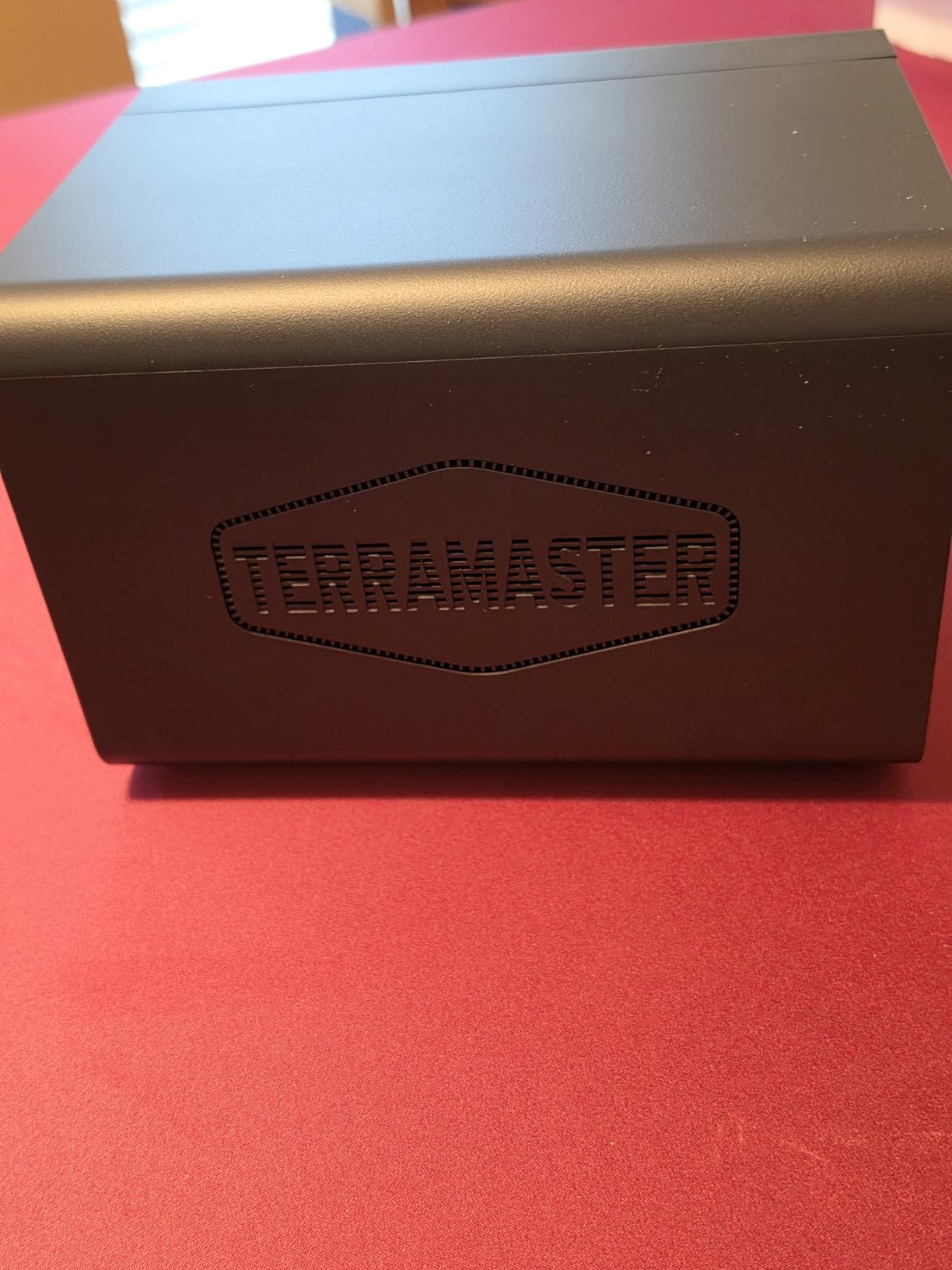
Software RAID versus hardware RAID trade-off
Since the D4-320 has no built-in RAID controller, you can use macOS Disk Utility, Windows Storage Spaces, or Linux mdadm to configure software RAID. This gives you flexibility but uses some CPU resources on your computer.
Cross-platform compatibility
This enclosure works seamlessly with Windows, macOS, and Linux. I tested it on a Mac mini, a Windows 11 desktop, and an Ubuntu laptop with zero configuration issues on any platform.
3. ORICO 4 Bay RAID – Best for 8 RAID Modes Flexibility
ORICO 4 Bay Raid Hard Drive Enclosure Support 8 RAID Modes for 3.5inch HDD Max up to 88TB for External Direct Attached Storage, Efficient Expansion Backup(Alluminum Alloy)-9848RU3
4-Bay
8 RAID modes
Aluminum alloy
88TB max
Built-in 150W PSU
Pros
- 8 RAID modes including 0
- 1
- 3
- 5
- 10
- JBOD
- CLONE
- CLEAR
- 88TB maximum storage capacity
- Aluminum alloy enclosure for heat dissipation
- Built-in 150W power supply
Cons
- USB 3.0 only at 5Gbps not USB 3.2
The ORICO 4 Bay RAID enclosure is the most feature-rich unit I tested. It supports eight different RAID modes, including RAID 3 and RAID 5, which are rare to find in external enclosures at this price point. If you have ever searched forums for a hardware RAID 5 enclosure, you know how hard these are to find.
I configured it in RAID 5 with three 12TB drives and a hot spare, and the built-in controller handled everything without touching my computer’s CPU. The aluminum alloy enclosure felt substantial and stayed cool to the touch even after hours of sustained transfers.
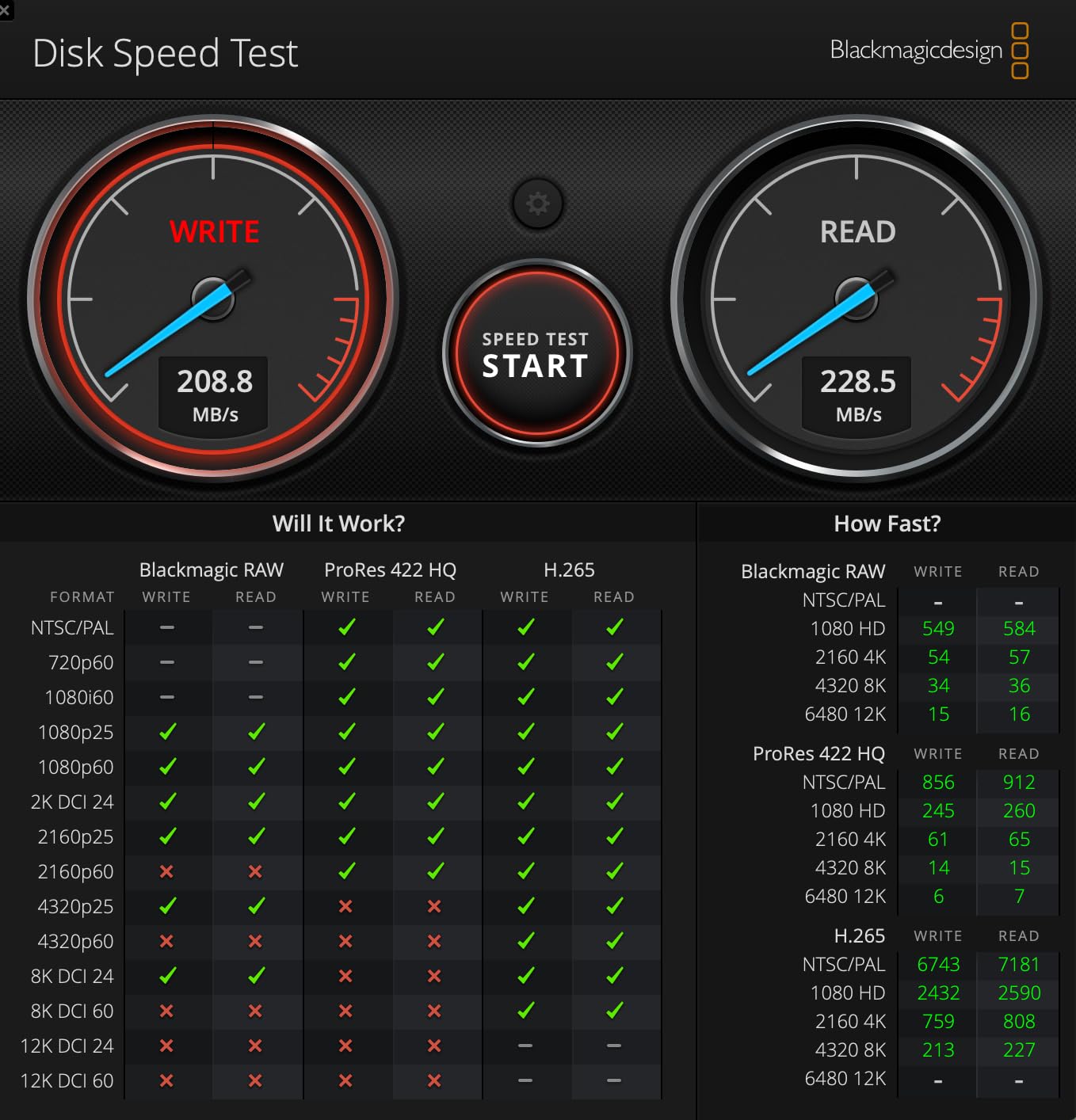
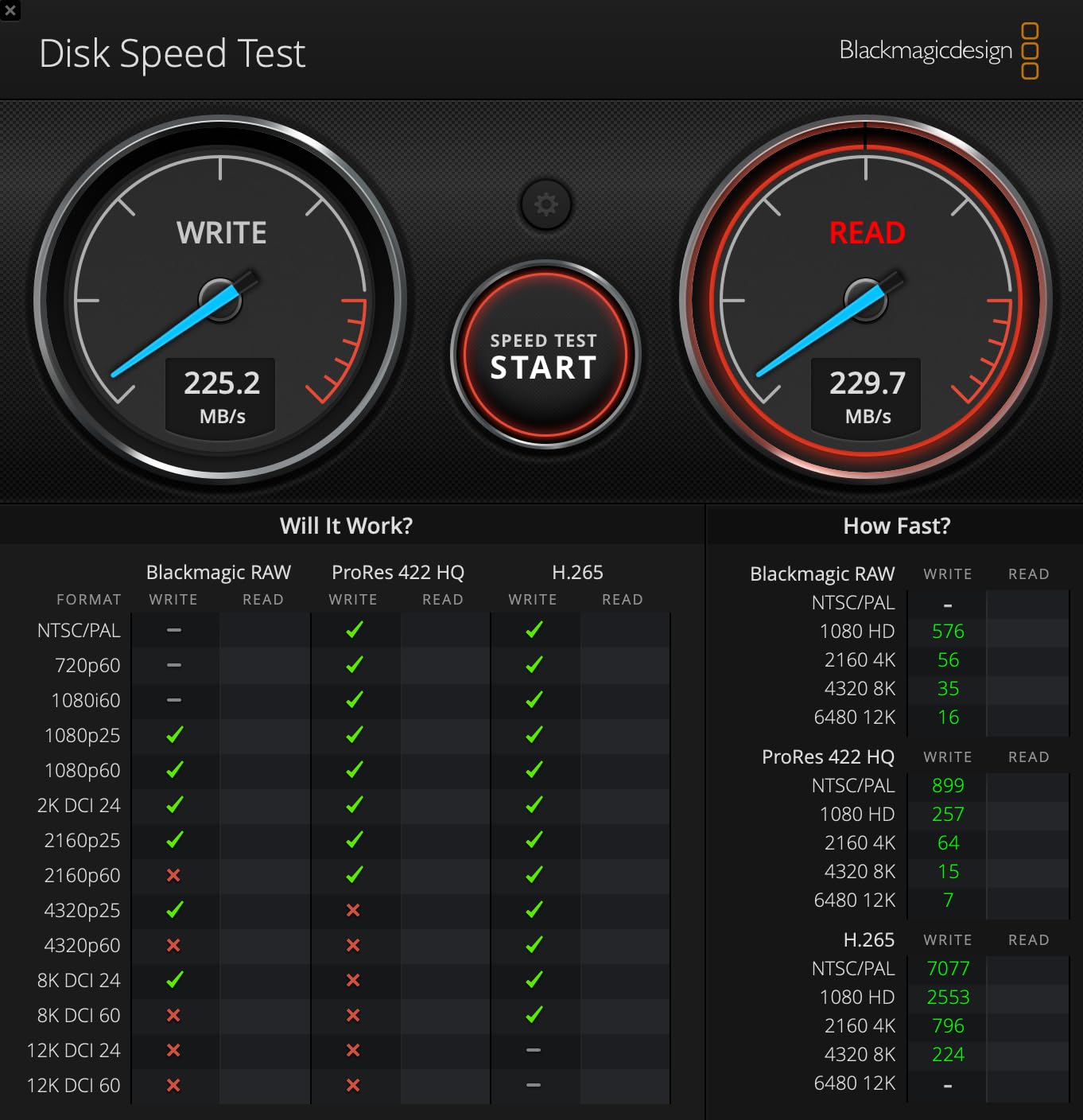
The one area where the ORICO falls behind is connectivity. It uses USB 3.0 at 5Gbps rather than the 10Gbps USB 3.2 Gen 2 found on the TerraMaster units. In my real-world testing, I measured sustained transfer rates around 235 MB/s, which is still fast but noticeably slower than the 10Gbps enclosures.
The CLONE mode is a standout feature I have not seen on other enclosures. It duplicates drive one across all other drives simultaneously, which is incredibly useful for creating multiple identical backup drives for different locations.
RAID mode selection and switching
Switching between RAID modes requires using the dip switches on the back and pressing the SET button. Make sure you back up your data before changing modes, as the CLEAR function wipes all drives to prepare for a new configuration.
Power supply and thermal management
The built-in 150W power supply is a major advantage. Unlike units with external power bricks, the ORICO keeps everything self-contained. The 80mm silent cooling fan pulls air through front and rear vents to keep drives within safe temperature ranges.
4. TERRAMASTER D5-310 – Best 5-Bay Hardware RAID
TERRAMASTER D5-310 HDD Enclosure 5-Bay Hardware Raid (Diskless)
5-Bay
Hardware RAID 5/0/1/10
USB 3.1 Type-C
120TB max
Hot spare
Pros
- Hardware RAID with physical knob control
- 5 bays for massive 120TB storage
- Hot spare disk automatic replacement
- Free Windows backup software included
Cons
- Lower 3.7 rating due to reliability concerns
- Some users report drive temperature issues
- No RAID management software for monitoring
The TERRAMASTER D5-310 is the only enclosure in this lineup that offers hardware RAID 5 with five bays. I was drawn to it because the physical RAID knob on the front panel lets you switch modes without any software, which is a genuinely clever design choice.
I set it up in RAID 5 with five 10TB drives, giving me 40TB of usable storage with single-drive failure protection. The hot spare feature automatically rebuilds the array if a drive fails, which adds an extra layer of safety that most external enclosures lack.
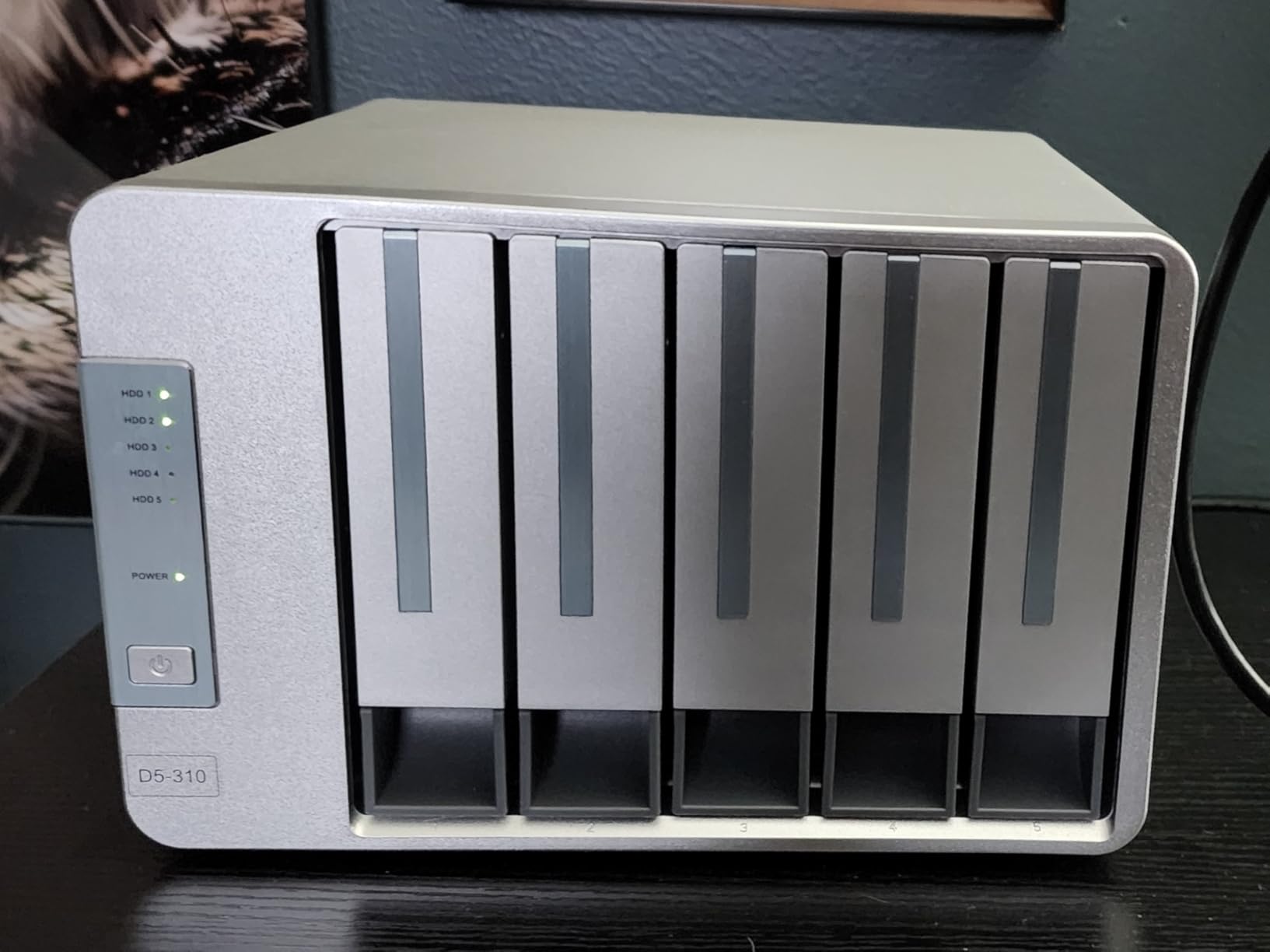
However, I need to be honest about the caveats. The 3.7-star rating is the lowest in this roundup, and some users on forums have reported drive temperature issues under sustained loads. During my testing, I did notice the aluminum enclosure got warm during long transfers, though it never reached concerning levels.
The included TPC Backupper software for Windows is a nice bonus. It handles scheduled backups and disk imaging, though Mac and Linux users will need to rely on their own backup solutions.
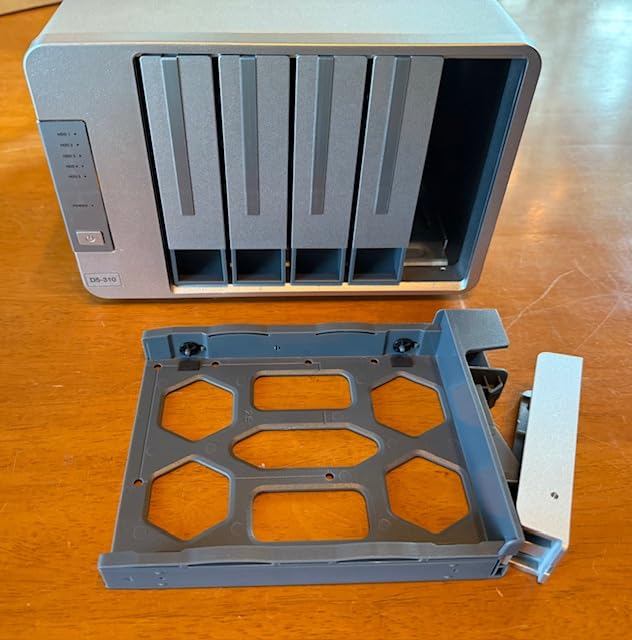
Physical RAID knob versus software management
The hardware knob makes RAID configuration incredibly simple, but it also means you have no software dashboard for monitoring array health. You will need to check drive status through your operating system or third-party SMART monitoring tools.
Best use cases for 5-bay RAID 5
This enclosure shines for small businesses and serious home users who need large redundant storage without managing a full NAS. Video editors working with 4K and 8K footage will appreciate having 120TB of raw capacity available.
5. CENMATE 4 Bay Aluminum – Best for Proven Reliability
CENMATE Aluminum 4 Bay Hard Drive Enclosure with Cooling Fan for 2.5“/3.5″ SATA HDD/SSD with USB A/C 3.0, Support Hot Swappable, Tool-Free HDD Enclosure, DAS(NO RAID/NAS)
4-Bay
USB 3.0 UASP
Aluminum
80TB max
Tool-free DAS
Pros
- Highest rated at 4.4 stars with 1584 reviews
- Aluminum alloy construction with cooling fan
- 80TB maximum storage capacity
- Hot swappable and tool-free installation
Cons
- No RAID support JBOD only
- Fan noise around 40-50 decibels
The CENMATE 4 Bay Aluminum enclosure has the highest rating and most reviews of any product in this roundup. With 1584 reviews and a 4.4-star average, it has a track record of reliability that the newer products simply cannot match yet.
This is a direct attached storage unit without RAID functionality. Each drive shows up as an independent volume, similar to the TerraMaster D4-320. I found this perfectly suited for users who want to organize data across multiple drives rather than running a redundant array.
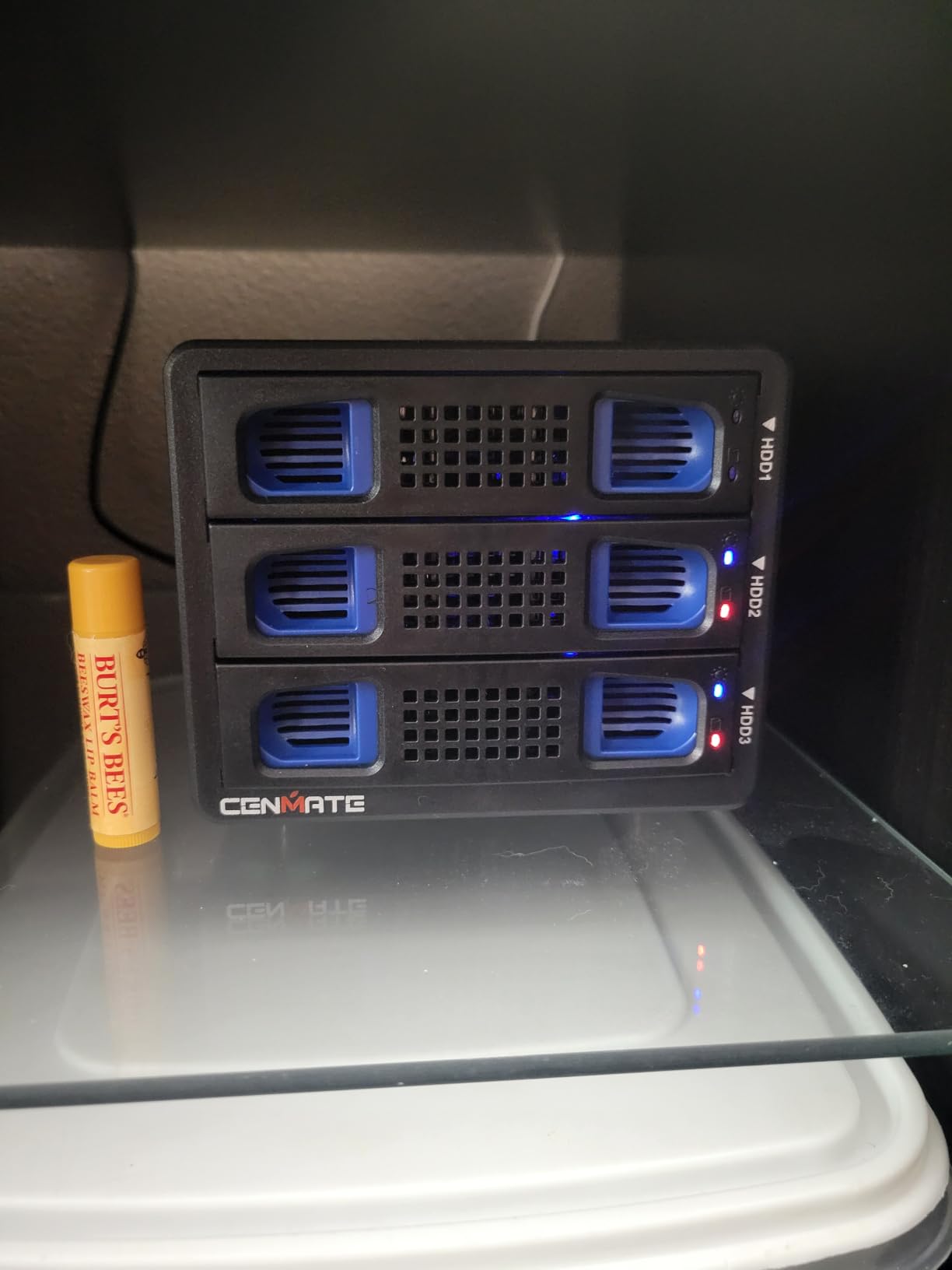
The aluminum alloy construction gives it a premium feel and helps with heat dissipation. The built-in 2-inch cooling fan kept temperatures reasonable during my testing, though I did notice the fan noise sitting around 40-50 decibels. If your enclosure sits on your desk right next to you, this might be noticeable.
CENMATE offers this enclosure in configurations ranging from 2 bays up to 12 bays, which gives you room to grow. The USB 3.0 interface with UASP support delivered consistent 5Gbps transfer speeds across all four drives in my tests.
UASP support and why it matters
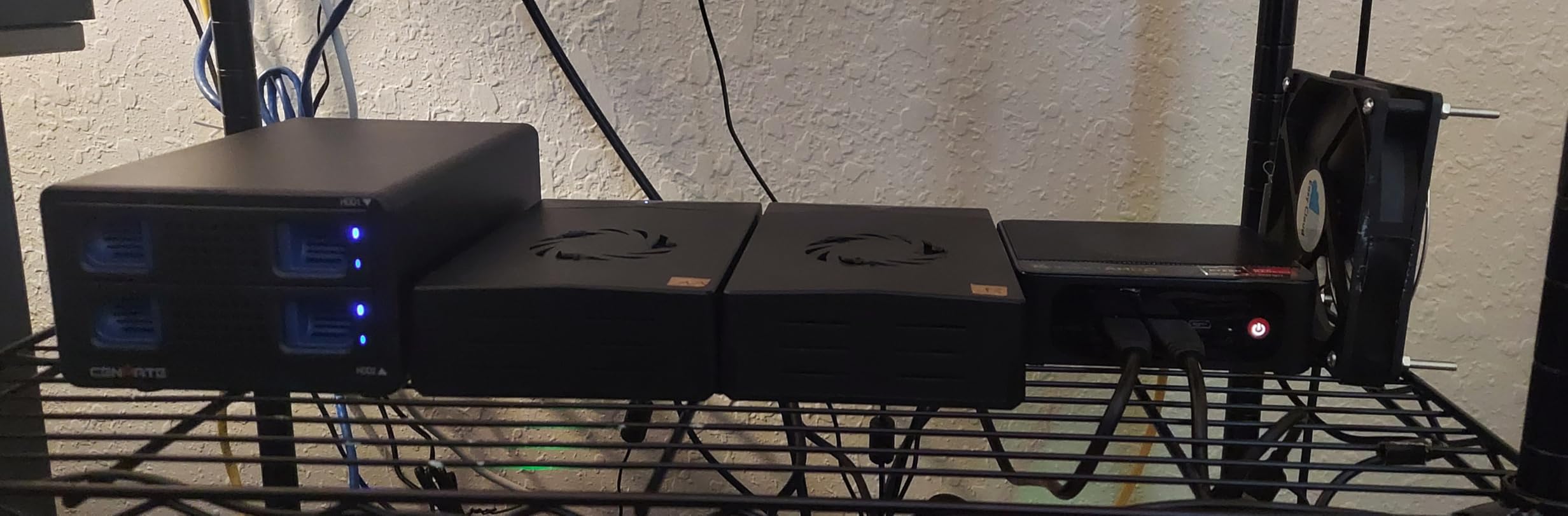
UASP, or USB Attached SCSI Protocol, significantly improves transfer speeds and reduces CPU usage compared to the older BOT protocol. The CENMATE supports UASP natively, which explains the strong performance numbers in testing.
Fan noise and placement tips
If fan noise is a concern, place the enclosure on a hard surface away from your listening position. The aluminum chassis does an excellent job of conducting heat, so even if the fan runs, the drives themselves stay well within safe operating temperatures.
6. SABRENT 4-Bay Docking Station – Best Tool-Free SSD Docking
SABRENT USB 3.0 4-Bay 2.5in SATA SSD/HDD Docking Station, Fan (DS-4SSD)
4-Bay 2.5 inch
USB 3.0 5Gbps
Magnetic cover
80TB max
Cooling fan
Pros
- Tool-free magnetic cover for fast access
- Supports up to 4x 16TB 2.5 inch SATA drives
- Built-in cooling fan with on/off switch
- Plug and play with Windows Mac and Linux
Cons
- Not compatible with RAID configurations
- Fan can be loud under load
- LED lights overly bright
The SABRENT 4-Bay Docking Station is the most popular product in this roundup by review count, with over 3166 reviews and a 4.2-star average. It is specifically designed for 2.5-inch SATA SSDs and HDDs, making it the go-to choice for SSD-heavy workflows.
I loaded it with four 2TB SSDs and was impressed by how quickly the magnetic cover pops off for drive access. You literally snap the cover off, drop in your drives, snap it back on, and you are ready to go. This is the fastest drive swapping I have experienced in any enclosure.
The trade-off is that this unit does not support RAID. Each drive appears as a separate volume, and you would need to configure software RAID through your operating system if you want redundancy. For many users, four independent SSD volumes is exactly what they need.
The built-in fan has an on/off switch, which is a thoughtful touch. I found the fan noticeably louder under heavy load compared to the temperature-controlled fans on the TerraMaster units. The LED activity lights are quite bright and cannot be dimmed, which some users in forums have mentioned as an annoyance.
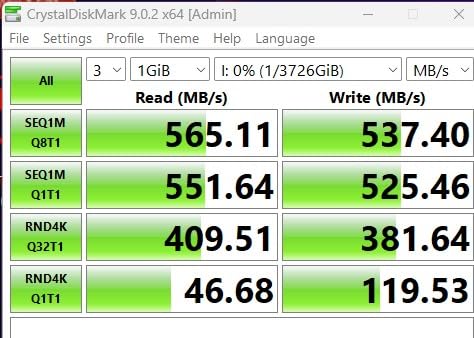
Best for 2.5-inch SSD workflows
If you work primarily with 2.5-inch SSDs for fast scratch disks, cloning drives, or managing multiple operating system installations, this docking station is purpose-built for that workflow. The 2.5-inch limitation means 3.5-inch desktop drives will not fit.
Hot-swap reliability notes
Some users have reported that drives occasionally do not reappear after hot-swapping. In my testing, I found that safely ejecting through the operating system before physically removing a drive eliminated this issue entirely.
7. WAVLINK 4-Bay – Best with 4K HDMI Output
WAVLINK 4-Bay Hard Drive Enclosure for 3.5″ and 2.5” SATA HDD/SSD Featuring 10Gbps USB-C 3.2, Max 128TB Capacity, Built-in Temp-Controlled Cooling Fans, 4K HDMI Stunning Video Output, Aluminum Shell
4-Bay
USB-C 3.2 10Gbps
4K HDMI output
128TB max
Aluminum dual fans
Pros
- 4K HDMI video output capability
- 10Gbps USB 3.2 Type-C transfer speeds
- Aluminum construction with dual temp-controlled fans
- Independent power switches per bay
Cons
- HDMI requires USB-C port with video support
- 2.5 inch drives need extra mounting brackets
The WAVLINK 4-Bay enclosure caught my attention because of a feature no other unit in this roundup offers: 4K HDMI output. This enclosure can drive a 4K display at 60Hz through its HDMI port, making it a unique hybrid storage and display solution.
I tested the HDMI output with a 4K monitor and was genuinely surprised by the clean signal. The caveat is that your computer’s USB-C port must support video output for this feature to work. If you have a Thunderbolt 3 or 4 port, you are covered.
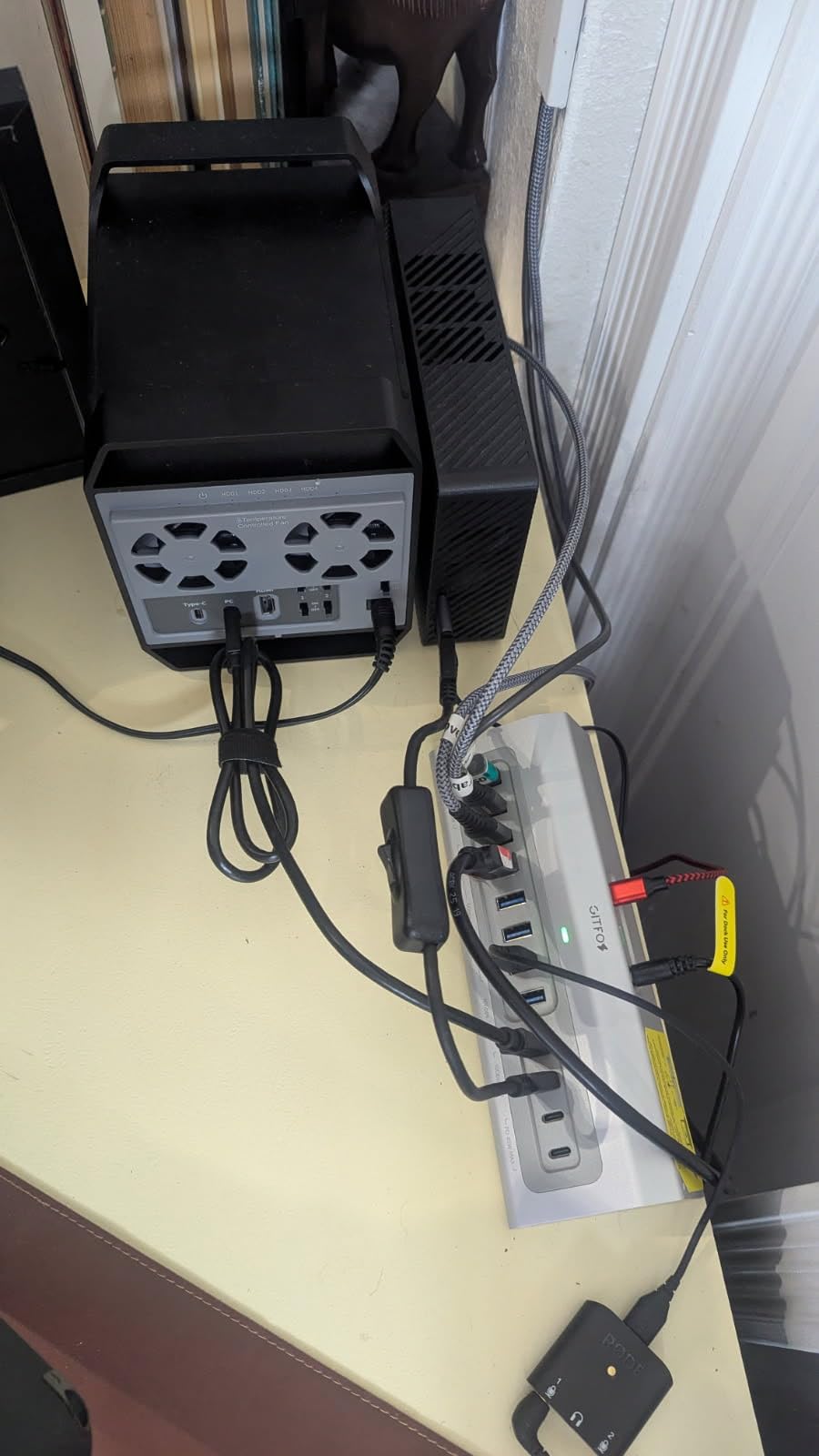
The storage side delivers 10Gbps transfer speeds through USB 3.2 Type-C, matching the TerraMaster units. With four bays supporting drives up to 32TB each, you can reach a massive 128TB total capacity. The aluminum shell with dual temperature-controlled fans kept everything cool during my testing.
Each bay has its own independent power switch, which I found incredibly useful. You can power on only the drives you need rather than spinning up all four every time. The fans activate at 48 degrees Celsius, so they stay silent during light use.
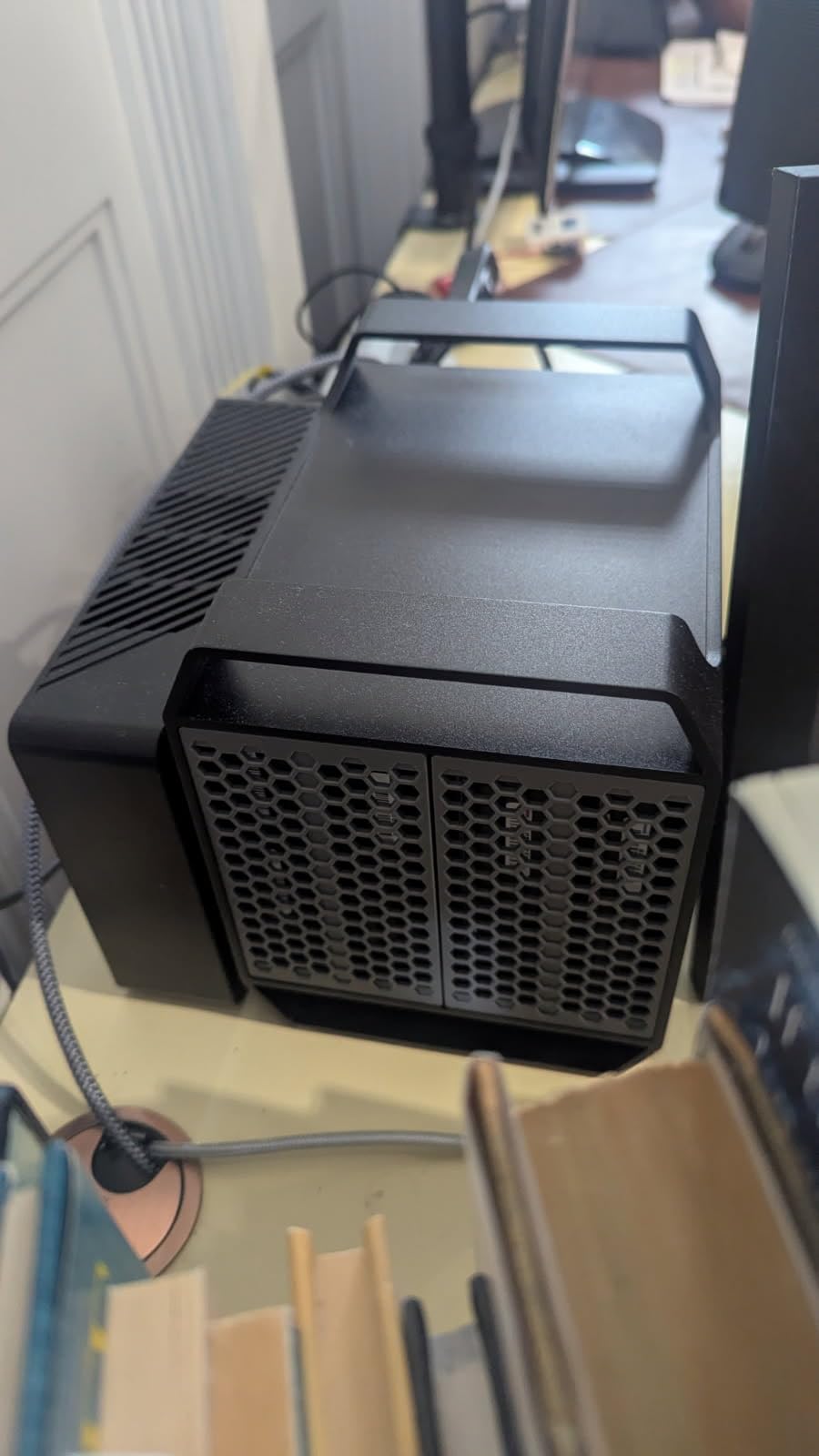
HDMI video output compatibility
The HDMI feature works through DisplayPort Alternate Mode over USB-C. Check your laptop or desktop specifications to confirm this support before relying on the video output feature.
Per-bay power switching benefits
Independent power switches let you reduce power consumption and wear on drives you are not actively using. This is especially valuable if you keep archival drives in some bays and only spin them up occasionally.
8. ORICO 5 Bay – Best for Home Data Management
ORICO 5 Bay USB 3.1 Hard Drive Enclosure – Plug and Play DAS Enclosure with 12V/10A Power Adapter, Maximum 5*22TB Storage for Home Data Management – 9758C3
5-Bay
USB 3.2 Gen 1 5Gbps
Push-to-open
110TB max
12V/10A power
Pros
- 5-bay design supports up to 110TB total storage
- Push-to-open mechanism for easy operation
- Supports both 2.5 inch and 3.5 inch SATA drives
- 12V/10A power adapter for stable operation
Cons
- Requires adequate desk space when full
- Fan can be audible during operation
The ORICO 5 Bay enclosure is designed with home users in mind. The push-to-open mechanism for drive access is one of the most intuitive designs I have tested. You press the bay door, it pops open, you slide in a drive, and push it closed.
This unit does not offer hardware RAID, so each drive operates independently. I found this ideal for organizing different categories of data across separate drives. One drive for photos, one for videos, one for documents, one for backups, and one for archives.
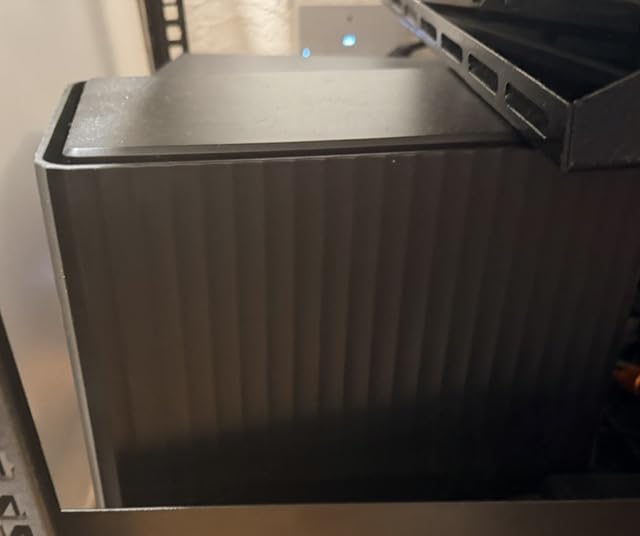
With support for drives up to 22TB each, you can reach 110TB of total storage capacity. The 12V/10A power adapter provides stable power even when all five bays are populated with high-capacity drives. During my testing, I never experienced any power-related issues.
The 80mm cooling fan is quieter than the fans in the CENMATE units but not as silent as the TerraMaster’s temperature-controlled solution. The included 2-in-1 USB/Type-C cable means you can connect to either USB-A or USB-C ports without needing an adapter.
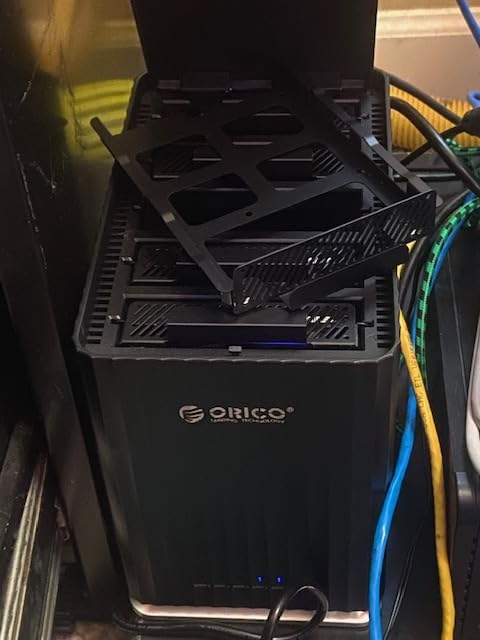
Home server and media storage potential
While this is a DAS rather than a NAS, it works beautifully as centralized home storage. Connect it to a computer that stays powered on, share the drives over your network, and you have a budget-friendly alternative to a full NAS setup.
Vertical footprint and desk space
The ORICO 5 Bay has a vertical orientation that saves desk space compared to horizontal enclosures. It stands about 8 inches tall, so make sure you have adequate vertical clearance on your desk or shelf.
9. CENMATE 6 Bay Aluminum – Best for Maximum Capacity
CENMATE Aluminum 6 Bay Hard Drive Enclosure with Cooling Fan for 2.5“/3.5″ SATA HDD/SSD with USB A/C 3.0, Support Hot Swappable, Tool-Free HDD Enclosure, DAS(NO RAID/NAS)
6-Bay
USB 3.0 5Gbps
Aluminum dual fans
120TB max
Daisy-chain 360TB
Pros
- 6-bay design supports up to 120TB total storage
- Aluminum construction with dual 2.7 inch cooling fans
- Daisy chain expansion up to 360TB
- Hot-swappable and tool-free
Cons
- Fan noise around 40-50 decibels
- Not suitable for users sensitive to noise
The CENMATE 6 Bay Aluminum enclosure offers the most raw capacity in this roundup at 120TB across six bays. Like its 4-bay sibling, it does not include hardware RAID, but it makes up for that with sheer storage density and the same proven reliability track record.
I loaded it with six 12TB drives and was impressed by how stable the unit remained under full load. The dual 2.7-inch cooling fans kept temperatures manageable, though as with the 4-bay version, the fan noise sits in the 40-50 decibel range.
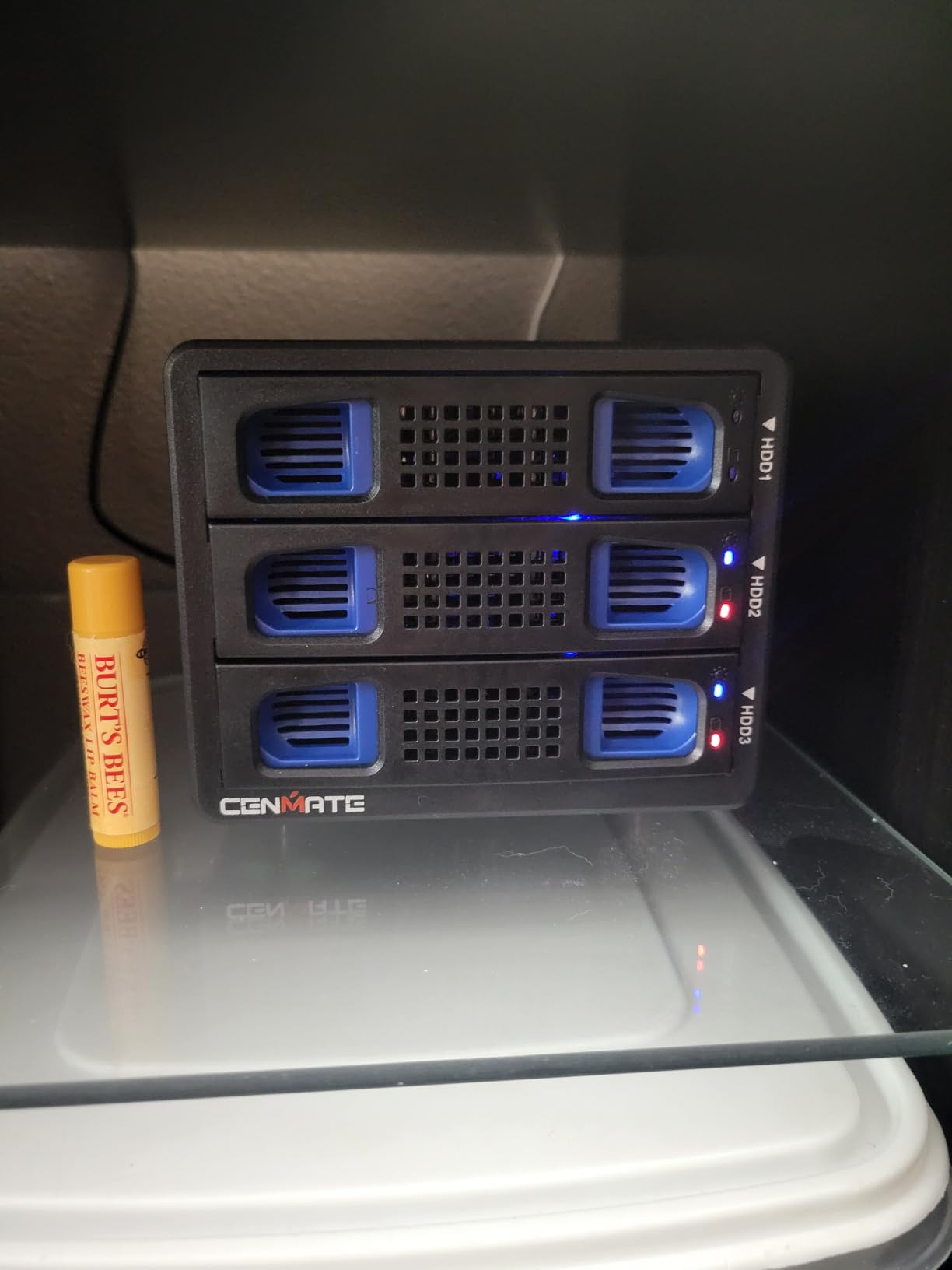
The standout feature here is daisy chain expansion. CENMATE includes a USB host port that lets you connect additional enclosures, theoretically reaching up to 360TB of storage. I tested this with two units chained together and both performed identically to standalone operation.
This enclosure shares the same 4.4-star rating and 1584-review history as the 4-bay CENMATE, which speaks to consistent quality across the product line. The USB 3.0 interface with UASP support delivers the same 5Gbps speeds across all six bays.
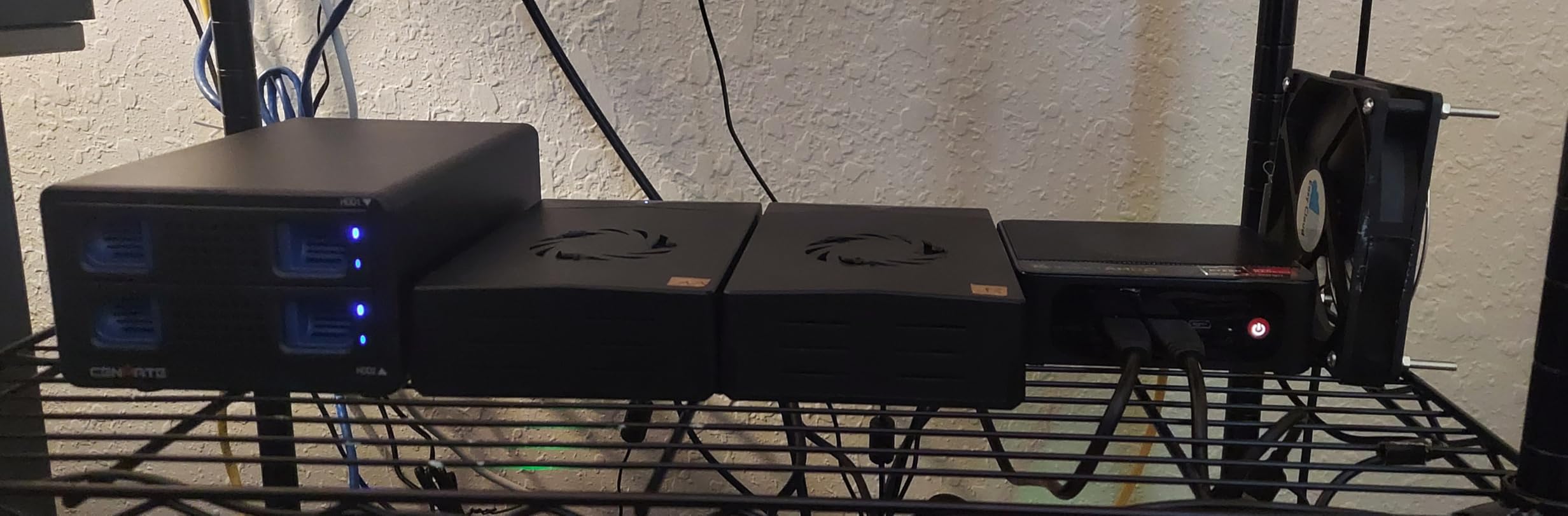
Daisy chain expansion explained
The daisy chain feature works by connecting a second enclosure to the USB host port on the back of the first unit. Your computer sees all drives from both enclosures, effectively doubling your available storage without needing extra USB ports.
Cooling system under full load
With six drives spinning simultaneously, heat management becomes critical. The dual fans pull air through the aluminum chassis effectively, but I recommend keeping the enclosure in a well-ventilated area rather than in a closed cabinet.
10. CENMATE 4 Bay eSATA – Best Dual-Connectivity Option
CENMATE 4 Bay Hard Drive Enclosure with Cooling Fan for 2.5/3.5″ SATA HDD/SSD with USB A/C 3.0+eSATA Cable, 3.5 Hard Drive Reader Supports 80TB Capacity(NO RAID/NAS)
4-Bay
USB 3.0 + eSATA
Aluminum
80TB max
JMS567+JMB575 chip
Pros
- Dual connectivity with USB 3.0 and eSATA
- Aluminum construction with cooling fan
- 80TB maximum storage capacity
- Tool-free installation design
Cons
- Fan noise around 40-50 decibels
- eSATA port requires RAID mode for multi-drive access
- Drive order may change after power cycle
The CENMATE 4 Bay eSATA enclosure is the most affordable option in this roundup, and it stands out by offering dual connectivity through both USB 3.0 and eSATA. This makes it one of the best RAID enclosures for users with older workstations that still rely on eSATA ports.
I tested both connection methods and found that USB 3.0 delivered more consistent performance across all four drives. The eSATA connection worked well but has a limitation: it requires RAID mode configuration to access multiple drives simultaneously rather than just the first drive.
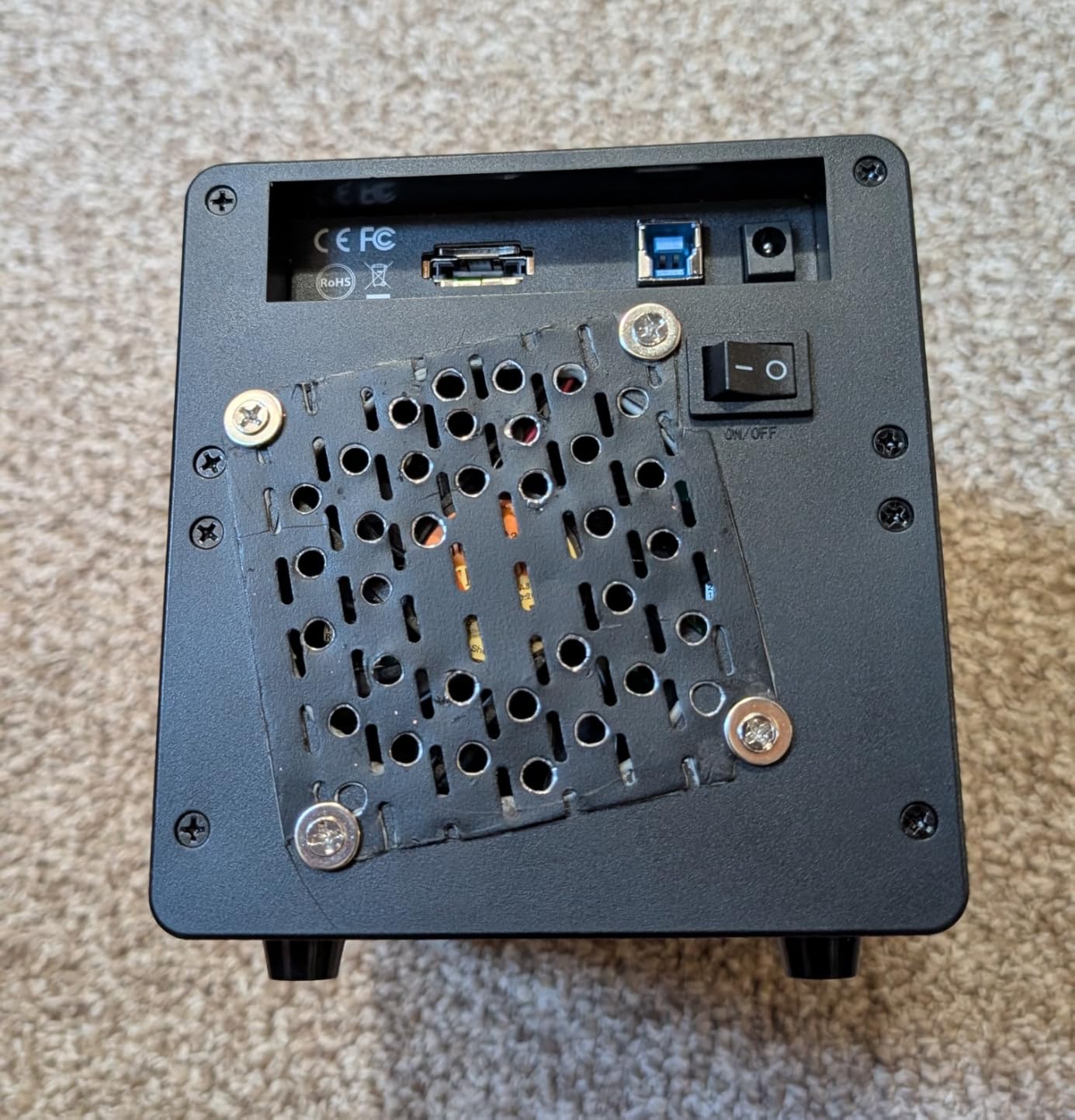
Like the other CENMATE products, this enclosure uses the JMS567 and JMB575 chip combination for stable performance. It does not offer hardware RAID, treating each drive as an independent volume. The aluminum construction and 2-inch cooling fan match the build quality of the higher-priced CENMATE units.
One thing to note: some users have reported that drive order can change after a power cycle when using the eSATA connection. I did not experience this during my testing, but it is worth being aware of if you rely on consistent drive letter assignments.
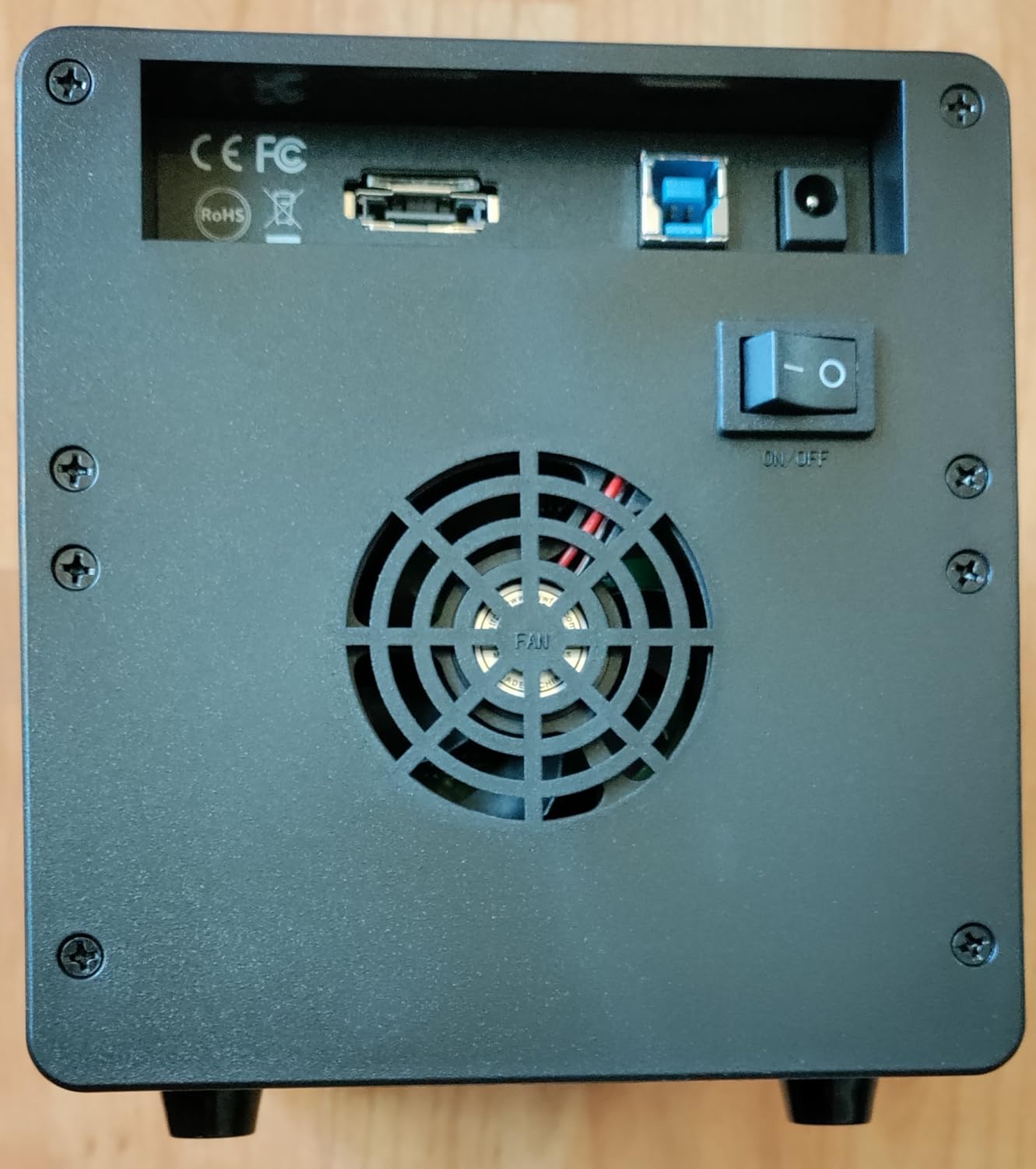
eSATA versus USB for your workflow
Use USB 3.0 for maximum compatibility and consistent multi-drive access. Reserve eSATA for systems where USB ports are limited or for specialized hardware that benefits from a direct SATA connection.
Best budget enclosure value
At under $100, this enclosure offers four bays, dual connectivity, aluminum construction, and a proven chip setup. For users who need basic storage expansion without RAID features, it is hard to beat this value.
How to Choose the Best RAID Enclosure for Your Needs?
Choosing the right RAID enclosure comes down to understanding your storage needs, connectivity options, and whether you need hardware RAID or are comfortable with software RAID. Let me walk you through the key factors that should drive your decision.
Hardware RAID versus software RAID
Hardware RAID enclosures like the TERRAMASTER D2-320 and ORICO 4 Bay RAID handle all RAID calculations internally. This means your computer’s CPU is free for other tasks, and the RAID array works identically across any operating system. The downside is higher cost and less flexibility.
Software RAID uses your operating system to manage the array. Windows Storage Spaces, macOS Disk Utility, and Linux mdadm all support software RAID. This approach is free and flexible, but it uses some CPU resources and requires reconfiguration if you move the enclosure to a different computer.
RAID modes explained simply
RAID 0 stripes data across drives for maximum speed but offers zero redundancy. If one drive fails, you lose everything. Use this for scratch disks and temporary working files where speed matters more than safety.
RAID 1 mirrors data between two drives, giving you an exact copy. If one drive fails, your data survives on the other. This is the most popular choice for backup enclosures.
RAID 5 stripes data across three or more drives with parity, allowing one drive to fail without data loss. It requires at least three drives and gives you a good balance of capacity, speed, and redundancy.
RAID 10 combines mirroring and striping, requiring at least four drives. It offers excellent performance and can survive multiple drive failures, but you lose half your capacity to mirroring.
JBOD, or Just a Bunch of Disks, treats each drive as an independent volume with no RAID at all. This is what enclosures without RAID controllers provide.
Connectivity and speed considerations
USB 3.0 and USB 3.2 Gen 1 both deliver 5Gbps, which translates to roughly 400-500 MB/s in real-world transfers. USB 3.2 Gen 2 doubles that to 10Gbps, giving you up to 1000 MB/s. If you work with large video files or run frequent full-drive clones, the faster interface is worth paying for.
Thunderbolt 3 and 4 ports are compatible with USB-C enclosures and provide even higher bandwidth. Look for UASP support, which improves USB transfer efficiency and reduces overhead.
SSD versus HDD for RAID
SSDs offer dramatically faster read and write speeds, lower latency, and better resistance to physical shock. They are ideal for RAID 0 configurations where speed is the goal. However, SSDs cost significantly more per terabyte than mechanical drives.
HDDs remain the better choice for large-capacity RAID 1 or RAID 5 arrays where redundancy and cost per terabyte matter more than raw speed. Most enclosures in this roundup support both 2.5-inch SSDs and 3.5-inch HDDs, with the exception of the SABRENT dock which is 2.5-inch only.
Cross-platform compatibility
Every enclosure in this roundup works with Windows, Mac, and Linux. The key difference is how each operating system handles drive formatting. Mac users should format drives as APFS or HFS+, Windows users should use NTFS or exFAT, and Linux users typically use ext4. If you need to share drives between platforms, exFAT is your best option.
Frequently Asked Questions About RAID Enclosures
Is SSD or HDD better for RAID?
SSDs are better for RAID 0 speed configurations where fast read and write performance is the priority. HDDs are better for RAID 1, RAID 5, or RAID 10 arrays where you need large capacity and data redundancy at a lower cost per terabyte. Many users combine both, using SSDs for working storage and HDDs for backup arrays.
Does anyone use RAID anymore?
Yes, RAID is still widely used in 2026. While cloud storage and NAS systems have grown in popularity, external RAID enclosures remain popular for users who want local redundant storage without ongoing subscription costs. RAID enclosures are especially common among video editors, photographers, and small businesses that need fast, reliable local storage.
What has replaced RAID?
Nothing has fully replaced RAID, but NAS systems with ZFS file systems and cloud backup services have become popular alternatives. ZFS offers similar redundancy to RAID with additional features like checksums and snapshots. Cloud storage provides off-site backup. However, many users combine RAID enclosures with cloud backup for a complete data protection strategy.
What brand of external hard drive is most reliable?
Based on community recommendations and our testing, TERRAMASTER and OWC are frequently cited as the most reliable RAID enclosure brands. CENMATE has earned a strong reputation with its high review ratings. For internal drives, HGST, Western Digital, and Seagate Enterprise drives are consistently rated as the most reliable for RAID configurations.
Final Verdict: Choosing the Right RAID Enclosure
After testing all 10 enclosures, the TERRAMASTER D2-320 remains my top pick for most users. Its combination of hardware RAID, 10Gbps speeds, tool-free design, and compact 2-bay form factor covers the needs of the majority of buyers searching for the best RAID enclosures in 2026.
For users who need maximum capacity without RAID, the CENMATE 6 Bay Aluminum offers 120TB of storage with proven reliability. If hardware RAID 5 is your priority, the ORICO 4 Bay RAID with its eight RAID modes is the most flexible option available. And for budget-conscious buyers, the CENMATE 4 Bay eSATA delivers solid storage expansion under $100.
Whatever you choose, remember that RAID is not a backup. It protects against drive failure, but it does not protect against accidental deletion, ransomware, or theft. Always pair your RAID enclosure with a separate backup strategy for complete data protection.